# Foldnano Documentation – Full Content
────────────────────────────────────────────────────────────
# Getting Started
Foldnano is a browser-based DNA nanostructure editor for routing DNA designs across **lattice** and **freeform** regions. Everything runs in your browser, with no install and no server-side document store. Foldnano is **local-first**: your working copy lives in this browser (in IndexedDB) until you download a file or explicitly sync it to GitHub.
If you have used cadnano before, most concepts will feel familiar, but Foldnano is more flexible. Scaffold identity is explicit, lattice and freeform geometry can coexist in one design, and edits are fully undoable. The [Mental Model](https://fold.xinshilab.com/docs/guide/mental-model) page explains the differences in depth.
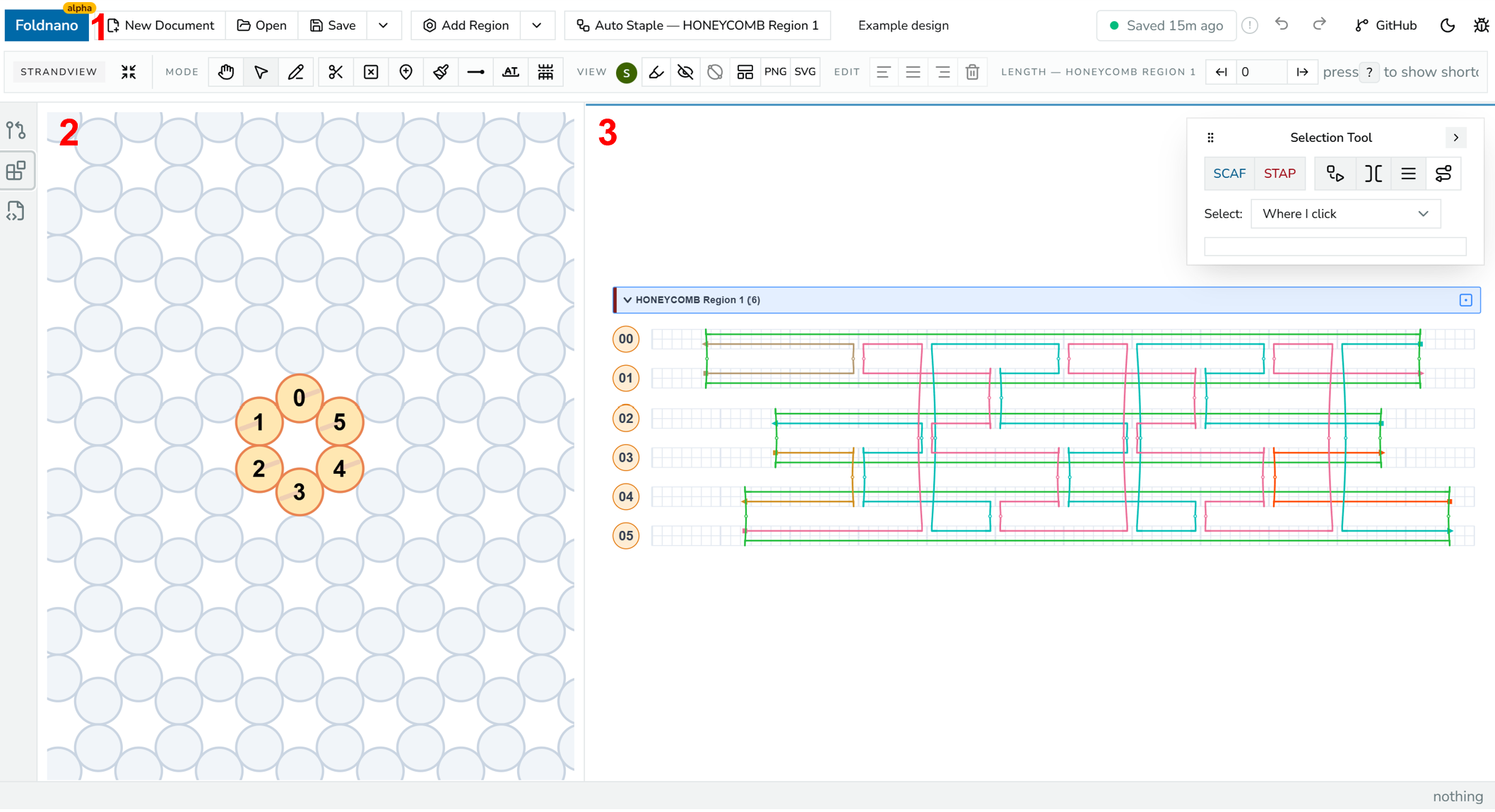
*The editor's three areas: **1** top toolbar, **2** left pane, **3** right pane.*
## Supported Browsers
Use a Chromium-based browser such as **Chrome**, **Edge**, **Brave**, or **Arc**. Foldnano is developed and tested in these, and they run large designs and the 3D view fastest. **Firefox** and **Safari** work, but noticeably slower; the editor shows a notice in them that you can dismiss. Phones and tablets are not a target.
## The Workspace At A Glance
The editor has three coordinated areas that stay in sync, so an edit in one is immediately reflected in the others.
| Area | What lives here |
| --- | --- |
| **Top toolbar** | New Document, Open, Save, the save/export menu, Add Region, Auto Staple, document name, Undo/Redo, and the GitHub controls |
| **Left pane** | The **Plane** view (lattice or freeform placement) or the **3D** view, switched with the `Plane / 3D` toggle in the left-pane toolbar |
| **Right pane** | The **strand viewer**, the main routing canvas where you draw scaffold and staple paths |
| **Icon rail** (far left) | Opens the **Source Control** (GitHub) and **Plugins** side panels, plus panels added by plugins |
| **Status bar** (bottom) | GitHub branch and sync state for GitHub files, and details of whatever is under the pointer |
Every button in these areas is listed in the [Interface Reference](https://fold.xinshilab.com/docs/guide/interface-reference).
The left pane is for *placing* helices and *inspecting* the structure in 3D. The right pane is where you do the actual DNA *routing*. The tool row (Select, Draw, Break, and so on) belongs to the strand viewer.
## Your First Design, Step By Step
The fastest way to learn Foldnano is to build a tiny design end to end. The whole loop takes a couple of minutes.
1. Open the editor (the **Open App** link, or `/editor`) and click **New Document** in the top toolbar.
2. On the start screen, pick **Honeycomb**, **Square**, or **Freeform** (or use the toolbar's **Add Region** menu), choose a base plane in the **New Region** panel, and click **Create … Region Here**. Start with honeycomb or square for a cadnano-style lattice; choose freeform when helices should *not* snap to honeycomb or square coordinates.
3. With the left pane on **Plane** and the **Draw** tool (`n`) active, click empty lattice cells to add virtual helices.
4. Move to the strand viewer to route DNA: pick **Draw**, drag across a helix row to lay down a strand, then drag between compatible ends to add crossovers.
5. Mark the scaffold explicitly (see [Mental Model](https://fold.xinshilab.com/docs/guide/mental-model#explicit-scaffold)) so the design tracks scaffold identity.
6. Run **Auto Staple** if you want Foldnano to generate staple routing from the scaffold.
7. Assign or refill the scaffold sequence once the topology is stable (Sequence tool, `a`).
8. **Save** locally, export a `.fn.json`, or sync to GitHub.
Each of these steps has its own guide page; this is just the shape of the loop.
> To practice these steps without touching your own design, try the interactive walkthrough on [Editing Tools](https://fold.xinshilab.com/docs/guide/editing-tools).
## File Formats
| Format | Use |
| --- | --- |
| `.fn.json` | **Native Foldnano design.** Preserves regions, freeform geometry, explicit scaffold flags, sequences, colors, and modifications. Use this as your primary backup. |
| `.cadnano.json` | Compatibility format for cadnano-style lattice designs. It is topological and **does not** preserve freeform geometry, explicit scaffold labels, or other Foldnano metadata. |
| `.csv` | Oligo / sequence report for the part (Save menu → **Export Oligos of this Part as CSV**, or the [Oligo Report](https://fold.xinshilab.com/docs/guide/oligo-report) page). |
| oxDNA / mrDNA exports | Simulation-ready exports generated from the current design state. |
> **Tip**
>
> Use `.fn.json` whenever the goal is to preserve the design. Use cadnano JSON only when you need to round-trip with cadnano-style tools, and expect metadata loss.
>
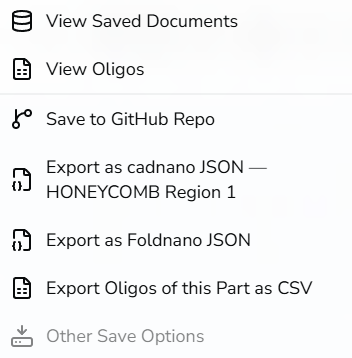
*Save/export dropdown open, showing the full item list.*
## Local-First Saving, And Its One Caveat
Foldnano stores browser working copies in IndexedDB. **Autosave** writes to that browser storage after committed edits or after some elapsed time, but it does **not** download a file and it does **not** create a Git commit.
> **Warning**
>
> Because the working copy lives in the browser, **clearing browser data can delete your local Foldnano documents.** For anything important, download a `.fn.json` file and/or connect GitHub and commit the design.
>
See [Saving And GitHub](https://fold.xinshilab.com/docs/guide/saving-github) for the full persistence model.
## A Note On Current Product Boundaries
Foldnano is under active development. A few things to keep in mind:
- A design always has a **part** at the top. The part owns **planes** and **design regions**, so creating a design always starts a part, and you then add regions into it. "Part" is a permanent layer of the model, not legacy wording.
- Freeform and lattice regions can coexist in one design, and DNA can cross between them when the ends are compatible.
- cadnano import/export is a *compatibility path*, not a full representation of the Foldnano model.
These are noted throughout the guide where they affect a workflow.
────────────────────────────────────────────────────────────
# Using The Docs With AI
You can ask an AI assistant about Foldnano instead of reading every page yourself. The docs are also published as plain text files written for AI models, so a chatbot or coding agent can read the whole site and answer from it. This works with ChatGPT, Claude, Gemini, and coding agents such as Claude Code, Cursor, or Copilot.
## Links To Give Your Assistant
| File | What it contains | Use it when |
| --- | --- | --- |
| [/llms.txt](https://fold.xinshilab.com/llms.txt) | A short index: every page with a one-line summary and a link to its markdown | Your assistant can open links (most agents, and chats with web browsing turned on). It reads the index, then opens only the pages it needs. |
| [/llms-full.txt](https://fold.xinshilab.com/llms-full.txt) | Every page of the docs in one file | Your assistant cannot browse, or you want it to know everything up front. Download the file and attach it to the chat. |
| [/docs/guide/llms.txt](https://fold.xinshilab.com/docs/guide/llms.txt) | Only the user guide | You only use the editor and don't need the plugin or contributor docs. |
The plugin docs and contributor docs have their own files too: [/docs/plugin-development/llms.txt](https://fold.xinshilab.com/docs/plugin-development/llms.txt) and [/docs/contributors/llms.txt](https://fold.xinshilab.com/docs/contributors/llms.txt).
## Ask About One Page
Every docs page has an **Ask AI** menu in its top right corner:
- **Copy page as Markdown** copies the page as plain text, ready to paste into any chat.
- **View as Markdown** opens the same text in a new tab. Every page has one: add `.md` to the end of the page address.
- **Open in ChatGPT** and **Open in Claude** start a new chat that already points at the page.
## Search The Docs
To find a page yourself, use **Search docs** in the header, or press `Ctrl K` (`⌘ K` on a Mac) or `/`. Results jump straight to the matching section, and pages from the part of the docs you are reading rank higher.
## Questions To Try
- "How do I export my design for an oxDNA simulation?"
- "What is the difference between a lattice region and a freeform region?"
- "Why can't I add a crossover between these two helices?"
- "Write a Script Lab script that lists every staple longer than 60 nucleotides."
- "I'm used to cadnano. What works differently in Foldnano?"
Coding agents are especially useful for plugins: point one at [/docs/plugin-development/llms.txt](https://fold.xinshilab.com/docs/plugin-development/llms.txt) and ask it to draft a plugin for you.
> **Warning: Check the answer against the docs**
>
> AI assistants can still get details wrong, such as a menu name, a keyboard shortcut, or a `foldnano.edit` method that does not exist. Ask the assistant which page it used, then open that page to confirm. The text files always match the current version of these docs, but an assistant may also mix in older knowledge from its training.
>
> **Tip: If the assistant can't open the link**
>
> Some chat apps cannot fetch web pages, or they cut long pages short. Download [/llms-full.txt](https://fold.xinshilab.com/llms-full.txt) (or one of the smaller files) and attach it to the chat as a file instead.
>
────────────────────────────────────────────────────────────
# Mental Model
Foldnano designs are far easier to edit once you separate three concerns: **placement** (where helices sit in space), **routing** (how DNA threads through them), and **identity** (which oligo is the scaffold). The whole data model is a hierarchy built around those ideas.
Export fallback: a Foldnano document contains a part; the part owns design regions and oligos; regions place virtual helices on planes; virtual helices carry strand sets; oligos are connected DNA paths; segments and ends are the editable pieces of those paths.
The rest of this page walks the hierarchy from the outside in. You don't need to memorize it, but knowing *which level* an edit happens at explains a lot of the editor's behavior: why undo groups the way it does, why reordering rows never breaks crossovers, why scaffold must be marked explicitly.
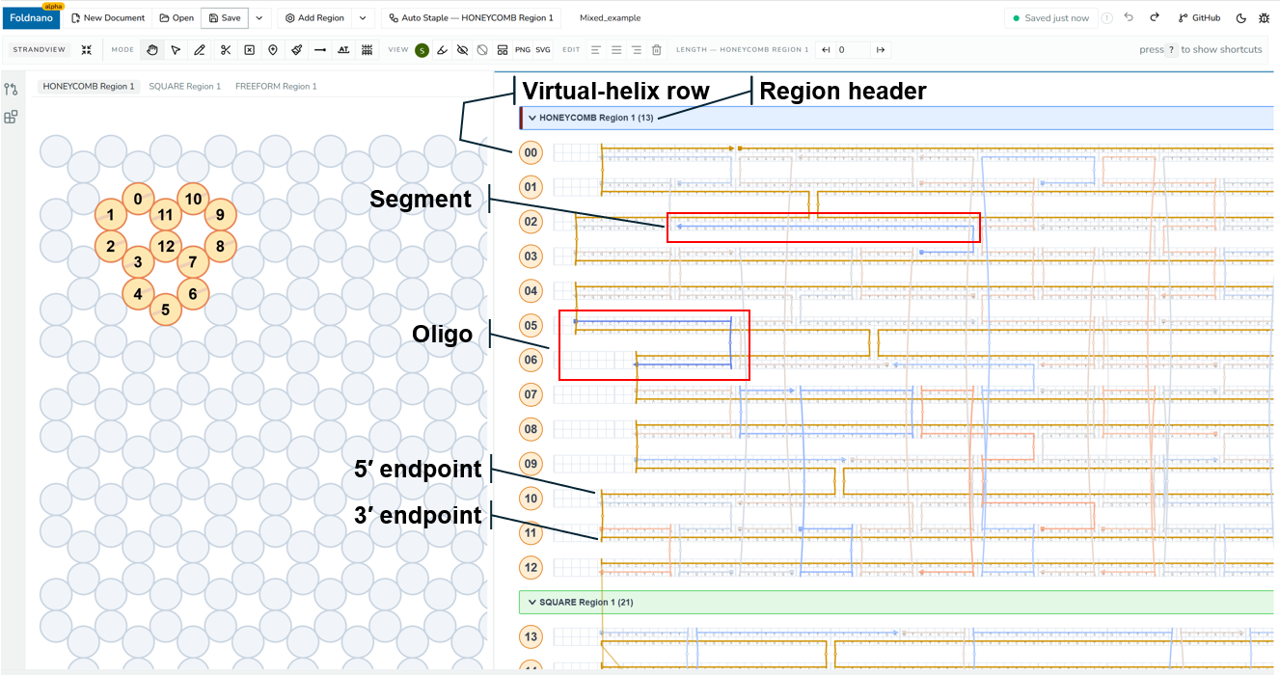
*Editor with overlaid labels pointing at the region header, a virtual-helix row, an oligo, a segment, and a 3′/5′ end.*
## Document
A **document** is the saved working copy shown in the editor. It holds the current part data plus the metadata the browser and GitHub workflows use to find the design again (name, IDs, sync state). When you "save," this is what gets written to IndexedDB; when you export `.fn.json`, this is what is serialized.
## Part
The **part** is the *mutation owner* inside the DNA model. Every topology edit, virtual-helix edit, sequence edit, color edit, and annotation edit flows through commands that mutate the part. That single ownership rule is what makes undo/redo and autosave coherent: there is exactly one place state changes, so history can record and replay it.
For you as a user this mostly shows up indirectly. Almost every edit is undoable (`Ctrl/Cmd + Z`), and the document stays internally consistent even across complex multi-region edits.
## Planes And Design Regions
A **plane** is a coordinate frame used to place virtual helices. A **design region** is a workspace attached to a plane. It owns a set of virtual helices and the rules for how they may be positioned and connected.
| Region type | Placement model | Typical use |
| --- | --- | --- |
| Honeycomb lattice | Snapped lattice coordinates (parity rules) | cadnano-style honeycomb origami |
| Square lattice | Snapped lattice coordinates (parity rules) | cadnano-style square origami |
| Freeform | Explicit local helix frames (arbitrary position/angle) | custom geometry and non-lattice designs |
A part can contain **multiple regions of different types**, for example a lattice bundle with a freeform extension. Each region has its own plane and its own placement rules, and each gets its own grouped block of rows in the strand viewer. Region-specific tools (lattice grid, constrained crossover sites, lattice auto-staple) are gated on the **active region**, not on the part as a whole, so what's available depends on which region you're working in.
## Virtual Helices
A **virtual helix** is the addressable helix row used for routing. In lattice regions it is positioned by lattice row and column; in freeform regions it is positioned by an explicit local frame.
> **Note: Helix identity is stable**
>
> A virtual helix's *display* row can change when you collapse a region or reorder helices, but its identity (and every crossover attached to it) does not. Reason about a design by helix identity, not screen position. This is why reordering rows in the strand viewer never breaks your routing.
>
## Oligos, Segments, And Ends
An **oligo** is one continuous DNA strand, ordered 5′ → 3′. It can contain one or more **segments** joined by **crossovers**. Each segment occupies a run of base positions on a single virtual helix.
**Ends** are the editable termini of segments:
- Connecting a **3′ end to a 5′ end** creates a crossover or connection (always directional: upstream 3′ → downstream 5′).
- **Breaking** a segment introduces a nick and creates two new ends.
- **Moving** an end changes the segment's span.
Most strand-view editing is, under the hood, manipulation of segments and ends, which is why [Selection](https://fold.xinshilab.com/docs/guide/selection) is *end-based*.
## Explicit Scaffold
This is the most important difference from classic cadnano. Foldnano does **not** infer scaffold identity from `scaf` / `stap` arrays. **Scaffold is an explicit oligo label** you set intentionally.
To mark an oligo as scaffold, **right-click it** in the strand viewer and choose **Set as Scaffold**. The same menu shows **Set as Staple** on a scaffold oligo to undo the label.
Why this matters in practice:
- It enables mixed and non-cadnano workflows where "the scaffold" isn't tied to a lattice slot convention.
- It means scaffold-specific features (the **scaffold sequence indicator**, scaffold highlighting, and some exports) only behave as expected *after* you've marked the scaffold.
> **Warning**
>
> Before you rely on any scaffold-aware indicator or export, make sure the intended oligo is actually flagged as scaffold. cadnano `scaf`/`stap` arrays are treated purely as a *file-format direction convention* on import/export; they are not the same thing as Foldnano's scaffold label.
>
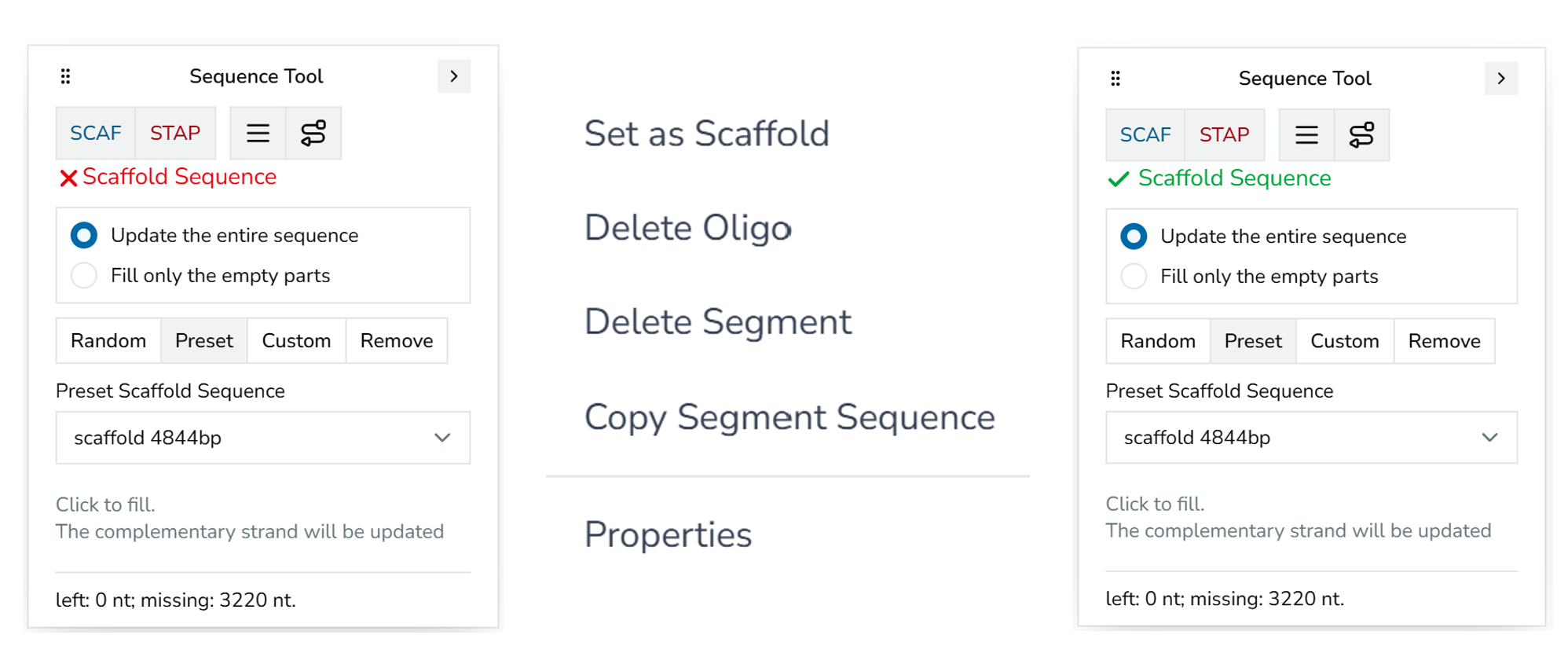
*The 'Set as Scaffold' context menu item, alongside the Scaffold Sequence indicator in its stale (red) and healthy (green) states.*
────────────────────────────────────────────────────────────
# Creating A Design
This page is the end-to-end workflow, from an empty document to a routed, scaffolded structure. It ties together the tools covered in detail on [Editing Tools](https://fold.xinshilab.com/docs/guide/editing-tools), [Views And Regions](https://fold.xinshilab.com/docs/guide/views), and [Selection](https://fold.xinshilab.com/docs/guide/selection).
## Start From A New Document
Click **New Document** in the top toolbar. A design starts empty; you then add a region and place virtual helices into it.
Every design has a **part** at the top, the container that owns your planes and regions. Starting a design (as honeycomb, square or freeform) creates that part together with a default **plane** and a default **design region**, and you can **Add Region** for more later. See [Mental Model](https://fold.xinshilab.com/docs/guide/mental-model) for what those terms mean.
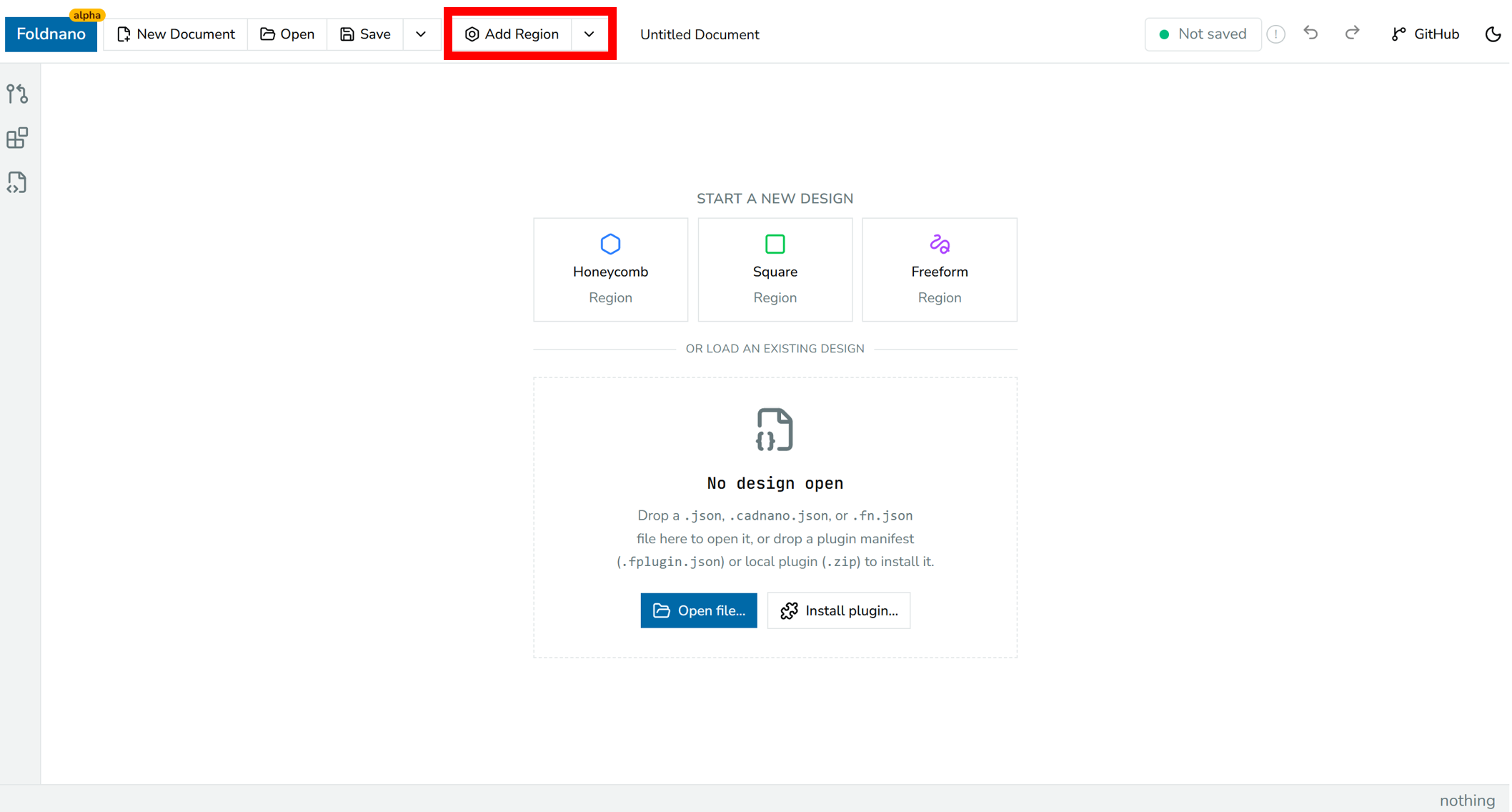
*Empty-document state right after New Document, with the Add Region button highlighted.*
## Add A Region
Use **Add Region** in the top toolbar. The dropdown offers **Add Honeycomb Region**, **Add Square Region**, **Add Freeform Region**, and **Load Cadnano Design as a Region** (which imports an existing cadnano file into a new region). Wireframe design is planned; see [Wireframe Designs](https://fold.xinshilab.com/docs/guide/wireframe) for where it stands.
| Choice | Use when |
| --- | --- |
| Honeycomb lattice | You want cadnano-compatible honeycomb spacing and parity rules. |
| Square lattice | You want cadnano-compatible square spacing and parity rules. |
| Freeform | You want explicit helix positions, arbitrary angles, or non-lattice geometry. |
Each region carries its own plane. The **active region** controls which region receives new virtual helices and which region-specific tools (lattice grid, constrained crossover sites, lattice auto-staple) are available. You can have several regions in one design and connect DNA across them.
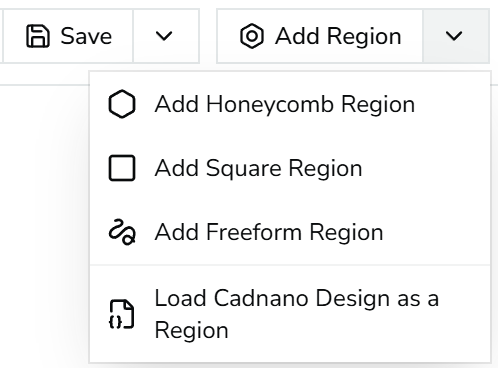
*Add Region dropdown open, showing all four items.*
## Add Virtual Helices
Switch the left pane to **Plane** and select the **Draw** tool (`n`).
**In a lattice region:** click empty lattice cells to add a virtual helix at each. Placement is snapped to lattice cells, parity rules are enforced, and dropping onto an occupied cell is rejected (the model is left unchanged).
**In a freeform region:**
- **double-click** empty space to add a *perpendicular* helix (pointing out of the plane), or
- **drag** in empty space to create an *in-plane* helix along the drag direction.
Freeform movement and rotation update each helix's local frame, and those frames are preserved in `.fn.json`.
See [Views And Regions](https://fold.xinshilab.com/docs/guide/views) for the full plane-view interaction list.
## Route DNA
Routing happens in the **strand viewer** (right pane). Each tool is covered in depth on [Editing Tools](https://fold.xinshilab.com/docs/guide/editing-tools); the short version:
- **Draw** (`n`): drag to create segments; drag between compatible ends or crossover sites to create crossovers.
- **Break** (`b`): click a position to insert a nick.
- **Select** (`v`): move ends, delete selections, collapse/expand regions, reorder visible VH rows.
- **Skip** (`s`) / **Insert** (`i`): edit per-base slot structure (deletions / insertions).
- **Paint** (`p`), **Modification** (`m`), **Sequence** (`a`): annotate existing oligos.
Crossovers are **directional**: connect the upstream **3′ end** to the downstream **5′ end**.
> **Tip: An order that avoids rework**
>
> 1. Route the **scaffold** path first.
> 2. Mark it as the scaffold (explicit label, see below).
> 3. Add or auto-generate staples.
> 4. Add skips/inserts for length tuning.
> 5. Assign sequence last.
>
> Routing is easiest to learn hands-on: try it in the interactive walkthrough on [Editing Tools](https://fold.xinshilab.com/docs/guide/editing-tools).
## Auto-Staple
Run **Auto Staple** (top toolbar; labeled `Auto Staple — [region name]`) once you have scaffold routing and want Foldnano to generate staple routing for the active lattice region.
Auto-staple is available only on lattice regions (it's gated on the region's `supportsLatticeAutoStaple` capability).
Auto Staple follows the same general approach as cadnano2's auto-staple: it lays staple strands along the scaffold, then adds staple crossovers at the lattice's crossover sites. Foldnano uses its own rules for which sites to skip and keeps any staples you have already drawn, so results can differ from cadnano's.
> **Warning**
>
> **Always review the generated topology** before assigning sequence, paying special attention to region boundaries (staples that approach where one region meets another), skips and inserts (these change effective length), and very short or very long resulting staples.
>
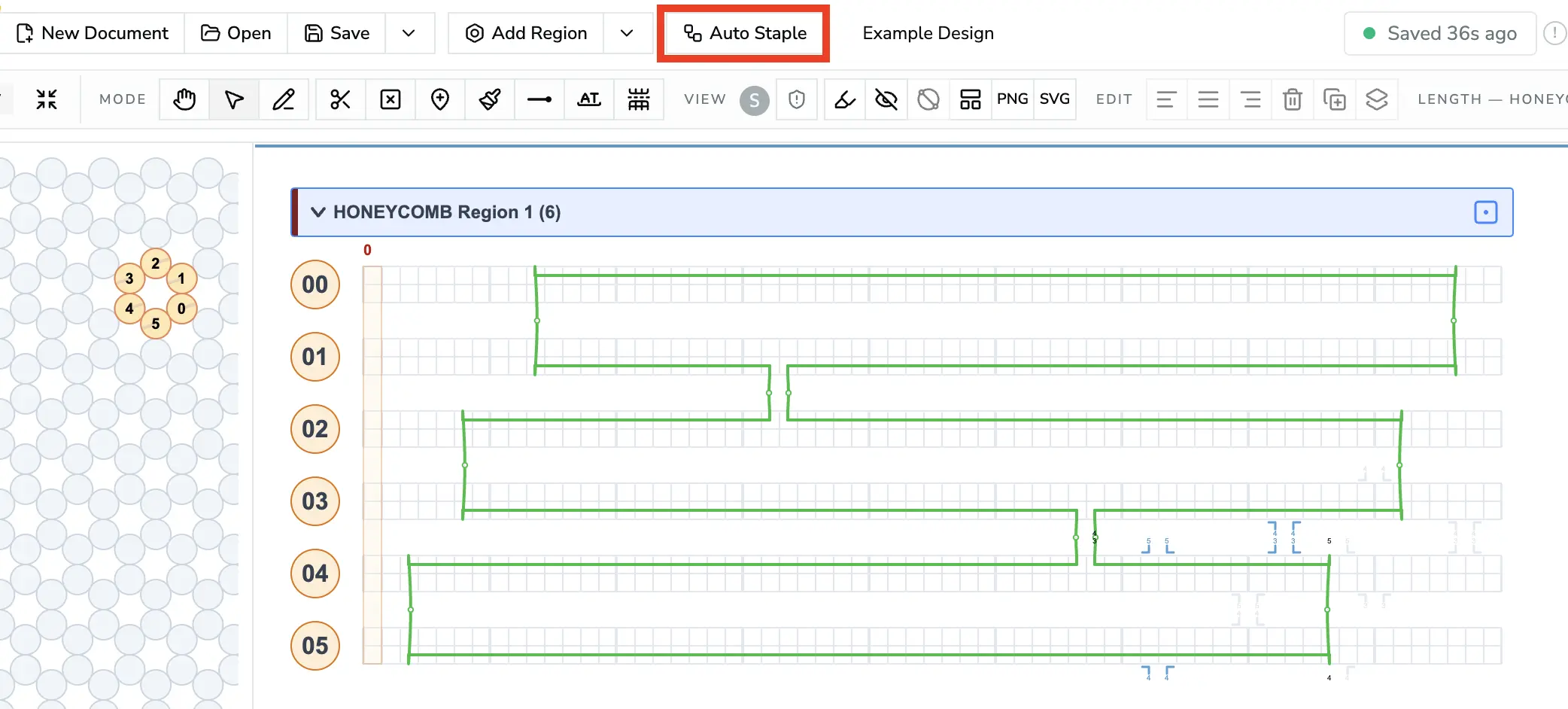
*Before: only the scaffold is routed.*
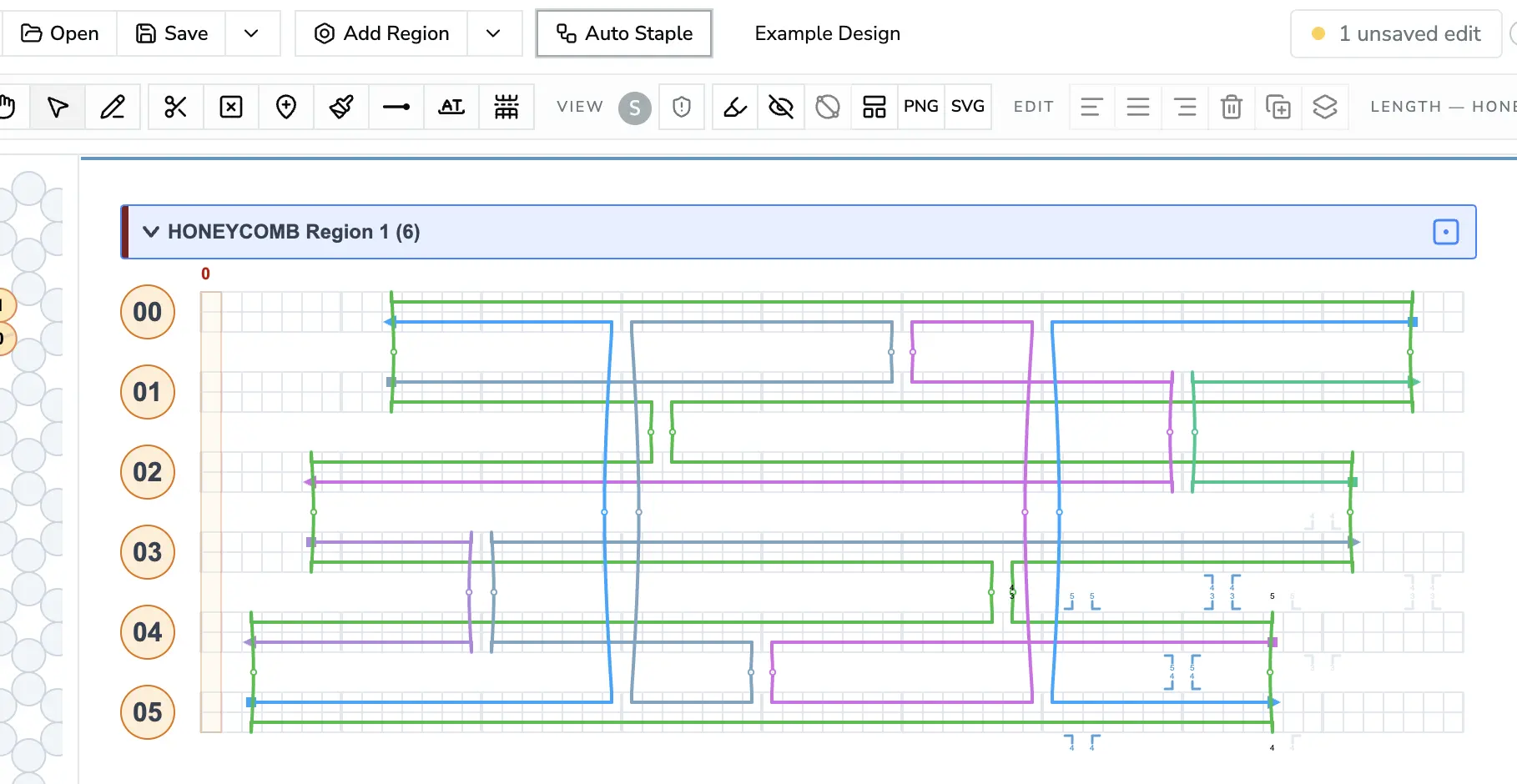
*After: staples generated by Auto Staple.*
## Foldnano Versus Classic Cadnano
Foldnano is more flexible than classic cadnano, and a few defaults differ.
| Topic | Classic cadnano expectation | Foldnano behavior |
| --- | --- | --- |
| Adding helices | Click lattice cells in Select mode | Switch to Draw mode (`N`) first; Select mode only selects and moves helices |
| Scaffold identity | Often implied by file slot and helix parity | Explicit oligo flag you set yourself |
| Strand-set pairing | Scaffold/staple distinction tied to lattice convention | Ends can connect whenever topology allows |
| Default scaffold fill | Often creates a circular scaffold by default | Double-clicking a helix circle fills the default strand set **without** creating a circular scaffold by default |
| Non-lattice geometry | Not represented | Preserved in `.fn.json` |
For compatibility import/export, cadnano `scaf` and `stap` arrays are treated as **file-format directional conventions only**; they are not the same as Foldnano's explicit scaffold label. See [Mental Model](https://fold.xinshilab.com/docs/guide/mental-model#explicit-scaffold).
## Opening Cadnano Files
Foldnano checks a cadnano `.json` file before opening it. Small inconsistencies are repaired, and each repair is reported in a **Cadnano import warning** message so nothing changes without you knowing. Problems that have no safe repair stop the import with a message that names the helix and base.
| What Foldnano finds | What happens |
| --- | --- |
| A base claims a connection from a base that is empty | The claim is removed and the base becomes a free 5' (or 3') end, which is how cadnano draws it. A warning names the helix and base. |
| A deletion (skip) on a crossover base | The deletion moves to the neighbouring base, because Foldnano doesn't allow deletions on crossover bases. A warning names both positions. |
| An insert on a crossover base | The insert stays where it is, and the **Editor rules** design check marks it (see [Design Checks While You Edit](#design-checks-while-you-edit)). Move or remove it before simulating. |
| A helix length that fits both honeycomb (21) and square (32), such as 672 | Foldnano picks the lattice whose crossover positions match. If the file has no crossovers to go by, you're asked to choose. |
| Two bases that disagree about how they connect | The file isn't opened. |
| Two helices on one lattice position, a negative lattice position, or helices of different lengths | The file isn't opened. |
| A strand only one base long | The file isn't opened. Extend or remove it in cadnano first. |
Loading a cadnano file as a region (**Add Region**, then **Load Cadnano Design as a Region**) runs the same checks. The [Design Checks Reference](https://fold.xinshilab.com/docs/guide/design-checks#opening-a-file) has the full list.
Any design you open, cadnano or Foldnano, is also checked for things the editor wouldn't create itself, such as a skip on one strand and an insert on the other at the same base, or a helix whose number doesn't match its lattice position. These are listed in one warning message; the design still opens so you can fix it. A Foldnano design with helices at negative lattice positions is moved onto the grid without changing where it sits in 3D, and the message says so.
## Design Checks While You Edit
The **Design checks** button in the strand view toolbar (the shield, next to the scaffold indicator **S**) marks problems right on the canvas. Choose which checks to show:
| Check | Default | What it marks |
| --- | --- | --- |
| **Editor rules** | on | Things the editor wouldn't create itself, usually from an imported file or a plugin: a skip on one strand and an insert on the other at the same base, a skip or insert on a crossover site (cadnano import already moves skips off crossover sites, so from a cadnano file this is usually an insert; Foldnano files and plugin results aren't changed on the way in), helices sharing or outside the lattice, a helix number that doesn't match its lattice position. |
| **Simulation export** | off | What oxDNA and mrDNA export would refuse, such as a skip or insert on a base where only one strand exists. See [Simulation And Export](https://fold.xinshilab.com/docs/guide/simulation-export#nt-model). |
| **Cadnano export** | off | What cadnano JSON can't hold for the **active region**, such as a connection from a cadnano scaffold path to a staple path. See [Exporting cadnano JSON](https://fold.xinshilab.com/docs/guide/simulation-export#exporting-cadnano-json). |
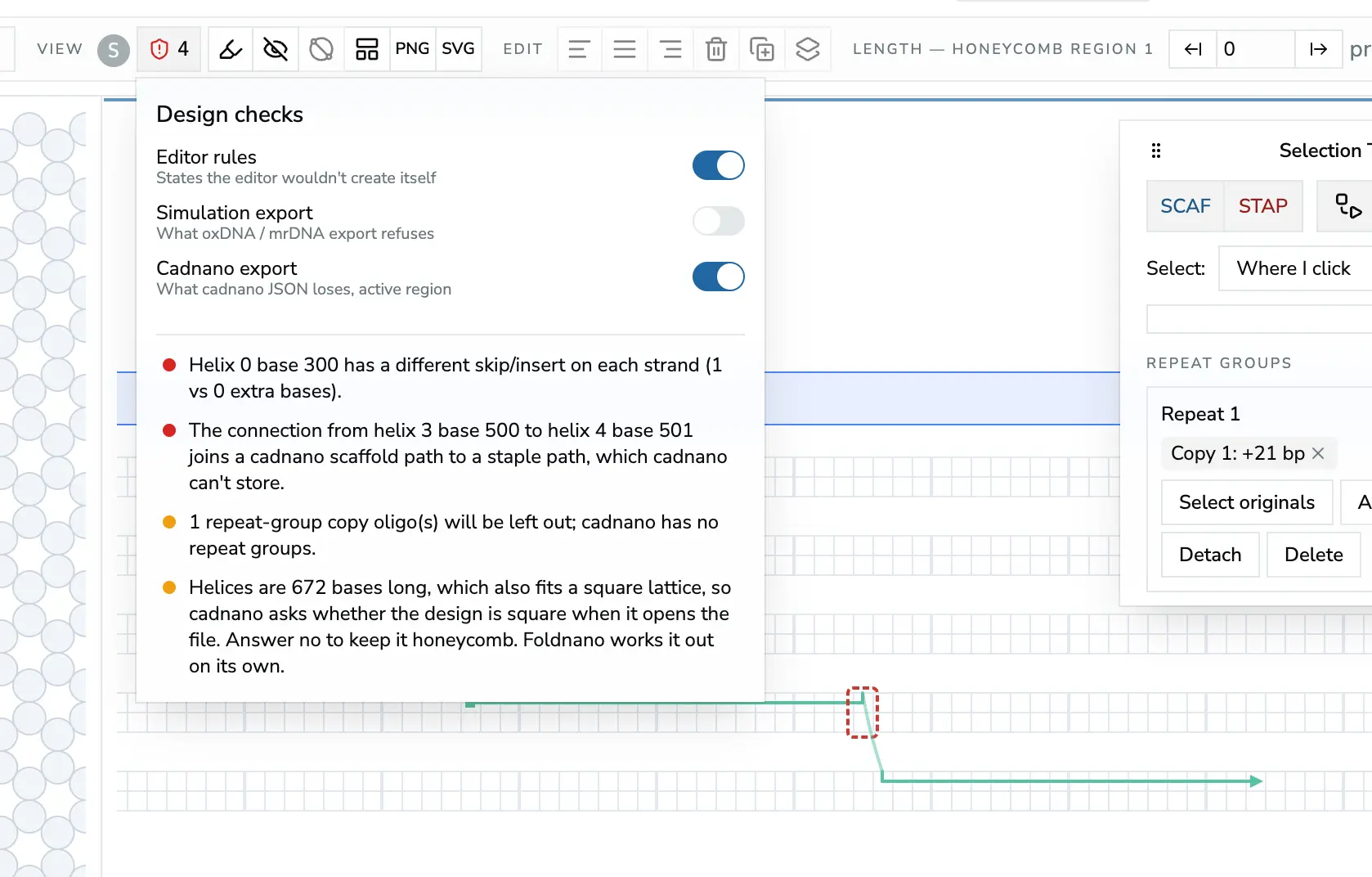
*The Design checks popover: switches on top, issues below. Click an issue to jump to its frame on the canvas.*
Problems are framed in red (must be fixed before that export works) or amber (would be lost or changed). The button shows how many there are; open it to see the list, and click an entry to jump to that helix and base. Some entries, such as connections to other regions that cadnano export would cut, describe a whole region and have no spot to jump to.
The marks update after each edit, undo or redo. Every check, and what to do about it, is listed in the [Design Checks Reference](https://fold.xinshilab.com/docs/guide/design-checks).
## When To Assign Scaffold Sequence
Topology edits (moving ends, adding skips/inserts, breaking strands, reconnecting segments) can make an already-assigned scaffold sequence locally **stale**, because the nucleotide path no longer matches the bases you assigned.
> **Tip**
>
> Finish the main topology first, then assign or refill the scaffold sequence. The **scaffold sequence indicator** tracks this for you: if it shows red, the assigned sequence may no longer match the topology, so refill before treating the sequence as final or exporting. See [Editing Tools](https://fold.xinshilab.com/docs/guide/editing-tools#scaffold-sequence-indicator).
>
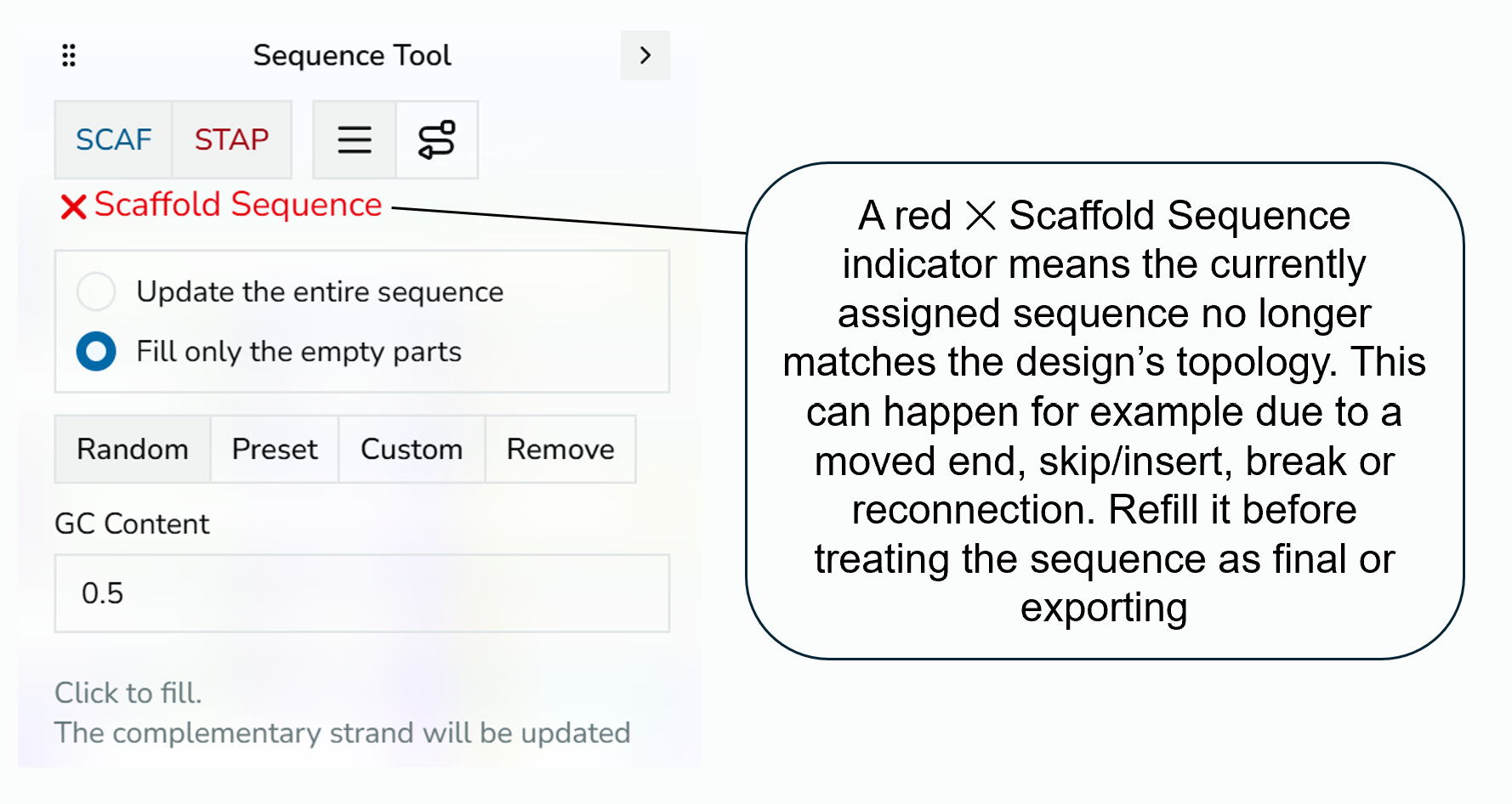
*Scaffold Sequence indicator in its red/stale state, with a callout explaining that a red X means the sequence no longer matches the design's topology and should be refilled.*
────────────────────────────────────────────────────────────
# Editing Tools
All routing and annotation happens in the **strand viewer** with one *active tool* at a time. The tool row sits at the top of the strand viewer; each tool has a one-key shortcut and, for most tools, a side panel of options. Switching tools never changes your design; it changes what a click or drag *does*.
Use the interactive walkthrough below to try each tool on a sandboxed tutorial design, then read the reference for the details.
Export fallback: the toolbar contains pan, select, draw, break, skip, insert, paint, modification, and sequence tools. Select controls target filters; draw creates segments and crossovers; break creates nicks; skip and insert change per-base slot structure; paint recolors oligos; modification changes terminal chemistry; sequence assigns or clears bases.
## Tool Reference
| Tool | Shortcut | Purpose |
| --- | --- | --- |
| `PAN` | hold `Option` / `Alt`, or `←` `↑` `↓` `→` | pan the active canvas without changing the active tool (arrow keys pan the strand view only) |
| `SELECT` | `v` | select ends, segments, oligos, crossovers, and region controls |
| `DRAW` | `n` | create strands and crossovers |
| `BREAK` | `b` | split an oligo at a base position (insert a nick) |
| `SKIP` | `s` | add / remove skips (deletions) |
| `INSERT` | `i` | add / remove insertions |
| `PAINT` | `p` | recolor oligos |
| `MODIFICATION` | `m` | apply or clear terminal modifications |
| `SEQUENCE` | `a` | assign or clear sequences |
| `SPLIT_REGION` | `r` | split one region into two between helix rows |
> **Tip**
>
> Every edit below is a single undoable step (`Ctrl/Cmd + Z`). When in doubt, try it and undo.
>
Tools with options open a floating **tool panel** on the right (Select, Paint, Modification, Sequence, Skip, Insert). See [Interface Reference](https://fold.xinshilab.com/docs/guide/interface-reference#tool-panel) for moving and collapsing it.
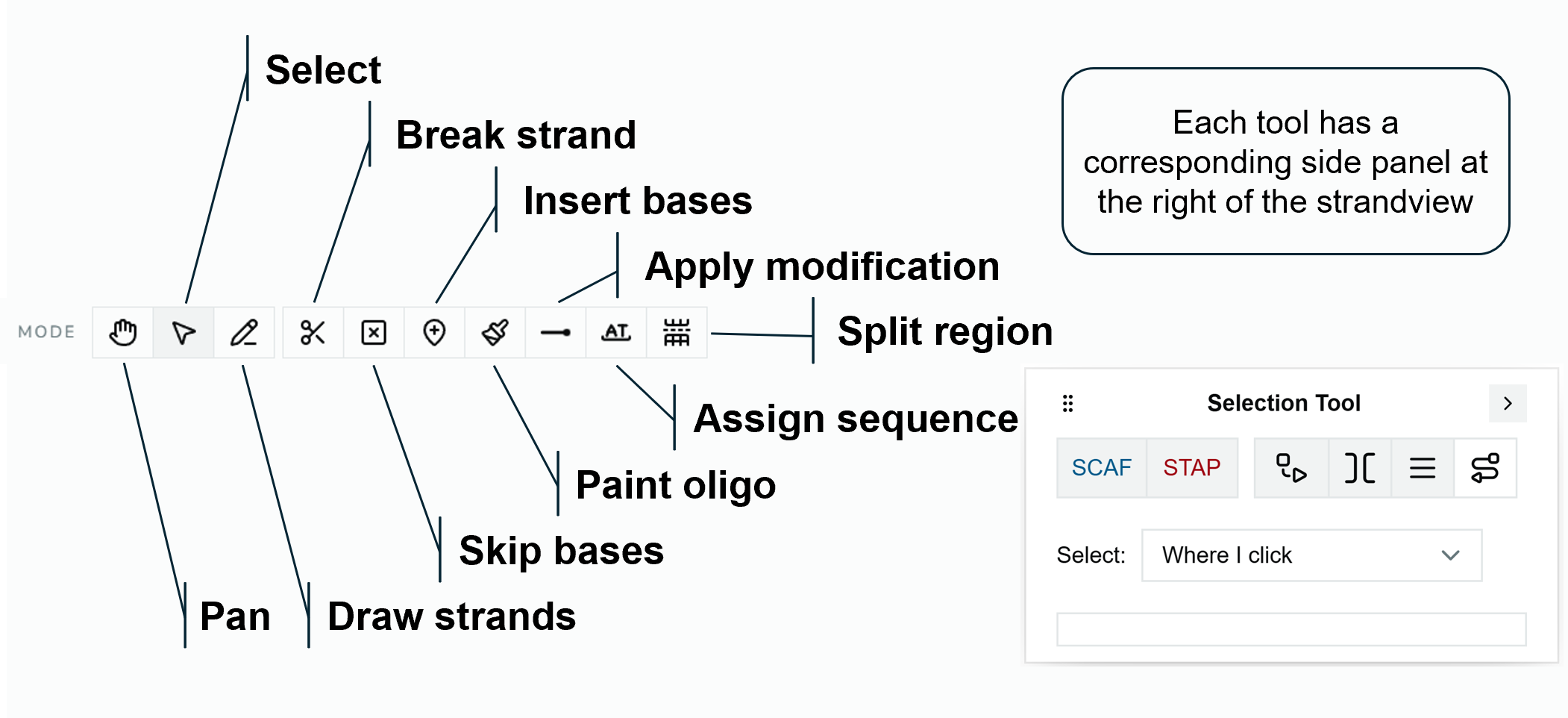
*Strand-view tool row with each tool labeled (Pan, Select, Draw strands, Break strand, Skip bases, Insert bases, Paint oligo, Assign sequence, Split region), with the Selection Tool side panel open beside it.*
## Draw
Draw is how you lay down DNA and connect it.
- **Drag across empty space** on a strand row creates a new segment spanning the drag.
- **Drag from an existing free end** extends that strand.
- **Drag between compatible endpoints or crossover sites** creates a crossover.
Crossovers are directional and always go **3′ → 5′** (upstream 3′ end to downstream 5′ end). On lattice regions, crossovers can only land on *constrained crossover sites*; freeform regions allow any compatible end-to-end connection. If a drag wouldn't produce a valid connection, nothing is created.
## Break
Click a strand position to split the underlying segment into two pieces, inserting a nick. The two halves keep their bases; the oligo they belonged to may split into two oligos depending on connectivity.
## Skip / Insert
These edit the **per-base slot structure** of a segment, which changes its effective length without moving its endpoints.
- **Skip** (`s`): click a position to mark a base as deleted; that position is removed from the emitted nucleotide path.
- **Insert** (`i`): click a position to add an extra base between neighboring slots.
- **Double-click** a position to remove the skip or insert there.
Skips and inserts are applied to both strands of the helix at that position. They can't be placed on a strand end, or on a constrained crossover site (a warning explains why).
The Skip and Insert tools share one panel for the **active region**:
| Control | What it does |
| --- | --- |
| **Apply to all VH in region** | When on, a click adds the skip or insert at that base position on **every helix** of the active region; positions on crossover sites are skipped with a warning |
| Counts | The number of skips and inserts in the active region |
| **Remove all skips / inserts (*N*)** | Removes every skip (Skip tool) or insert (Insert tool) in the active region. Click once more on **Confirm** to do it. |
Skips and inserts directly affect sequence length and every simulation export (see [Simulation And Export](https://fold.xinshilab.com/docs/guide/simulation-export#nt-model)). Add them *before* finalizing sequence.
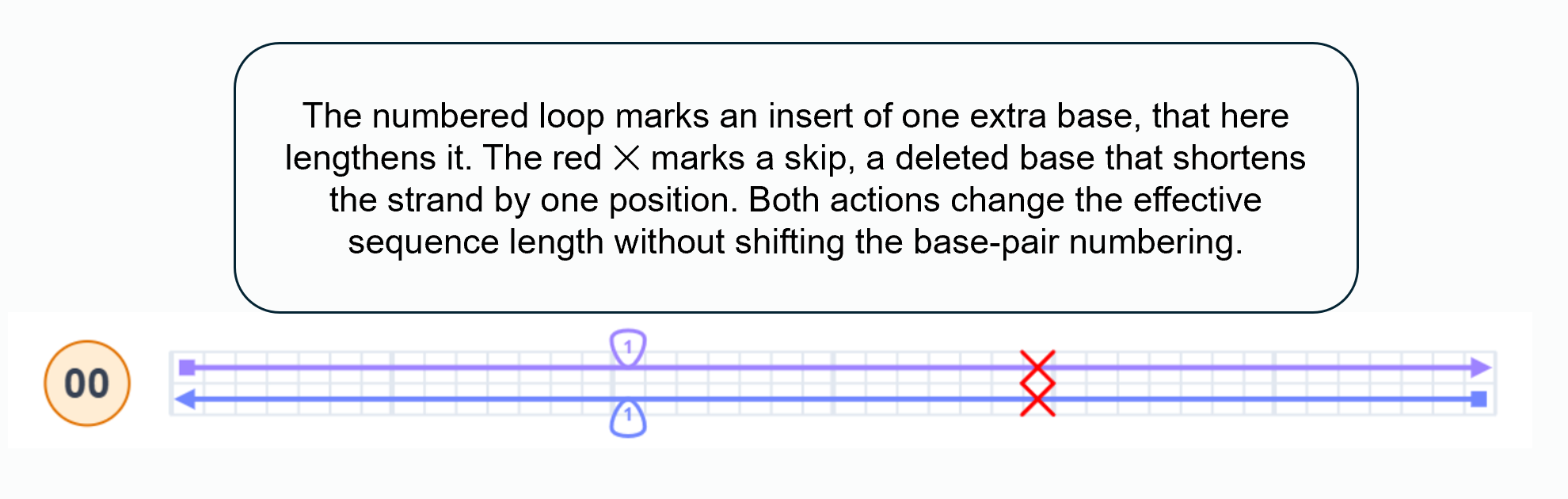
*A segment showing an insert marker (numbered loop, one extra base) and a skip marker (red X, a deleted base).*
The numbered loop marks an insert of one extra base, which lengthens the strand here. The red **✕** marks a skip, a deleted base that shortens the strand by one position. Both actions change the effective sequence length without shifting the base-pair numbering.
## Paint
Paint recolors oligos with the panel's **Active** color. Clicking a color in the panel only makes it the active color; the paint is applied when you click in the strand view. There are two ways to use it:
- **One oligo at a time.** Switch to Paint (`p`), pick a color, then click an oligo. Keep clicking to paint more oligos with the same color.
- **Many oligos at once.** In Select mode (`v`), select the oligos first (click, `Shift` + click, or drag a marquee). Then switch to Paint (`p`), pick a color, and click anywhere in the strand view. Every selected oligo takes the color in one undoable step, and the selection is cleared. The panel shows how many oligos are selected.
Painting is purely cosmetic: it changes how the oligo is drawn in the strand and 3D views and does not affect topology or sequence.
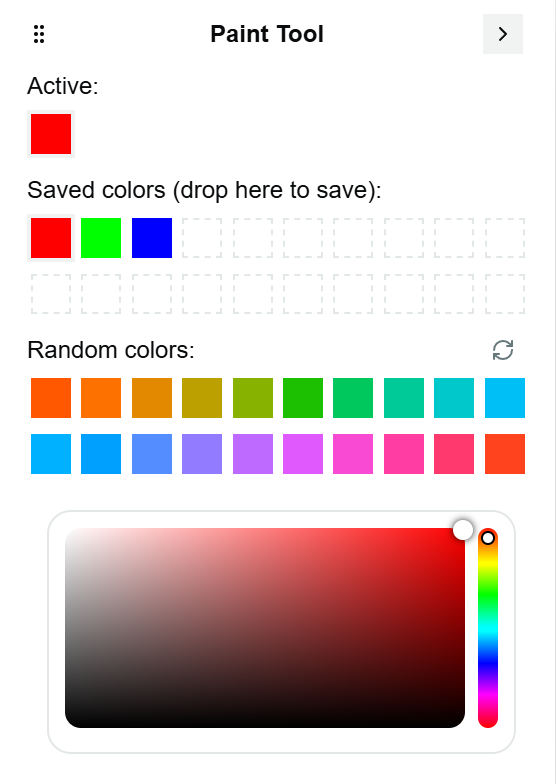
*Paint panel open, showing active color, saved colors, random colors, and a custom color picker.*
| Panel area | Use |
| --- | --- |
| **Active** | The color the next click applies |
| **Saved colors** | Click a swatch to make it active. Drag any swatch (including the active one or a random one) into this grid to save it. |
| **Random colors** | A row of suggestions; the refresh button generates a new set |
| Color picker | Pick any custom color |
## Modification
Apply the currently selected **terminal modification** (for example a 5′/3′ chemical modification) to free ends:
- to a **clicked** free end, or
- to **all selected** free ends at once.
The panel shows the **Active** modification and lists:
- **Builtin** modifications (Thiol, Biotin, Cy3, Cy5), each with its marker color,
- **Custom** modifications for this design. Click **+**, enter a **Name** (for example `Azide`), pick a **Color**, and click **Add** (or press `Enter`). Hover a custom modification to show its **✕**, which deletes it; if it's already used, a dialog says how many ends carry it and removes it from all of them when you confirm.
- **Remove mode**: clicking an end then clears its modification.
Custom modifications are saved with the design. Modification sites can be surfaced later with the "with modifications" highlight (see [Selection](https://fold.xinshilab.com/docs/guide/selection#highlighting-and-hiding)).
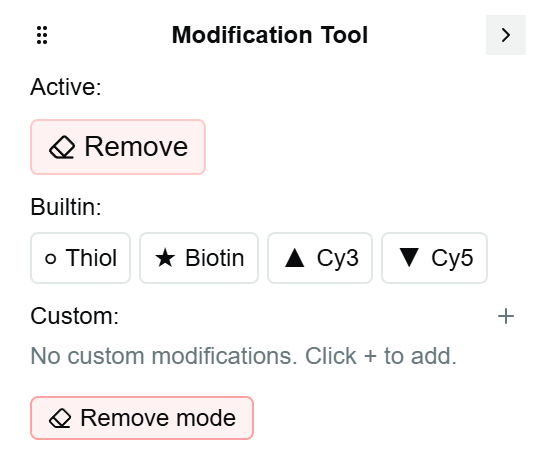
*Modification panel showing the built-in modification list (Thiol, Biotin, Cy3, Cy5) and the Remove mode toggle.*
## Sequence
Assign or clear bases on clicked strands. What a click targets follows the **SCAF** / **STAP** and **segment** / **oligo** filter toggles at the top of the panel (`c`, `t`, `d`, `o`). When you fill a strand, its **complementary strand is updated** to match.
The panel also shows the scaffold sequence status (✓ or ✗ **Scaffold Sequence**, see [below](#scaffold-sequence-indicator)). Pick one of four actions:
| Action | Options |
| --- | --- |
| **Random** | **GC Content** (0 to 1, default 0.5) for the generated bases |
| **Preset** | **Preset Scaffold Sequence**: scaffold sequences of 4844, 7249, 7560, 8064, or 8634 bases |
| **Custom** | A text box for your own sequence |
| **Remove** | Click oligos to clear their sequences. **Clear All Sequences** clears the whole design (click **Click Again to Confirm**). |
After a fill, the panel reports how much of the input sequence was **left** over and how many bases were **missing**, so you can tell whether a preset scaffold was long enough.
**Fill mode** (radio group at the top of the panel) controls how an action interacts with bases that are already assigned:
| Option | Behaviour |
|---|---|
| Update the entire sequence | Overwrites all bases on the clicked oligo/segment, including already-filled ones |
| Fill only the empty parts | Skips positions that already have a non-`N` base; the input sequence is compacted into the empty slots in 5′→3′ order |
> **Tip**
>
> "Fill only the empty parts" is the safe choice when you've hand-assigned part of a strand and want to complete the rest without disturbing it.
>
## Scaffold Sequence Indicator
The **scaffold sequence indicator** summarizes whether scaffold-labelled oligos have sequence coverage that still matches the current topology. A **red** state means the assigned sequence may be **stale** after a topology change (a moved end, new skip/insert, break, or reconnection shifted the nucleotide path). **Grey** means no oligo is marked as scaffold yet, so there is nothing to track; hover it for a reminder, and right-click an oligo and choose **Set as Scaffold**. The Sequence panel shows **No scaffold set** in the same case.
> **Warning**
>
> Treat red as a prompt to **refill the scaffold sequence** before exporting or ordering staples. This indicator only behaves meaningfully once an oligo is actually marked as scaffold (see [Mental Model](https://fold.xinshilab.com/docs/guide/mental-model#explicit-scaffold)).
>
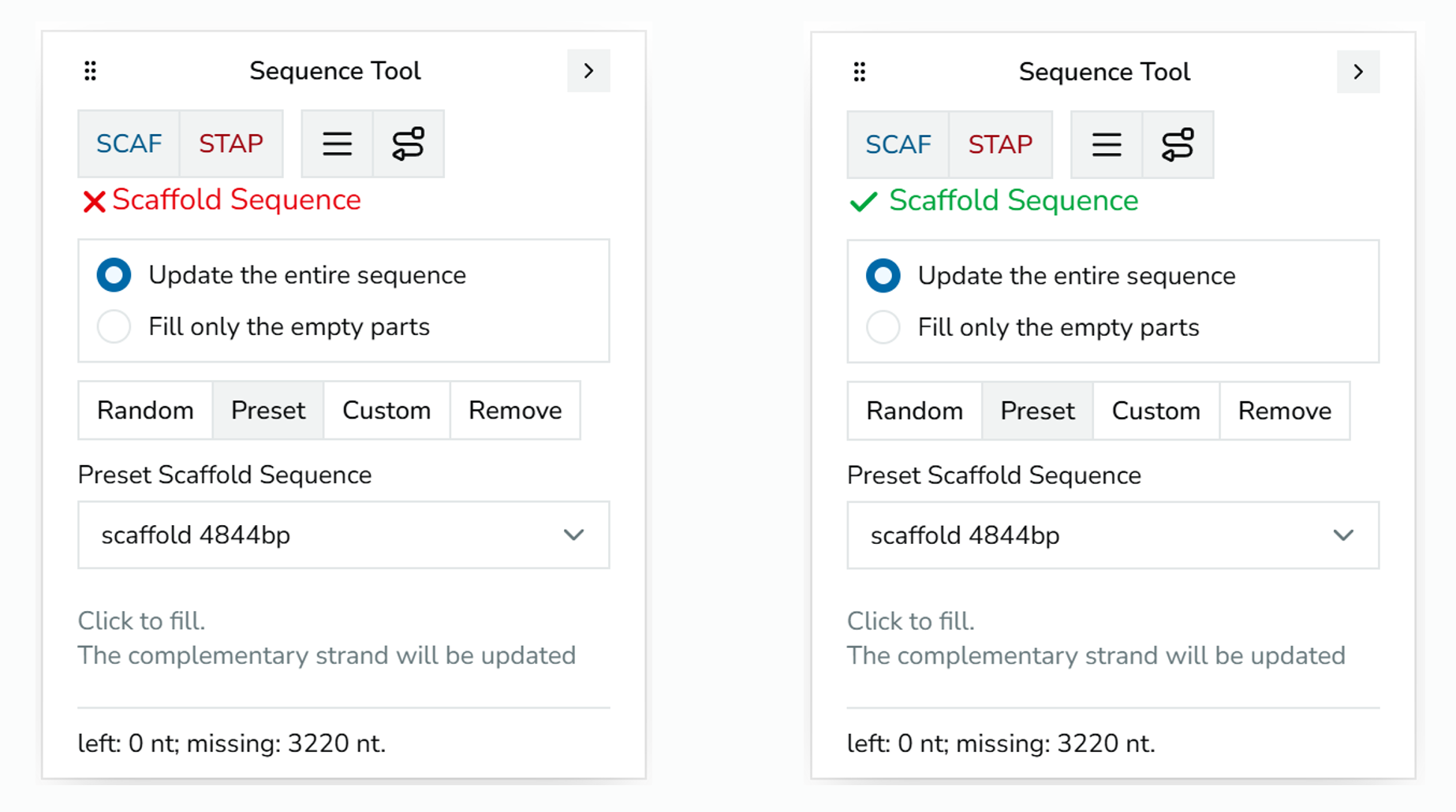
*Scaffold Sequence indicator shown side by side in its red/stale state and its green/healthy state.*
The same status appears as the **S** badge in the strand-view toolbar; click it to toggle the scaffold highlight.
## Split Region
The **Split region** tool (`r`) divides one region into two between helix rows:
1. Choose the tool. Move the pointer over the strand view; the gap between two rows of the same region nearest the pointer is highlighted, with the name the new region will get.
2. Click to split. The rows above the gap stay in the original region; the rows below move into a **new region** with its own copy of the plane.
3. The tool switches back to **Select**. `Escape` cancels without splitting.
Splitting doesn't change any routing. It's useful when part of a design should get its own plane (to move or rotate it separately in 3D) or its own length.
────────────────────────────────────────────────────────────
# Views And Regions
Foldnano shows the same design through three coordinated views. They never disagree: an edit in one updates the others live.
| View | Pane | Best for |
| --- | --- | --- |
| **Strand view** | Right | Routing scaffold/staples, sequence, selection, annotation |
| **Plane view** (lattice or freeform) | Left → `Plane` | Placing and moving virtual helices |
| **3D view** | Left → `3D` | Inspecting lab-frame geometry, plane editing, simulation, export |
The left pane switches between Plane and 3D with the `Plane / 3D` toggle in its toolbar. The right pane is always the strand viewer.
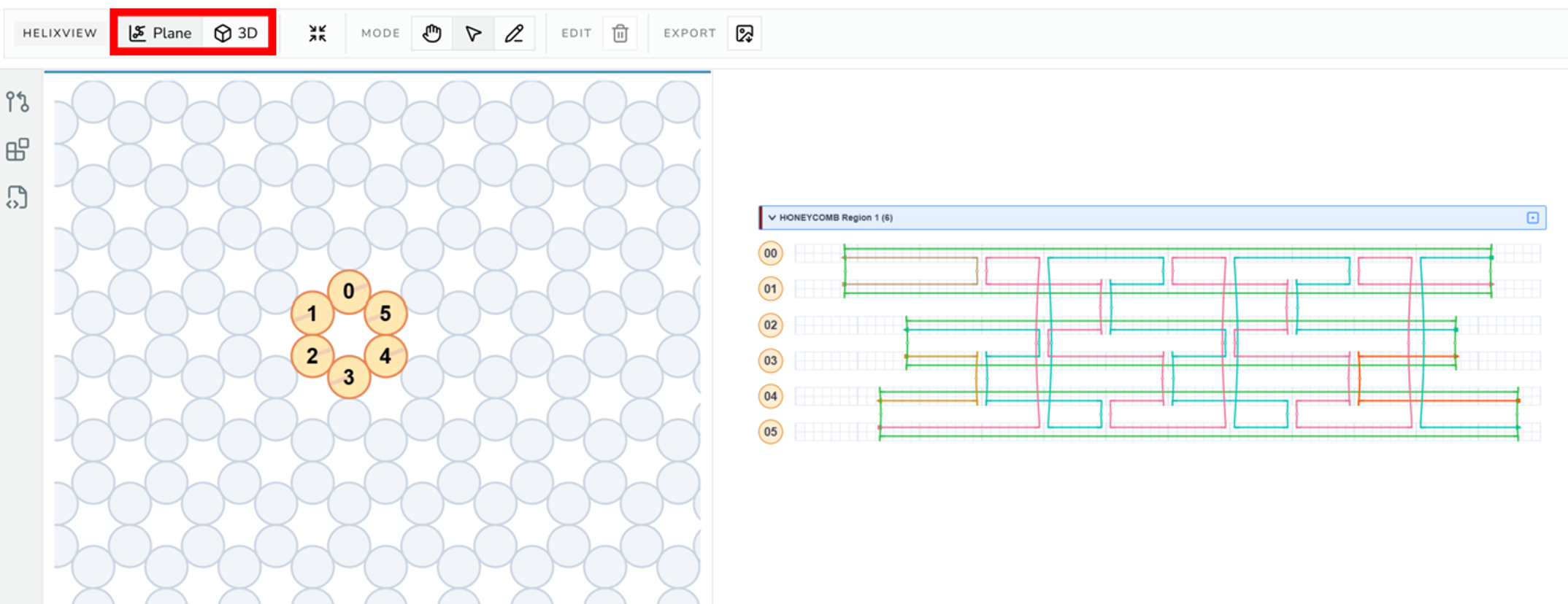
*Editor with the left-pane Plane / 3D toggle highlighted, Plane active on the left and the strand viewer on the right.*
## Strand View
The strand view is the routing canvas. Rows are grouped by **design region**, and each region gets a collapsible **header row**. Each visible virtual helix has a draggable **VH tag** at its left edge.
To move around, use the **arrow keys** to pan (hold `Shift` for bigger steps), the **mouse wheel** to zoom, or hold `Option` / `Alt` and drag. **Reset view** in the strand-view toolbar returns to the default zoom. Arrow keys pan only while the strand view is the active pane (click it first).
- **Click a region header** (Select mode) makes that region the **active region**; **double-click** it to collapse or expand its rows.
- **Drag a VH tag** (Select mode) reorders that VH within its region. This changes only the *display* row; identity and crossovers are unaffected.
- **Click a VH grid cell** activates the **cross-section cursor** for that region.
- **Drag the vertical cursor bar** changes the current base (bp) index.
- **Click the plane icon** on a region header to jump to that region's plane in 3D: the left pane switches to **3D**, planes are shown, and the camera frames the plane.
- **Cross-region arrows** mark strands that continue into another region.
The cross-section cursor is a shared position that drives **lattice helix-circle scaffold indicators** and **3D cursor markers**, so you can line up the same base index across all three views.
## Lattice Plane View
Used for honeycomb and square regions. Helices appear as circles on a snapped grid.
- **Click empty lattice cells** (Draw mode) adds VHs.
- **Double-click an existing helix circle** fills its default strand set if empty (does **not** create a circular scaffold).
- **Click or marquee-select** helix circles (Select mode).
- **Drag selected helices** moves the whole selected group on the lattice.
- Invalid moves (occupied or parity-violating destinations) leave the model unchanged.
- **Delete selected helices** (toolbar) or `Delete` / `Backspace` removes selected helices that carry no strands.
- **Export as image** (toolbar) downloads the plane view.
Lattice movement stays snapped to cells and preserves the region's lattice constraints (spacing and parity). For the full selection behavior, see [Selection](https://fold.xinshilab.com/docs/guide/selection#lattice-helix-selection).
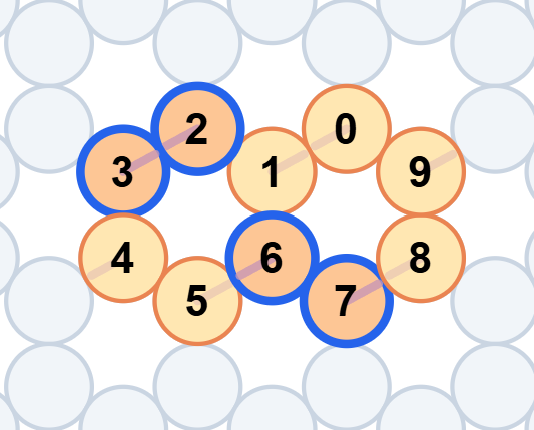
*Honeycomb lattice plane with a few helix circles, one selected group highlighted in blue, and scaffold indicator lines driven by the cross-section cursor.*
## Freeform Plane View
Used when helix positions should **not** snap to a lattice. The 2D editor draws on the region plane's own (local) surface; like any region, that plane can be repositioned and reoriented in 3D with the [plane gizmo](#plane-gizmo).
- **Double-click** empty space (Draw mode) adds a *perpendicular* VH.
- **Drag** in empty space (Draw mode) creates an *in-plane* VH.
- **Click a perpendicular VH** (Draw mode) fills it with a strand.
- **Click a free 3′ end, then a free 5′ end** (Draw mode) connects them.
- **Drag selected VHs** moves them.
- **Opacity shows depth.** The view looks along +W, so VHs at more negative W are nearer and more solid, and VHs at more positive W are fainter. Where VHs overlap, the nearer one is on top and takes the click. Selected and hovered VHs stay solid.
- **Drag a rotate handle** rotates one in-plane VH.
- **Drag a free endpoint** (Select mode) resizes that segment.
- **Distribute in a circle** (plane view toolbar) spaces three or more selected perpendicular VHs evenly on a circle around their centre, keeping their order. Its sibling, **Distribute in a circle, facing the centre**, also rolls each VH so roll 0 points at the centre.
Freeform edits update each helix's explicit local frame, which is preserved in `.fn.json` but **not** in cadnano JSON.
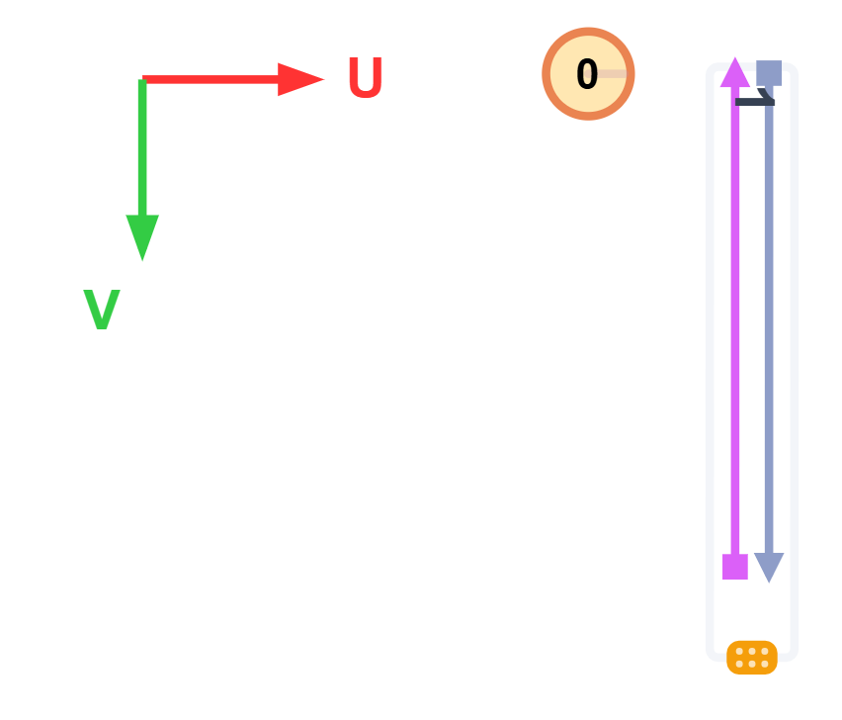
*Freeform plane showing a perpendicular VH (circle) and an in-plane VH (line) with its rotate handle visible.*
## Multiple Regions
A design can contain more than one region, for example a lattice bundle connected to a freeform extension. Each region has its own plane, its own placement rules, and its own grouped block of rows in the strand viewer.
> **Note**
>
> **DNA can continue from one region into another** whenever the ends are compatible. Region boundaries affect *placement rules* and *UI grouping*, not whether a strand can physically cross between regions. Keep an eye on cross-region crossovers when you later run auto-staple, simulation, or export.
>
## 3D View
The 3D view shows the current design in **lab coordinates**. It can display:
- helix cylinders and labels
- strand and crossover geometry
- cross-section cursor markers
- a coordinate axis
- persisted plane overlays
- the rigid-body simulation preview
The 3D toolbar controls what's shown and what runs:
- **View** toggles: helix grid (`g`), NT model (`e`), cross-section cursor (`c`), coordinate axis, and base planes (`f`). The keys work while the 3D view is the active viewer.
- **Selection**: show only the strands selected in the strand viewer, and **lock** that filter so further selection changes don't affect the 3D view.
- **RBS** (rigid-body simulation): **Relax**, relaxed layout, crossover stress, clear relaxed layout, and **Params**.
- **Export**: image (PNG), **GLB**, **oxDNA**, and **mrDNA**.
- **Reset camera** and **performance stats**.
- **3D Overlay**, which switches the tool panel to [3D Overlays](https://fold.xinshilab.com/docs/guide/3d-overlays) for loading mrDNA or PDB structures.
- **Mesh**, shown for a wireframe region, which switches the tool panel to [Reference Mesh](https://fold.xinshilab.com/docs/plugin-development/wireframe-plugins#manage-the-mesh).
Every button is listed in the [Interface Reference](https://fold.xinshilab.com/docs/guide/interface-reference#3d-view-toolbar).
Next to the 3D view, the **3D View Inspector** panel offers [region visibility](#hiding-regions-in-3d), plane visibility with **Add Plane**, the selected plane's details, and simulation diagnostics.
See [Simulation And Export](https://fold.xinshilab.com/docs/guide/simulation-export) for the simulation and export workflows.
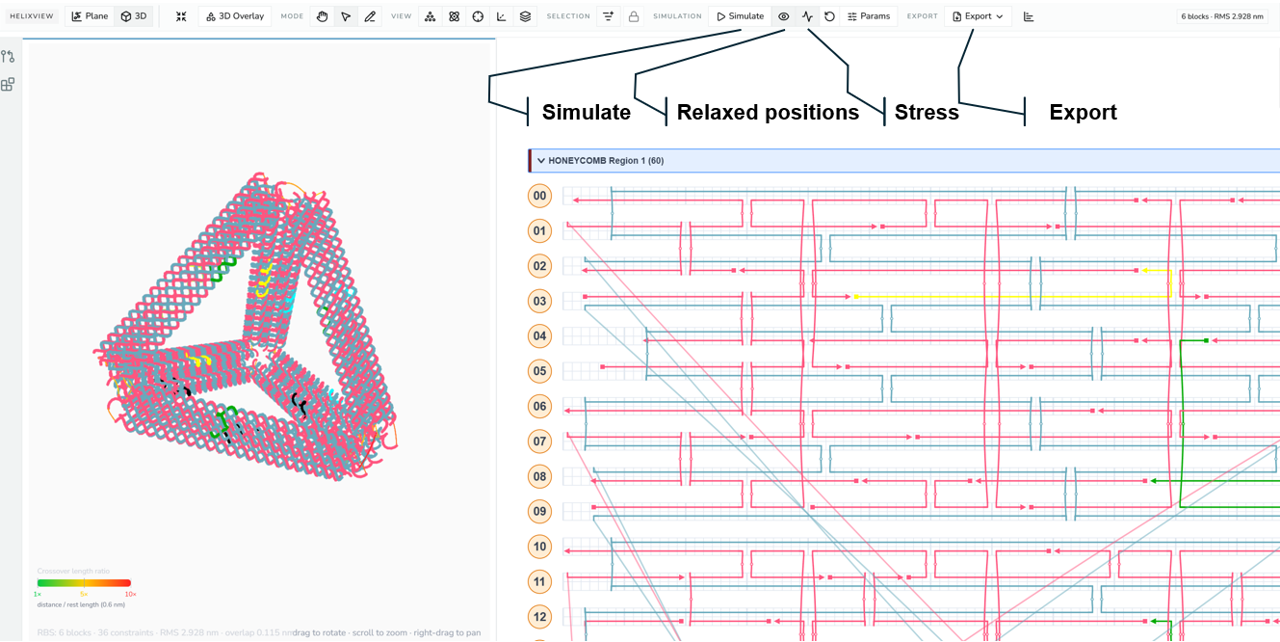
*3D view of a routed design with the 3D toolbar visible, showing the RBS relax, relaxed-positions, stress, and export controls.*
## Hiding Regions in 3D
The **Regions** list at the top of the **3D View Inspector** has an eye button for each region. Hiding a region removes its helices, strands, and reference mesh from the 3D view, along with any crossover that connects to it. A GLB export or screenshot leaves it out too.
Hiding is only a view setting. It isn't saved with the design, can't be undone with `Ctrl/Cmd + Z`, and doesn't affect the strand view, relaxation, or oxDNA and mrDNA exports. Its plane still follows the plane visibility toggle, so you can keep repositioning it.
## Plane Gizmo
Plane editing happens from the 3D view:
1. Switch the left pane to **3D**.
2. Enable **plane visibility**.
3. **Click a visible plane** to select it.
4. Choose **translate** or **rotate** mode.
5. **Drag the gizmo.**
The model updates live during the drag and records a **single undoable history entry** when the drag ends, so a whole reposition is one `Ctrl/Cmd + Z`.
The **3D View Inspector** panel shows the selected plane's name, **origin**, and **normal**, and has its own rotate / move toggle. **Add Plane** creates a new plane based on the selected one. **Remove Plane** appears for a plane that no region uses (the last plane can't be removed).
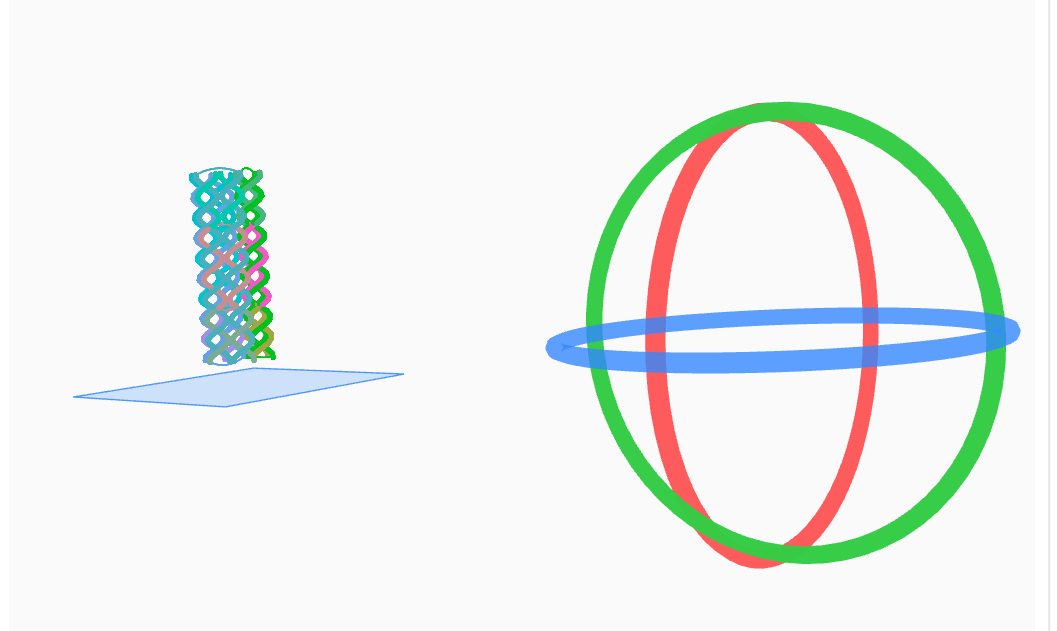
*Plane gizmo active in the 3D view, showing the rotate handles (red, green, blue rings) on a selected plane.*
────────────────────────────────────────────────────────────
# Selection and Highlighting
Foldnano has **three independent selection systems**, one per editing surface. Knowing which one is active explains why a selection in one view doesn't carry into another:
| Where | Selects | Granularity |
| --- | --- | --- |
| Strand viewer | Strand **ends** (expanded to segments/oligos by filters) | End-based |
| Lattice plane view | Virtual-helix **circles** (in constrained-move groups) | VH-based |
| Freeform plane view | Virtual **helices** | VH-based |
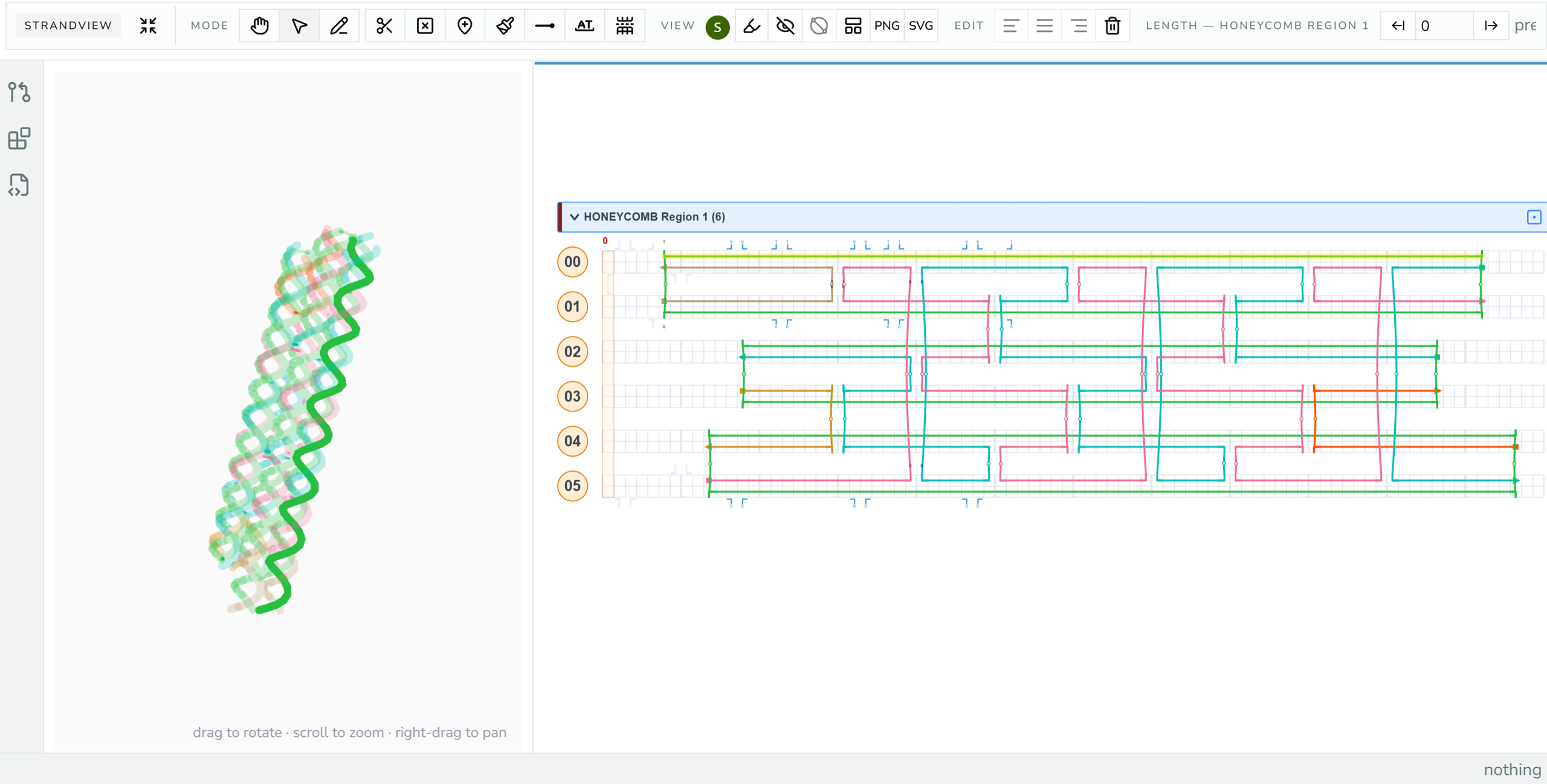
*Strand viewer with an active end-based selection.*
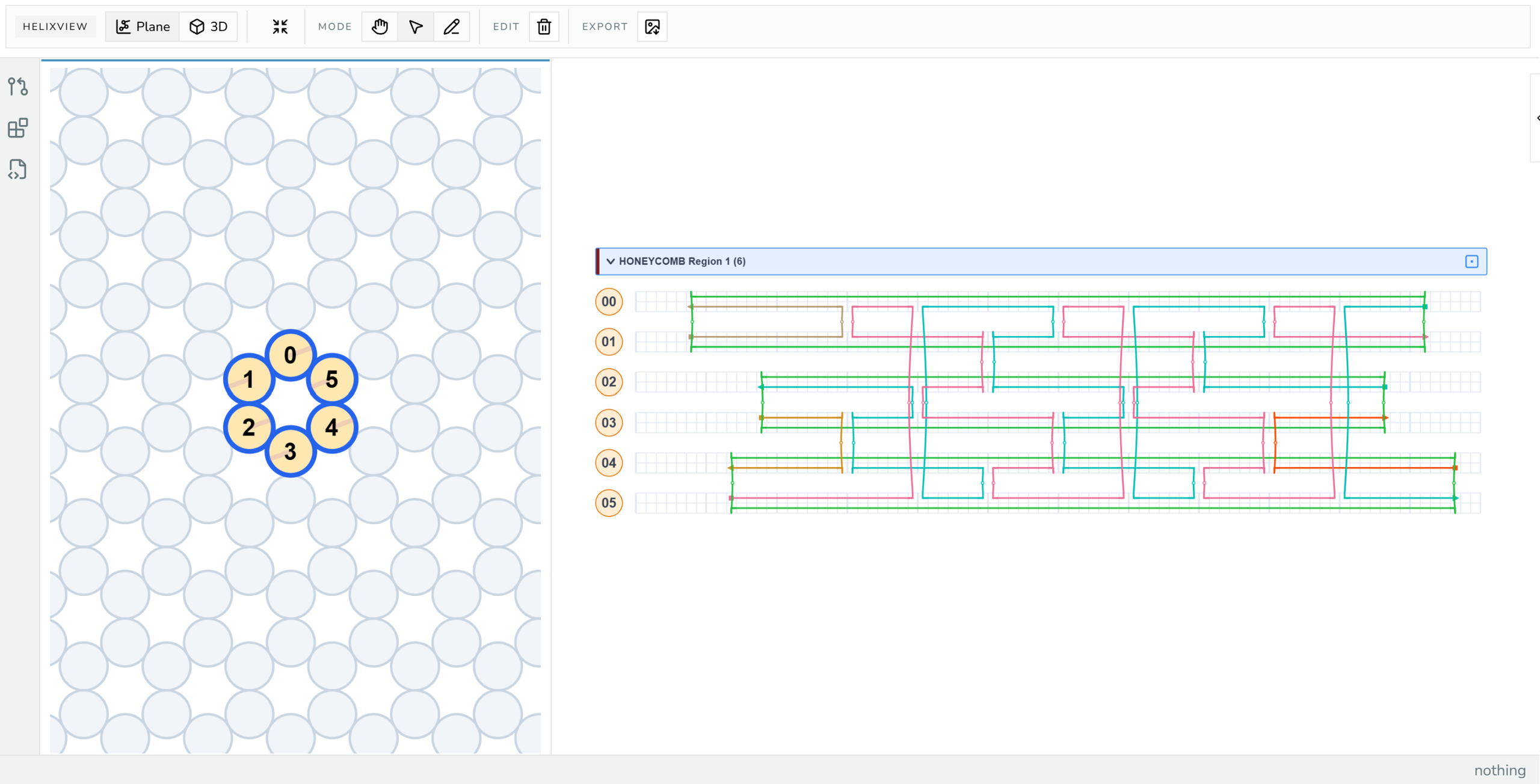
*Lattice plane view with an active virtual-helix selection.*
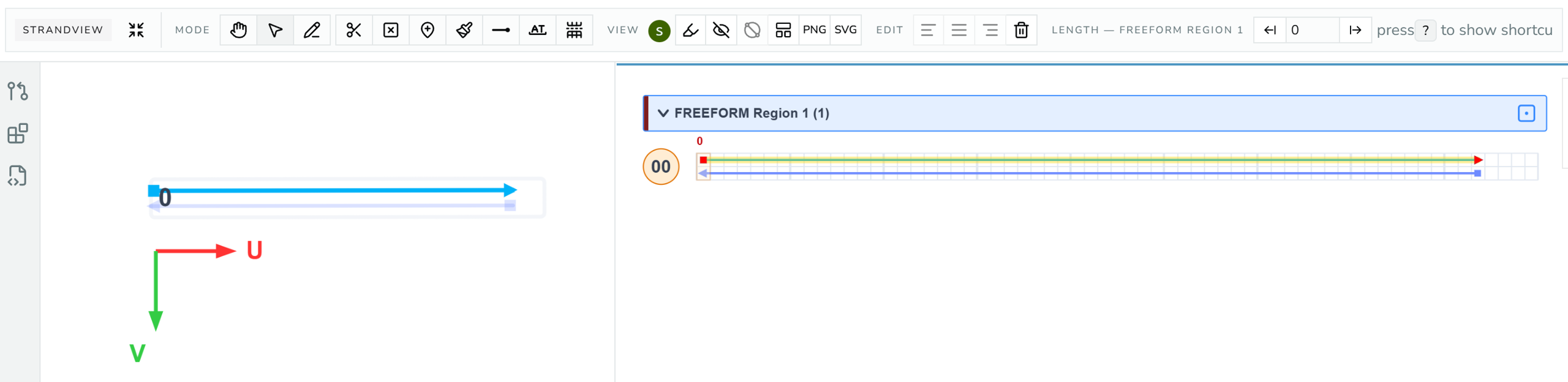
*Freeform plane view with an active virtual-helix selection.*
## Strand-View Selection
The strand viewer uses **end-based** selection: the underlying unit is a strand *end*, and clicks expand outward from there.
| Action | Result |
| --- | --- |
| Click an end | select that end |
| Click a segment | select both of its ends |
| Click an oligo | select all ends in that oligo |
| Drag on empty background | marquee selection |
| Shift / Cmd / Ctrl-click | additive or toggle selection |
| `Delete` / `Backspace` | remove the selected routing |
| `Escape` | clear selection |
### Selection filters
The Select tool panel's filters control whether a click **expands** to neighboring objects. Filters cover:
- **SCAF** / **STAP** (`c` / `t`): limit selection by strand class
- **ends** (`e`), **crossovers** (`x`), **segments** (`d`), **oligos** (`o`): which object types are eligible; with **oligos** on, a click selects the whole oligo
The filter keys work while the strand viewer is the active viewer. Set the filters *before* clicking to control how far a selection grows. For example, enable only "scaffold" to marquee-select scaffold routing while leaving staples untouched.
> **Note**
>
> Region headers, VH tags, VH grid cells, and the cross-section cursor stay interactive in Select mode even when strand filters are narrow. Narrowing filters never locks you out of the region controls.
>
### Select all with
The **Select:** dropdown in the panel turns a click into a "select all similar" action:
| Option | A click selects | Needs filter |
| --- | --- | --- |
| **Where I click** | Just what you click (default) | |
| **Same Color** | Every oligo with the clicked oligo's color | oligos |
| **Same Length** | Every oligo with the clicked oligo's length | oligos |
| **Same Modification** | Every end carrying the clicked end's modification | ends |
### Oligo info
Below the filters, the panel shows details for the oligo or segment you last clicked: its name, its 5′ → 3′ span (`helix[base] -> helix[base]`, or *(circular)*), length, color, whether it's the scaffold, whether its sequence is locked, and its modifications. For a clicked segment, the panel also shows the oligo it belongs to.
#### Naming an oligo
The **Name** field (gray background) is editable. Type a name and press `Enter` or click away to apply it; `Escape` cancels. Each rename is a single undo step, and clearing the field removes the name.
Names are **optional labels** for your own use and for downstream tools: they appear in the [oligo report](https://fold.xinshilab.com/docs/guide/oligo-report) and as the `Name` column of the sequence CSV. Most oligos have none. Foldnano doesn't check them: two oligos can share a name, and nothing in the editor depends on it. Breaking a named oligo gives every piece the same name, and joining two oligos keeps the name of the one whose 3′ end makes the connection.
Mirror oligos in a [repeat group](https://fold.xinshilab.com/docs/guide/duplicates-repeat-groups) show their source's name read-only; rename the source instead.
The Select panel also hosts the **Repeat groups** list when the design has linked copies; see [Duplicates And Repeat Groups](https://fold.xinshilab.com/docs/guide/duplicates-repeat-groups#the-repeat-groups-panel).
> To see how the target filters change what a click selects, try the **Select and filter targets** step of the interactive walkthrough on [Editing Tools](https://fold.xinshilab.com/docs/guide/editing-tools).
### Moving selected ends
Drag a strand-view selection left or right to move the selected ends together by a single uniform shift, which preserves their relative spacing. If the exact drop position is blocked, the batch **snaps to the nearest valid shift**; if no valid shift exists for the whole selection, the drag makes no change.
Constrained crossover ends move too. Each one snaps to a valid crossover site on the same partner helix, and its partner end moves along with it so the crossover stays intact, even when that partner isn't part of the selection.
To copy selected oligos elsewhere, see [Duplicates And Repeat Groups](https://fold.xinshilab.com/docs/guide/duplicates-repeat-groups).
**Dragging one end** (expanding/shrinking a strand) and **dragging both ends together** (sliding the whole strand) treat sequence differently:
| | What happens to assigned sequence |
| --- | --- |
| One end | Positions outside the new range are dropped. Newly added positions are auto-filled from the complementary strand's existing sequence; this is safe to do silently, since those positions were previously blank. |
| Both ends together | The strand keeps its own sequence exactly as-is; the complementary strand is left untouched. Since the partner doesn't necessarily move too, this can leave the two sides mismatched at some positions. |
> **Note**
>
> For a whole-strand slide, Foldnano doesn't guess which side to fix when a mismatch results: that would mean silently discarding one of two sequences you deliberately assigned. Instead it flags the mismatch (see **sequence mismatch** under [Highlighting And Hiding](#highlighting-and-hiding) below) and leaves the choice of which strand to edit to you.
>
### Aligning ends
The strand-view toolbar's **Edit** group has three buttons that line up ragged ends in one step, instead of dragging each end by hand:
| Button | Effect |
| --- | --- |
| **Align free ends left** | Moves the selected ends to the **leftmost** of them |
| **Justify selected segment ends** | Moves selected left ends to the leftmost of them **and** selected right ends to the rightmost of them |
| **Align free ends right** | Moves the selected ends to the **rightmost** of them |
For example, three staples on neighboring helices end at bases 40, 42, and 45. Select those three ends and click **Align free ends left**: all three move to base 40, so the staples become flush. **Align free ends right** would move them to 45 instead.
Which ends move:
- **Only free ends.** An end joined to a crossover or connection never moves, even if it's selected.
- **One end of a segment selected:** that end moves.
- **Both ends of a segment selected:** *Align left* moves the segment's left end and *Align right* its right end, so the segment stretches or shrinks rather than slides. *Justify* moves both.
When the buttons are available:
- Only in the **Select** tool, in a tab that owns the document.
- *Align left* / *Align right* need at least **two** ends that would move.
- *Justify* needs at least **two segments**, with at least one selected left end and one selected right end.
- The move is **all or nothing**. The button stays disabled if any end would overlap another strand (including another moving one), reverse its segment's 5′ → 3′ direction, or run past the end of the helix.
The whole alignment is **one undo step**. Sequence on the moved ends follows the single-end rules in the table above: bases outside the new range are dropped, and new positions are filled from the complementary strand where it has sequence.
## Lattice Helix Selection
Lattice plane view has its own VH-based selection, separate from both strand-end and freeform selection.
- **Click** selects one *constrained-move group* (helices that must move together).
- **Shift / Cmd / Ctrl-click** toggles one constrained-move group.
- **Marquee** selects all intersected helix circles, then expands each to its full constrained group.
- **Drag a selected helix** moves the whole selected set together, only if every target cell is valid.
- **`Delete` / `Backspace`** (or the Delete toolbar button) removes the selected helices, but only **empty** ones; helices that still carry strands are skipped to prevent accidental data loss.
- **Undo / redo** restores lattice helix positions after a move or a delete.
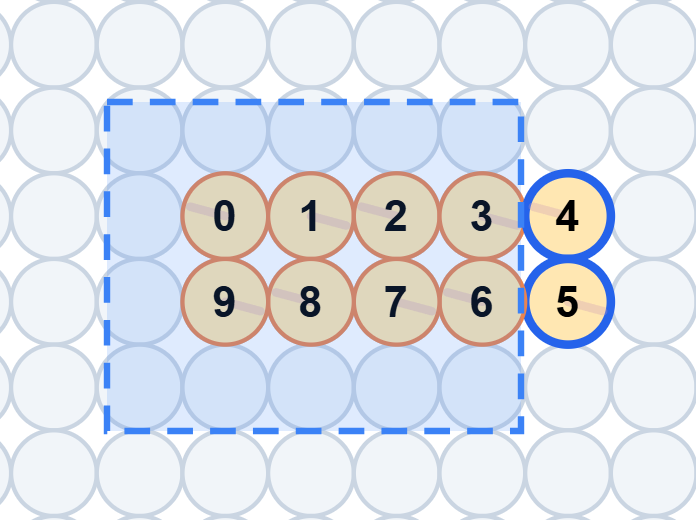
*Lattice plane with one constrained-move group already selected (blue ring) and a marquee rectangle actively in progress over several other circles.*
## Freeform Selection
Freeform plane view selects whole helices, the same way the lattice plane view does:
- **Click or marquee-select** VHs.
- **Drag** to move selected VHs.
- `Delete` / `Backspace` removes selected freeform VHs.
Clicking a freeform helix's number tag at the left of the strand viewer selects it too (`Shift`-click adds or removes it), so you can turn a helix from the strand viewer while the 3D view is open in the other pane. With freeform helices selected, the Selection Tool panel shows their **Roll**, **position** and **direction**:
- **Roll** is how far the helix is turned about its own axis, which sets where its backbones and crossovers face. The dial shows the helix end-on, seen from its first base (bp 0); drag the dot (it snaps to 15°, hold `Alt` to turn freely) or type an angle. Clockwise is positive. 0° points along the plane normal (W) for a helix lying in the plane, or along U for a helix standing up.
- **U, V, W** give the start of one helix in nm, measured along the region plane's own axes: U (red) and V (green) lie in the plane, W (blue) is its normal. The freeform plane view draws them at the plane origin (W points into the screen, shown as ⊗), and the 3D view draws them for the active freeform region. With several helices selected they become **ΔU, ΔV, ΔW** and move them all by that amount.
- **Direction** turns a helix that lies in the plane, keeping its roll.
When several helices disagree, the field is blank; typing a value applies it to all of them. On the canvas, a selected standing helix shows its roll as a small handle on its circle, and a helix lying in the plane shows a little end-on dial just before its start. Drag either to change the roll.
Both plane views are helix-based; strand-level routing and selection for a freeform region happen in the strand viewer, exactly like any other region.
---
## Highlighting And Hiding
The strand-viewer toolbar includes **highlight** and **hide** menus. Highlights **dim non-matching oligos** while keeping matching ones emphasized, which is useful for auditing a dense design. Hiding removes visual clutter without changing the design.
**Highlight types:**
| Highlight | Emphasizes |
| --- | --- |
| scaffold | oligos marked as scaffold |
| circular strand | closed-loop oligos (these block CSV export, see [Simulation And Export](https://fold.xinshilab.com/docs/guide/simulation-export#other-export-paths)) |
| with modifications | oligos carrying a terminal modification |
| longer than 90 | oligos over 90 nt |
| shorter than 15 | oligos under 15 nt |
> **Tip**
>
> The length highlights are handy QC passes. "Shorter than 15" finds staples too short to be useful; "circular strand" finds loops you must linearize before some exports.
>
The same menu has a separate **Warnings** group below Highlight, for flagging defects rather than categorizing oligos:
| Warning | Flags | Default |
| --- | --- | --- |
| sequence mismatch | Base pairs where both strands have an assigned letter but they aren't complementary, drawn as a short red line connecting the two strands at that position | on |
Sequence mismatch is the most common result of sliding a whole strand (see [Moving selected ends](#moving-selected-ends) above): the strand keeps its own sequence, its complementary partner doesn't necessarily move with it, and the two can end up out of sync. Turning the warning off only hides the markers: it doesn't fix anything, and mismatched bases still need to be corrected by hand.
**Hide toggles:** crossovers, unconstrained crossovers, sequence.
Hiding crossovers clears the lines but keeps the information: each crossover end shows a small arrow labeled with where it goes, such as `12[34]` for helix 12, base 34. A target in a collapsed region also names the region, such as `R2:12[34]`. When you zoom far out, only the arrows remain.
**Unconstrained crossovers** applies this only to crossovers that aren't constrained, and keeps the lines of constrained crossovers. It affects the strand view only, while **crossovers** also hides them in 3D.
- **Hover** a label or its crossover end to show the line temporarily.
- **Click** a label to select the crossover. A selected crossover keeps its line until you deselect it, including every crossover of a selected oligo.
- **Double-click** a label to jump to the other end, expanding its region if it is collapsed.
The **3D view uses the same highlight context**, so a highlight set in the strand viewer also dims the matching strands in 3D.
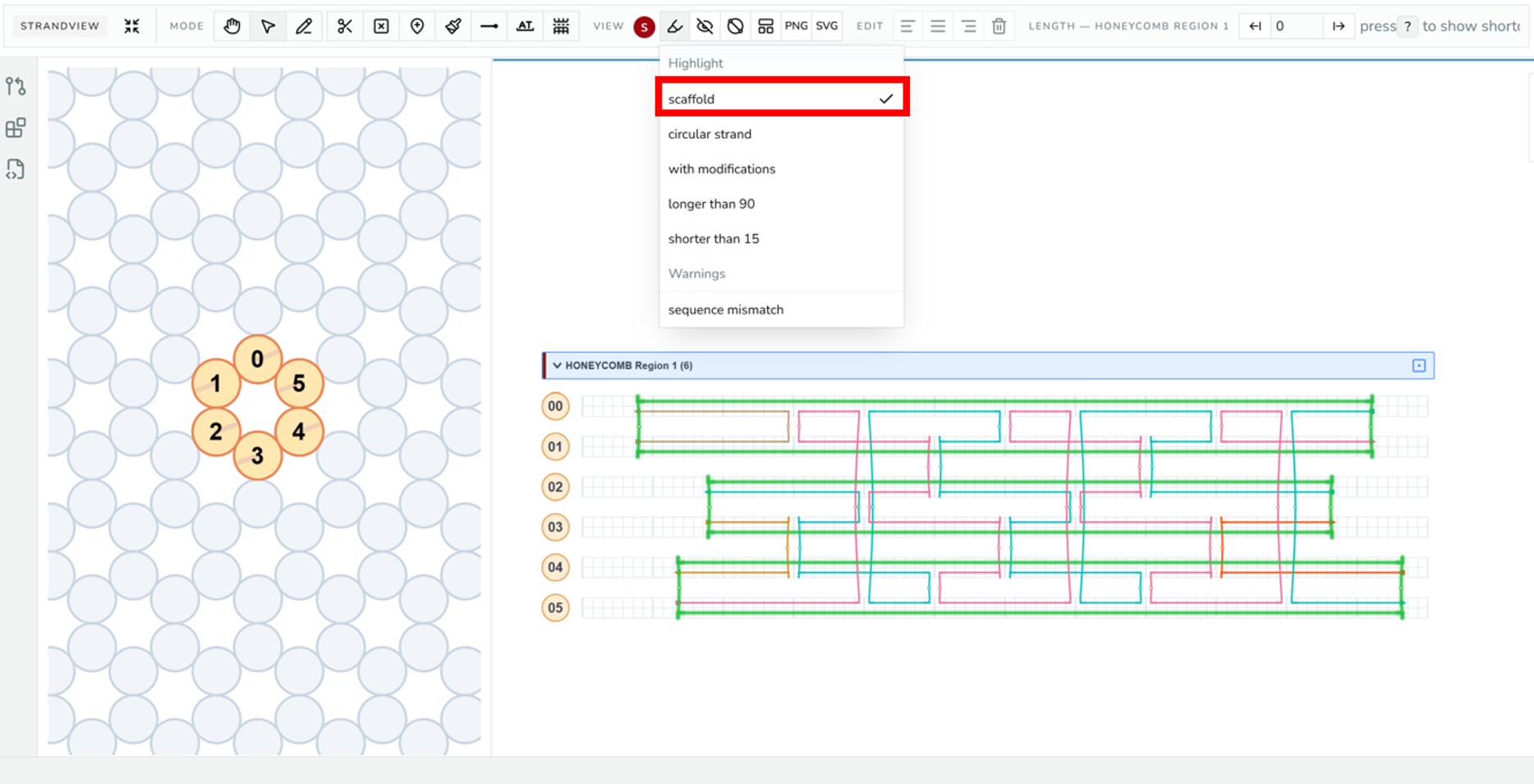
*Strand viewer with the 'scaffold' highlight active, non-scaffold oligos dimmed, and the Highlight menu open with 'scaffold' checked.*
## Circular Scaffold Map
The **Circular Scaffold Map** is a QC view of how the staples bind the scaffold. Click **Circular Scaffold Map** in the strand-view toolbar's View group to open it in the tool panel; click it again to close. It's available once an oligo is [marked as scaffold](https://fold.xinshilab.com/docs/guide/mental-model#explicit-scaffold), and it shows one map per scaffold.
What it draws:
- **The scaffold as a circle**, labeled with its name and length, with its 5′ end (square) and 3′ end (triangle) marked. A linear scaffold is drawn as an open arc; a circular scaffold with a single nick is drawn as a circle with a small gap.
- **Each staple as arcs inside the circle**, one arc per stretch of scaffold it binds, joined by **chords** where the staple crosses to a distant part of the scaffold (at a staple crossover, or where the scaffold itself crosses over under a continuous staple segment).
- **A radial bar per double-stranded segment** outside the circle; its height is the segment's length.
- Two **histograms** below: **segment length** (nt) and **crossover span**, the sequence distance along the scaffold between the two ends of each chord. For circular scaffolds the span is measured the short way around.
Long chords and wide span histograms mean staples that tie together distant parts of the scaffold, which is usually what holds a structure together; many very short segments are worth a second look before ordering.
Working with the map:
- **Hover** a staple to emphasize it on the map; **click** it to select that oligo in the strand viewer. Selected staples stay emphasized on the map.
- **Zoom** with the zoom buttons or `Ctrl/Cmd` + scroll; scroll to pan.
- **Make circular** draws a linear or nicked scaffold as a closed circle; click again to revert.
- Set a histogram's **bin size** to group lengths, or its **max count shown** to cap the y-axis so small bars stay visible.
- **Download SVG** saves the map; **Copy histogram data** copies the histogram values as tab-separated text for a spreadsheet.
See the [Interface Reference](https://fold.xinshilab.com/docs/guide/interface-reference#circular-scaffold-map) for the full control list.
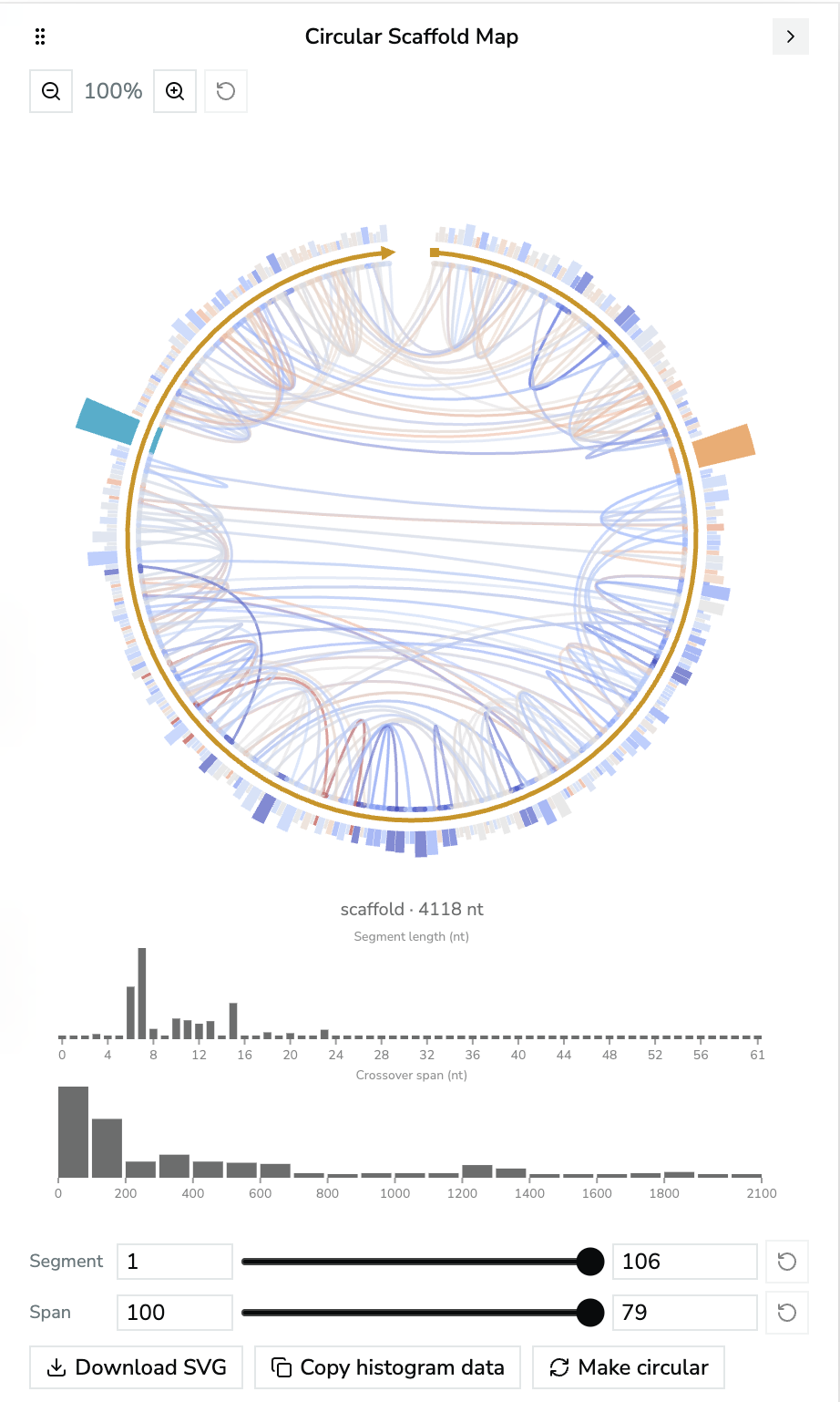
*Circular Scaffold Map for a 4,118 nt scaffold, with one staple hovered and both histograms below.*
────────────────────────────────────────────────────────────
# Duplicates And Repeat Groups
Many DNA structures repeat: tile tubes, stacked units, origami that assembles with identical copies of itself. Foldnano offers two ways to repeat routing in the strand viewer:
| Action | Shortcut | Toolbar button | Result |
| --- | --- | --- | --- |
| **Duplicate** | `Ctrl/Cmd + D` | **Duplicate selected oligos** (Edit group) | Independent copies you can edit freely |
| **Duplicate as linked mirror copies** | `Ctrl/Cmd + Shift + D` | **Duplicate as linked mirror copies** (Edit group) | Mirror copies that always follow their originals |
Both use the same placement flow, described below. Both buttons are enabled only in the **Select** tool with something selected.
## Placing A Copy
1. In the **Select** tool (`v`), select **whole oligos**, meaning every strand of each oligo. Clicking an oligo with the Oligo filter on is the quickest way (see [Selection](https://fold.xinshilab.com/docs/guide/selection)).
2. Press `Ctrl/Cmd + D` (or `Ctrl/Cmd + Shift + D` for mirrors). A translucent preview of the copy appears at the first free position to the right, on the same helices.
3. Move the pointer onto the copy to grab it; it then follows the pointer until you move off its helices.
4. Click or press `Enter` to place it. `Escape` cancels.
While placing:
| Input | Effect |
| --- | --- |
| Move the pointer | Moves the copy in steps of the region's helical repeat (21 bp for honeycomb and freeform, 32 bp for square), so crossovers stay on valid sites and the copy keeps its twist |
| Hold `Shift` | Free 1 bp steps |
| `←` / `→` | Jump to the previous / next valid position |
| Click / `Enter` | Place the copy |
| `Escape` | Cancel |
The preview turns **red**, with the reason shown, wherever the copy would overlap another strand, put a crossover on an invalid site, or leave a skip/insertion without a matching complementary strand. A red preview can't be placed.
> **Tip**
>
> The new copies stay selected after placement, so pressing `Ctrl/Cmd + D` again places the next repeat. If a copy runs past the end of the region, the region is extended automatically.
>
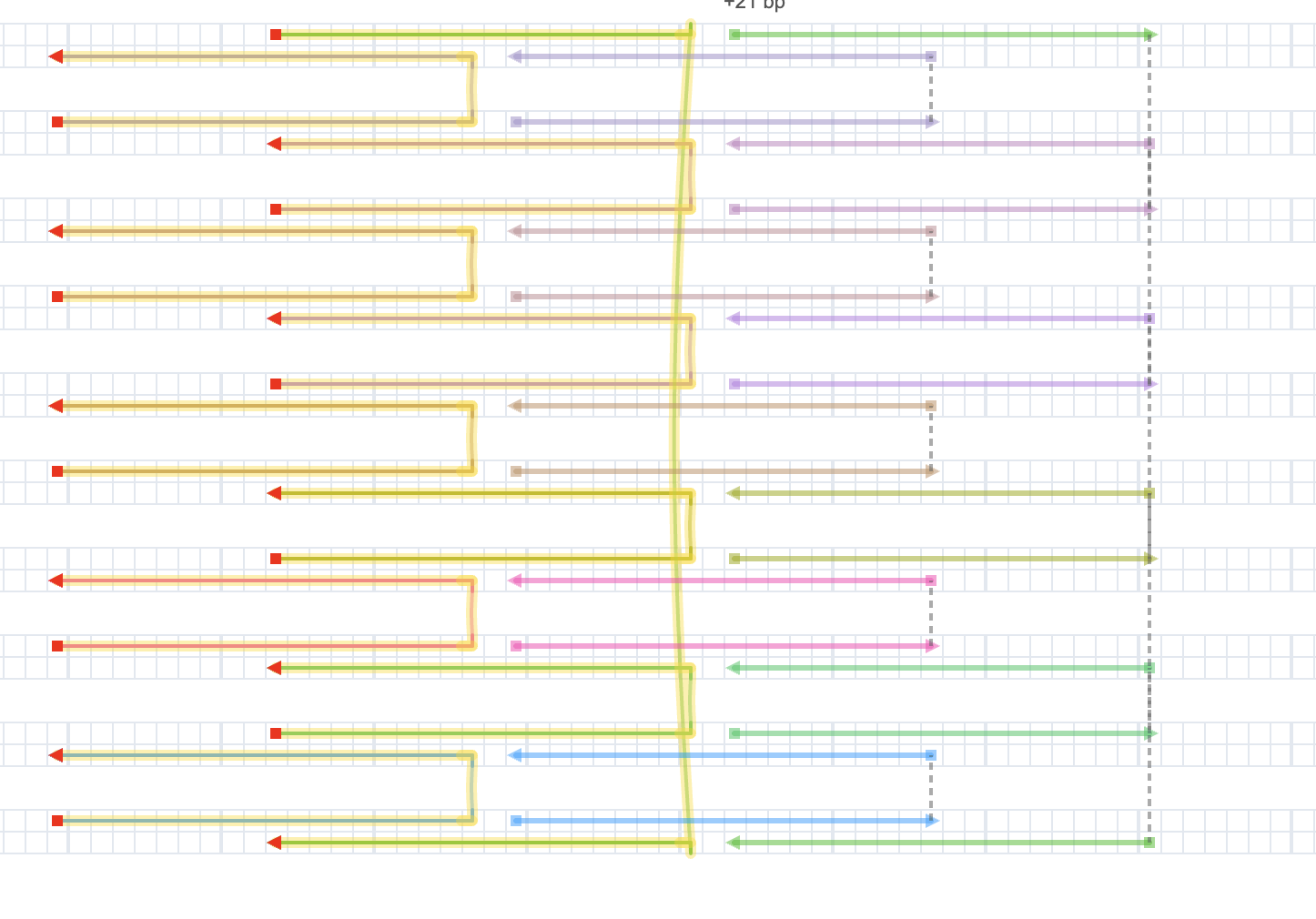
*A valid placement: the translucent copy follows the pointer in steps of the helical repeat.*
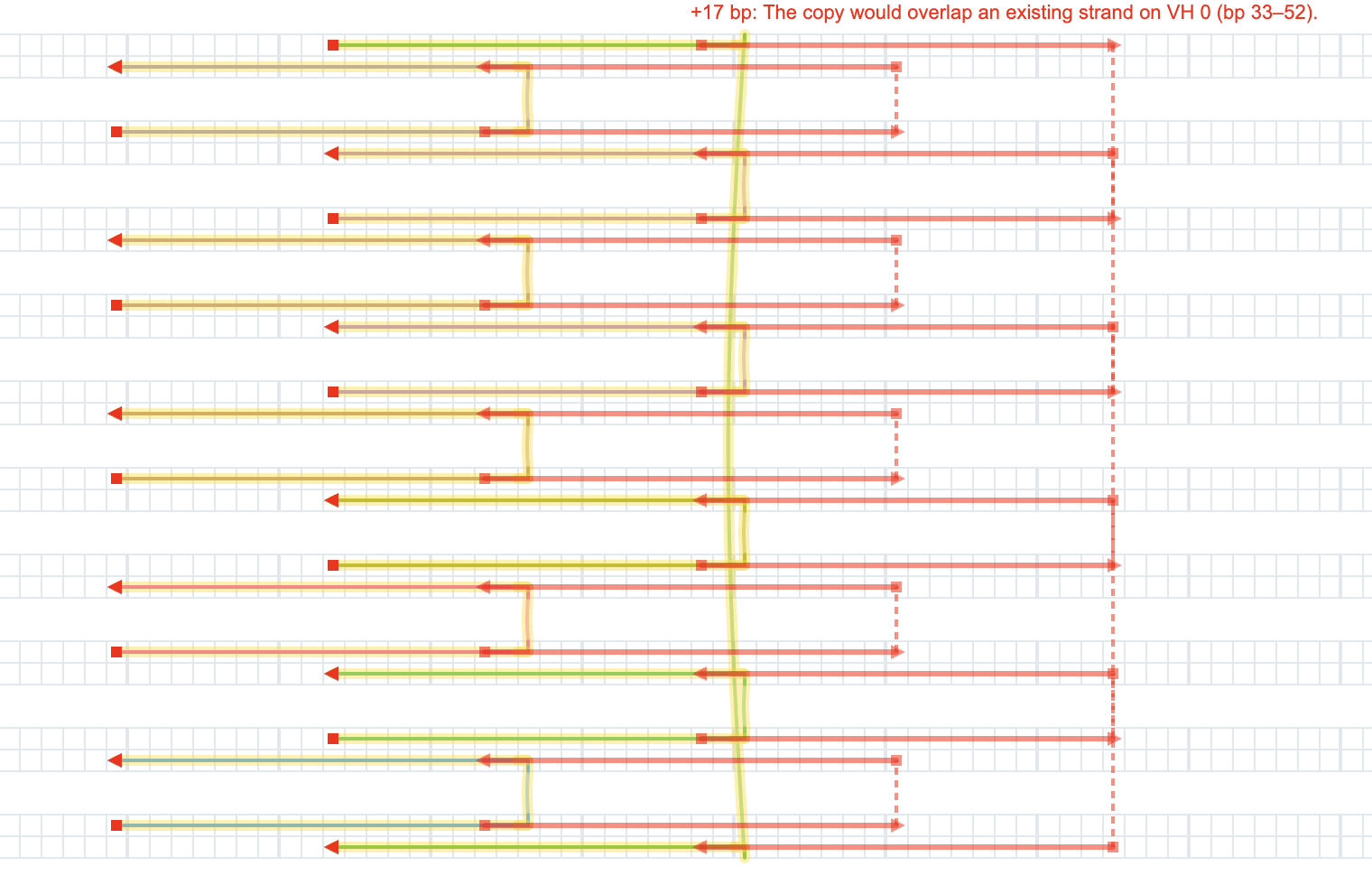
*An invalid placement turns red and says why; it can't be placed.*
## Plain Duplicates
A plain duplicate creates ordinary, independent oligos with the same color, sequence, skips/insertions, and modifications as the originals. After placement there is no link between them; editing one never affects the other.
## Mirror Copies
Linked copies become **mirrors** of the selected oligos, which are now called the **originals**. Together they form a **repeat group**.
- **Mirrors follow their original.** A mirror always equals its original shifted by the copy's offset. Edit the original (move ends, break, add crossovers, skips, sequence) and every mirror follows in the same undo step.
- **Edits that would break a mirror are refused.** If an edit would make a mirror overlap something, or put its crossover or skip somewhere invalid, the edit is refused with a message naming the copy (for example `Copy 2 of Repeat 1: …`).
- **Mirrors can't be edited directly.** Clicking a mirror selects its original instead. Drawing onto a mirror, joining to it, painting it, or deleting it on its own is refused with *"Mirror oligos can't be edited. Edit the original instead."*
- **Sequence flows one way.** A sequence written onto a mirror from its partner strand is reverted, and the original's sequence never changes because of a mirror. Any disagreement shows up as a [sequence mismatch](https://fold.xinshilab.com/docs/guide/selection#highlighting-and-hiding) warning.
Mirrors can only be made from original oligos, never from other mirrors, and a selection that already belongs to a repeat group can only be extended through that group (see below).
### How mirrors look and export
- Mirrors are drawn **faded** in the strand view and in its SVG export, and **translucent** in 3D.
- Staple lists, the sequence CSV, the [Oligo Report](https://fold.xinshilab.com/docs/guide/oligo-report), and cadnano export include **only real oligos**.
- The 3D **Export** menu has an **Include mirror copies** option for oxDNA and mrDNA, so you can simulate the assembled structure. Rigid-body simulation always includes mirrors.
## The Repeat Groups Panel
When the design has at least one repeat group, the **Select** tool panel shows a **Repeat groups** section. Each group lists its name, the number of originals, and one chip per copy with its offset (for example `Copy 1: +42 bp`).
| Control | Effect |
| --- | --- |
| **✕** on a copy chip | Remove that one copy (removing the last copy dissolves the group) |
| **Select originals** | Select all of the group's originals in the strand viewer |
| **Add copy** | Start placing another linked copy of this group (Select tool only) |
| **Detach** | Keep the copies as independent, normal oligos and dissolve the group |
| **Delete** | Remove all copies; the originals stay as normal oligos |
You can also add a copy by selecting exactly the group's originals and pressing `Ctrl/Cmd + Shift + D`. A group can't have two copies at the same offset.
All of these actions are undoable.
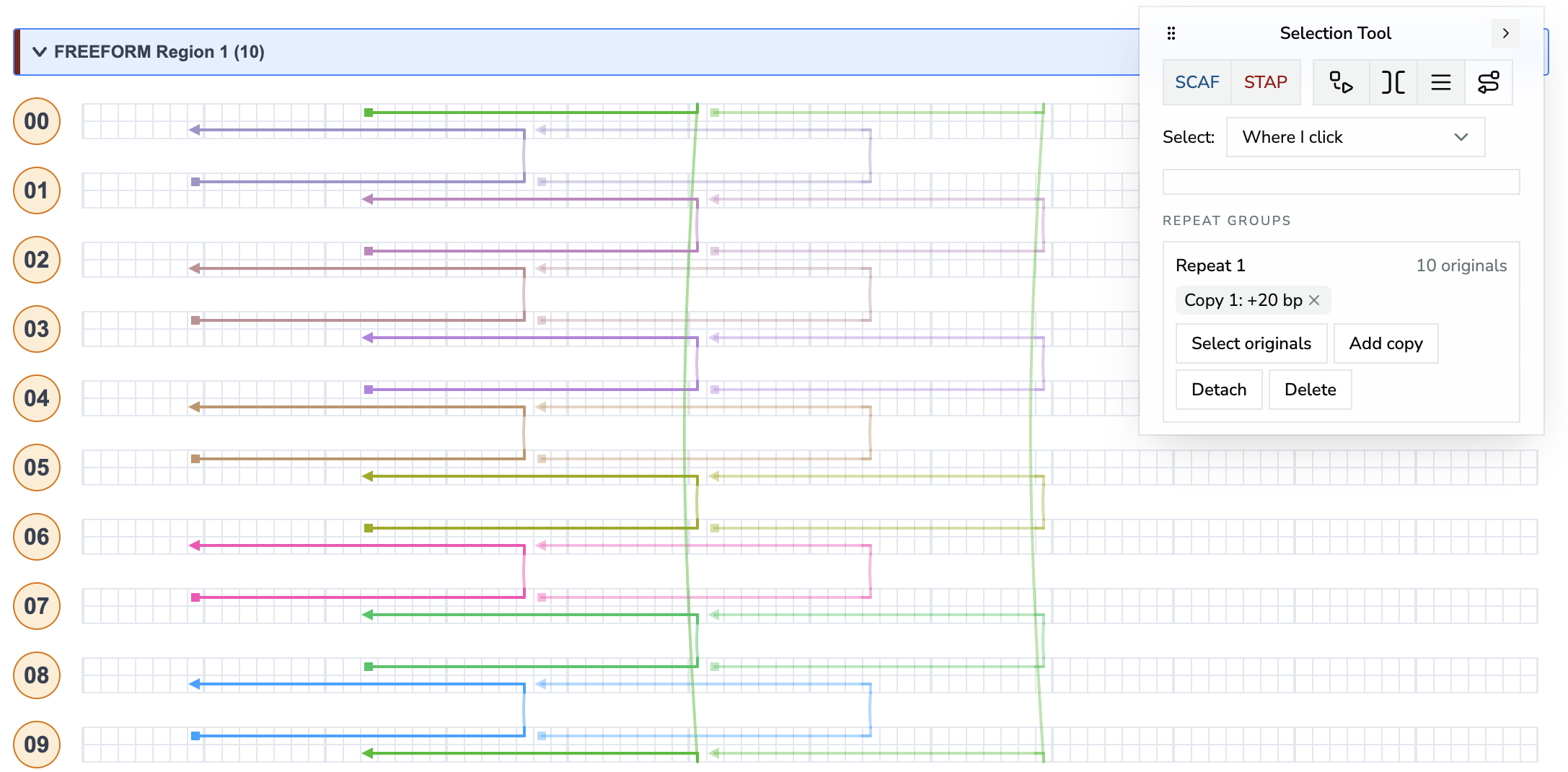
*The Repeat groups section of the Select tool panel, next to a design with one linked copy.*
────────────────────────────────────────────────────────────
# Simulation And Export
Once a design is routed and sequenced, Foldnano can **relax** it for a quick geometry preview and **export** it for downstream simulation, fabrication, or archival. This page covers the rigid-body preview, the nucleotide model that feeds every simulation export, and each export path.
## Rigid-Body Simulation (RBS)
Rigid-body simulation is a **render-time relaxation preview** in the 3D view. It moves rigid blocks of the structure to relieve strain so you can sanity-check geometry before committing to a heavier off-tool simulation. The approach is inspired by the rigid-body cluster simulation in [oxView](https://sulcgroup.github.io/oxdna-viewer/).
Typical flow:
1. Switch the left pane to **3D**.
2. Click **Relax** in the **RBS** group.
3. Toggle **relaxed positions** to view the relaxed geometry.
4. Enable **stress coloring** to spot strained connections (for example crossovers pulled out of place).
While it runs, the button reads **Stop** and an *RBS running* chip appears. **Clear relaxed layout** discards the result.
**Params** opens the solver settings: **Spring k** (connection stiffness), **Repulsion C** (how strongly blocks push apart), **Friction**, **Steps**, and **Collisions** (collision passes per step). After a run, the **3D View Inspector** panel shows **Simulation Diagnostics**: block and constraint counts, RMS constraint error, and maximum overlap (the same block count and RMS error appear as a toolbar chip).
To see which parts of the design move as one rigid block, toggle **Show RBS blocks** in the strand-view toolbar.
> **Warning**
>
> **RBS results are transient.** They are not saved in the `.fn.json` and are a render-time override only. If you change topology afterward, the relaxed state becomes **stale**: a *Relaxed layout stale* chip appears and the button changes to **Re-relax**. Re-run it before reading anything into the relaxed geometry.
>
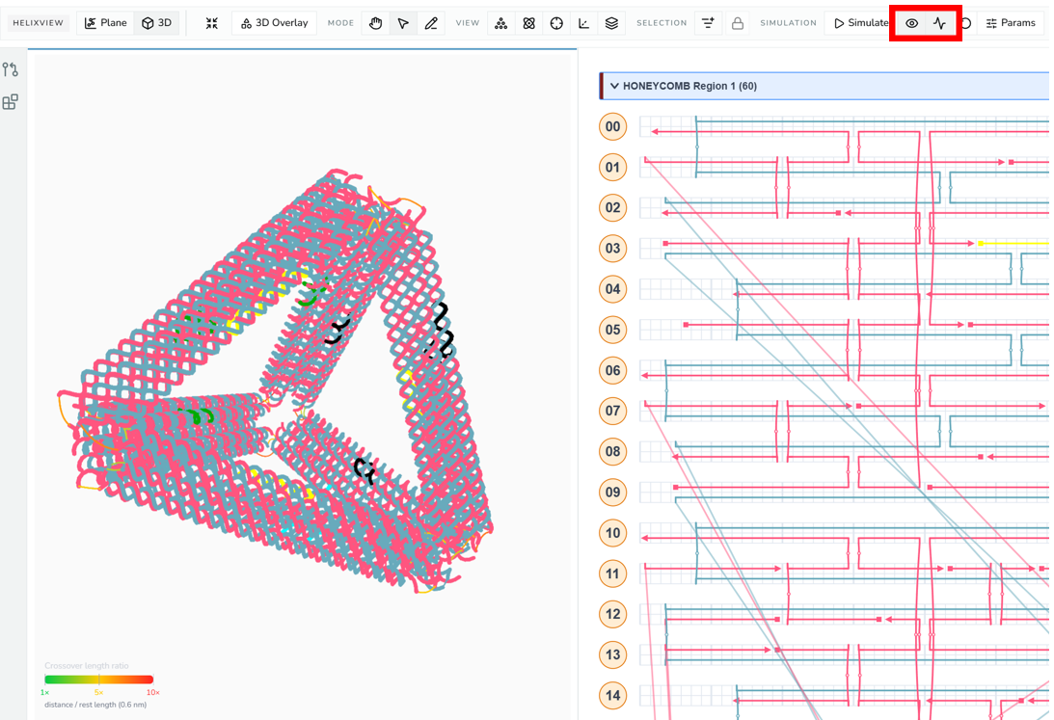
*3D view after Relax, with stress coloring on and the relaxed-positions / stress toggles highlighted.*
## NT Model
Every simulation export is built from a **format-agnostic nucleotide (NT) model** derived from the current design. The NT model expands virtual-helix slots into nucleotide records, connections, strand order, and geometry, a single intermediate that both oxDNA and mrDNA exporters consume.
**Skips and inserts are resolved here, before file export:**
- a **skip** removes that base position from the emitted nucleotide path,
- an **insertion** adds extra nucleotide positions between neighboring slots,
- sequence assignment follows each oligo's current 5′ → 3′ order.
The NT model, and so every simulation export and the 3D view's NT mode, can't be built when a skip or insert:
- differs between the two strands of one base,
- sits on a base where only one strand exists (for example after you deleted the opposite staple), or
- sits on a constrained crossover site.
The export stops with a message naming the helix and base (the 3D view shows **Cannot show NT model** and falls back to strand rendering). Remove the skip or insert there, or restore the missing strand, and export again.
Single-stranded DNA itself is fine: oxDNA and mrDNA simulate it. Don't add single-stranded bases as an insert on one strand, though. Make them explicit in the design instead: draw them as ordinary strand bases (or shorten the strand rather than skipping a base on it), or remove the skip or insert before simulating.
> **Warning**
>
> Because skips and inserts change the emitted path, they also shift where assigned bases land. Check the scaffold sequence indicator and re-run relevant checks before exporting any simulation file (see [Editing Tools](https://fold.xinshilab.com/docs/guide/editing-tools#scaffold-sequence-indicator)).
>
## oxDNA Export
oxDNA export produces the topology + configuration file pair for oxDNA-style simulation. It uses the **current 3D geometry**, or **relaxed positions** when relaxed display is enabled, so a relax pass before export gives oxDNA a less-strained starting configuration.
If the design has **no assigned sequence at all**, oxDNA export first opens a **No Sequence Data** dialog. Unassigned double-stranded positions are filled with random complementary bases; you choose the base for single-stranded positions (**T**, the usual oxDNA placeholder, or **A**, **C**, **G**, **Random**) and click **Export**.
Before exporting to oxDNA, confirm:
- the scaffold sequence is **not** stale,
- skips/inserts are intentional,
- cross-region connections look correct in 3D,
- any desired RBS relax pass has been re-run.
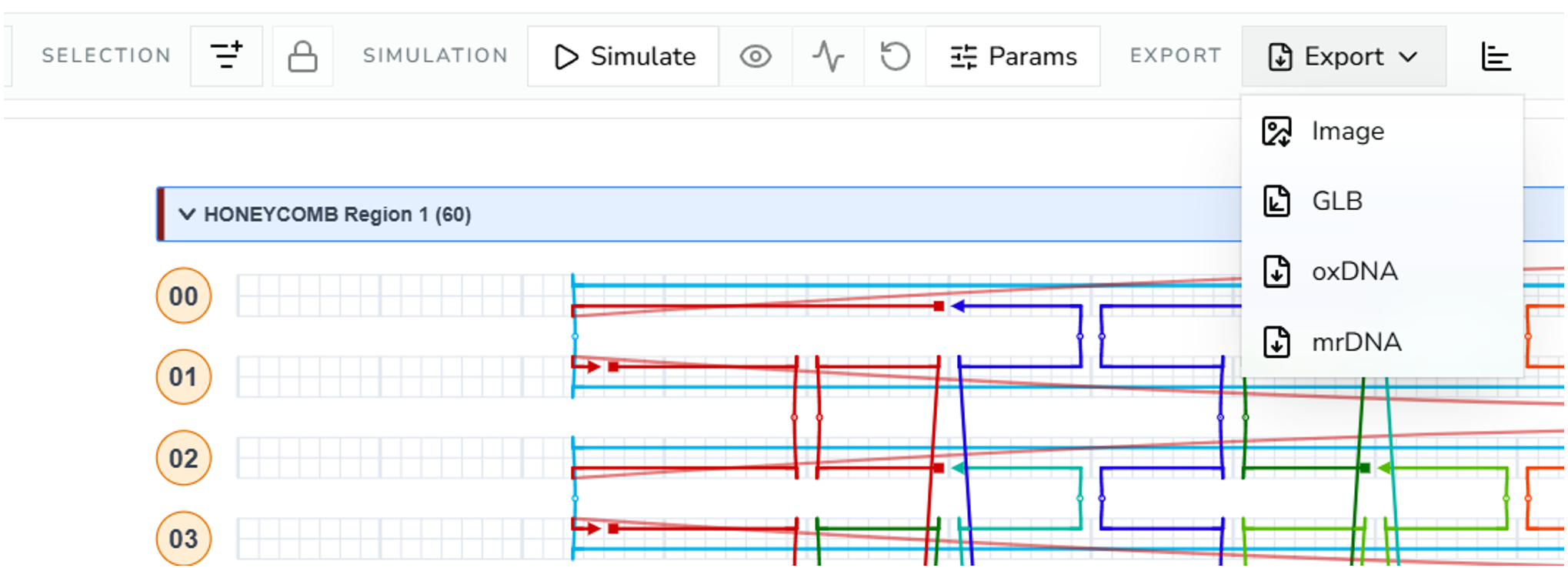
*3D toolbar Export menu open, showing Image, GLB, oxDNA, and mrDNA options.*
### Mirror copies
If the design contains [linked mirror copies](https://fold.xinshilab.com/docs/guide/duplicates-repeat-groups#mirror-copies), check **Include mirror copies** in the **Export** menu to include them in oxDNA and mrDNA output, for example to simulate the assembled repeat structure. They're left out otherwise.
## mrDNA Export
mrDNA export uses the **same NT model** but emits mrDNA-targeted files. Use it when your downstream workflow expects mrDNA input instead of oxDNA. The same pre-export checks apply.
## Other Export Paths
| Export | Format | Where | Notes |
| --- | --- | --- | --- |
| Foldnano design | `.fn.json` | Save menu | Full native backup and GitHub sync format. |
| cadnano design | `.cadnano.json` | Save menu | Lattice-compatible topology; **lossy** for freeform geometry, scaffold labels, and other Foldnano metadata. Only valid for cadnano-compatible lattice regions. |
| sequence CSV | `.csv` | Save menu | Oligo/sequence report for the part (**Export Oligos of this Part as CSV**; also downloadable from the [Oligo Report](https://fold.xinshilab.com/docs/guide/oligo-report) page). **Requires explicit 5′/3′ ends**, so linearize any circular scaffold/staple oligos first (the "circular strand" highlight finds them). |
| strand view | `.svg` / `.png` | Strand-view toolbar (**SVG**, **PNG**) | 2D routing snapshot; the SVG includes sequences. |
| circular scaffold map | `.svg` | Circular Scaffold Map panel | Scaffold map with staple arcs and histograms. |
| plane view | `.png` | Plane-view toolbar (**Export as image**) | Lattice or freeform placement snapshot. |
| 3D snapshot | `.png` | 3D toolbar | Rendered 3D image. |
| GLB | `.glb` | 3D toolbar | 3D geometry export for external 3D tools. |
> **Tip**
>
> Prefer `.fn.json` whenever the goal is to preserve the design. It's the only format that round-trips everything. See [Saving And GitHub](https://fold.xinshilab.com/docs/guide/saving-github) for backup strategy.
>
### Exporting cadnano JSON
Before **Export as cadnano JSON** downloads anything, Foldnano checks what cadnano can't hold and lists it in a dialog:
- **Must be fixed first** (no download): a freeform region, a connection that joins a cadnano scaffold path to a staple path (cadnano keeps them in separate arrays, so the file couldn't be read back), or helix lengths cadnano can't open.
- **Will be lost or changed** (**Export anyway** downloads): connections to other regions are cut, repeat-group copies are left out, and a design whose helix length fits both lattices (such as 672 bases) makes cadnano ask whether it is square when you open the file. The message tells you what to answer.
- **Not included**: sequences, modifications, oligo names and the scaffold label.
If there is nothing to fix or lose, the file downloads right away. The [Design Checks Reference](https://fold.xinshilab.com/docs/guide/design-checks#cadnano-export) lists every case. Plugins that work on cadnano JSON run the same check before they start.
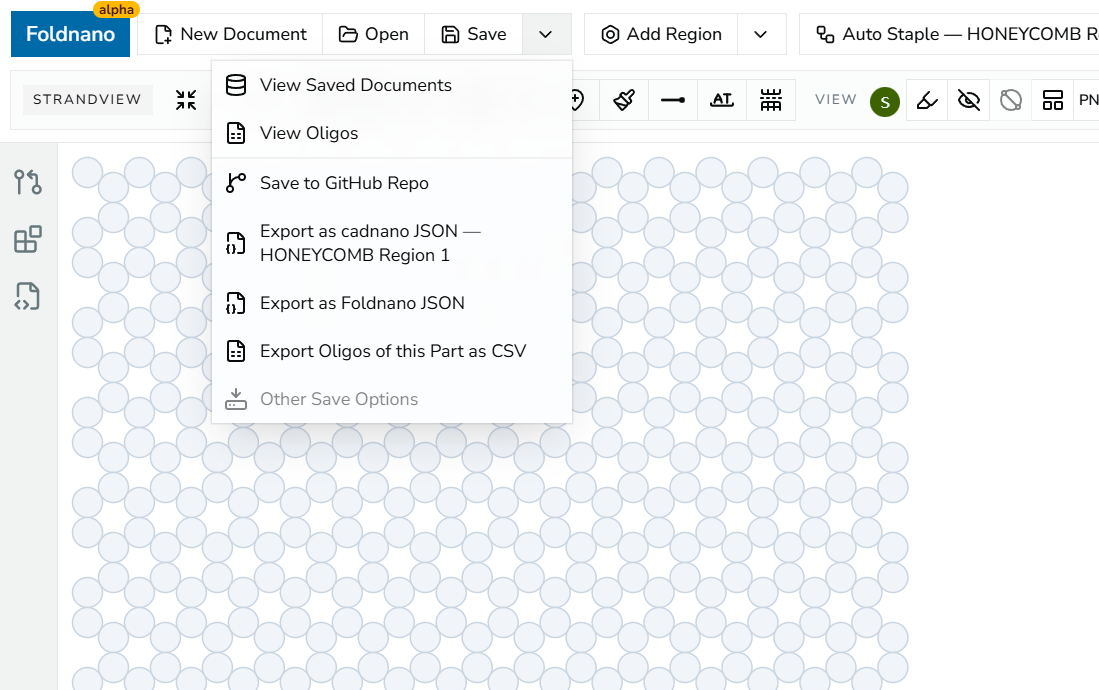
*Save/export dropdown in the top toolbar, showing the Export as cadnano JSON, Export as Foldnano JSON, and Export Oligos of this Part as CSV items.*
────────────────────────────────────────────────────────────
# 3D Overlays
The 3D view can show **external structures** on top of your design as non-editable reference overlays. Use them to compare a design against a simulation result, or to check how a protein fits into or onto your structure.
| Format | Extension | Drawn as |
| --- | --- | --- |
| mrDNA coordinate output | `.txt` | Nucleotide dots tinted by base, backbone and stacking lines, 3′-end cones |
| Protein Data Bank | `.pdb` | Cα trace, one color per chain |
Overlays are a visualization aid only. They never change your design, and they're not part of any export.
## Opening The Overlays Panel
1. Switch the left pane to **3D**.
2. Click **3D Overlay** in the 3D toolbar. The floating tool panel switches from **3D View Inspector** to **3D Overlays**.
3. Click **3D Overlay** again to return to the inspector.
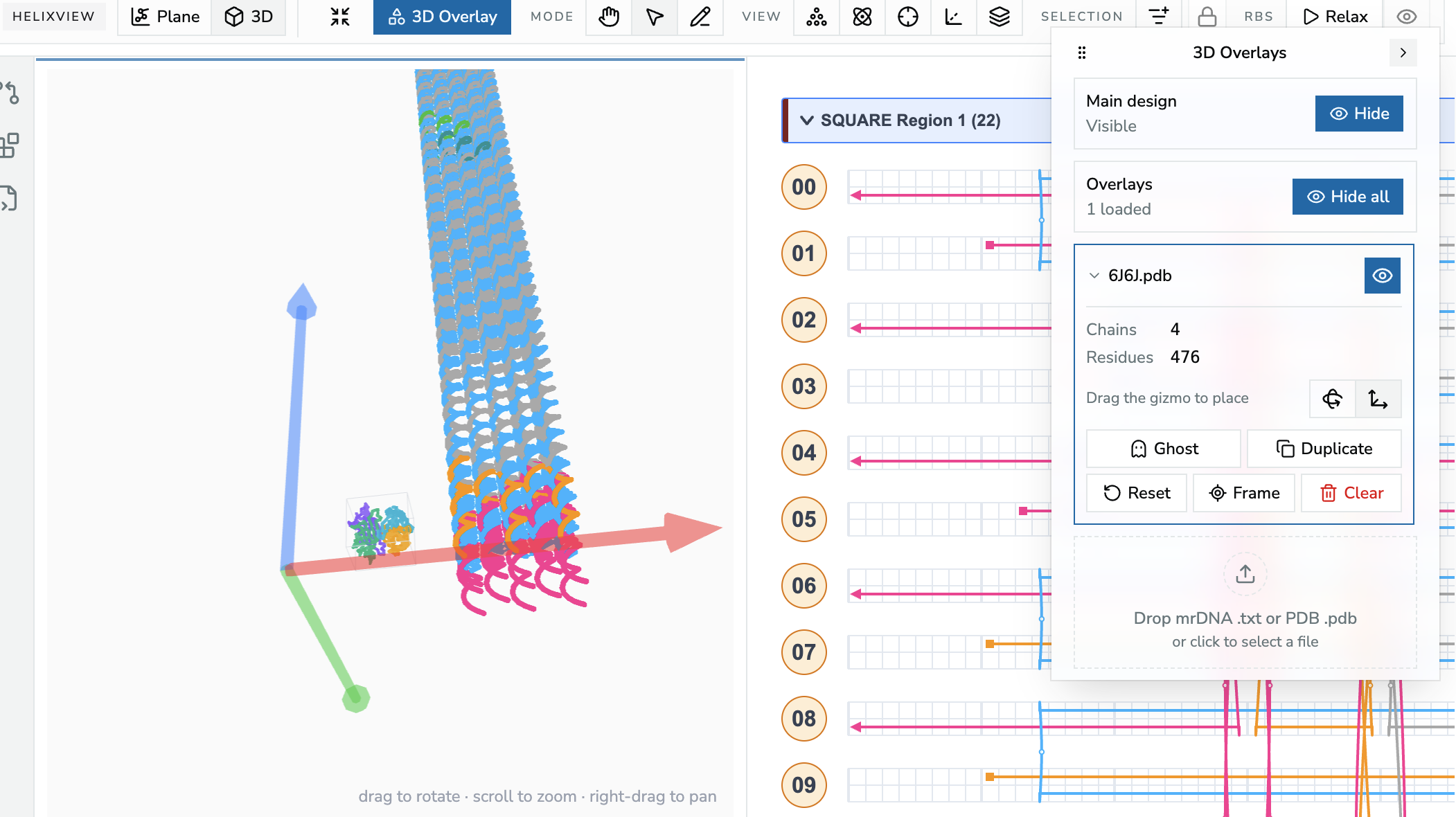
*The 3D Overlays panel with a PDB structure loaded and selected; drag the gizmo in the 3D view to place it.*
## Loading A Structure
Drop an mrDNA `.txt` or a `.pdb` file on the drop zone at the bottom of the panel (**Drop mrDNA .txt or PDB .pdb**), or click it to pick a file. The structure appears in the 3D view in lab coordinates, in nanometers, matching the design.
For PDB files, Foldnano reads only the **Cα atoms of the first model**. Chain breaks and residue-number gaps start a new segment, so no false bonds are drawn across them. A file that can't be parsed shows an error message and nothing is loaded.
## Panel Controls
**Main design** at the top shows or hides your own design, which is handy when you only want to look at the overlay.
**Overlays** shows how many overlays are loaded, with a **Show all / Hide all** switch for every overlay at once.
Below that is one card per placed copy. Each card is collapsed to one row:
- click the **name** to select that copy for editing (click again when done),
- click the **eye** icon to hide or show just that copy.
Selecting a copy expands its card and attaches the move/rotate gizmo to it:
| Control | What it does |
| --- | --- |
| Stats | PDB: chain and residue counts. mrDNA: nucleotide, strand, and stack counts. |
| **Rotate / Move** toggle | Chooses the gizmo mode. Then *Drag the gizmo to place*. |
| **Ghost** | Draws this copy grey and semi-transparent so the design stays readable |
| **Duplicate** | Places another copy of the same structure, slightly offset and already selected so you can move it |
| **Reset** | Returns this copy to its original position and orientation |
| **Frame** | Fits the camera to this copy |
| **Clear** | Removes this copy |
Selecting an overlay and selecting a design plane are exclusive: clicking a plane deselects the overlay, and the other way round.
## What Is Saved
> **Note: The file is never stored**
>
> Overlay **geometry is not saved**. After a reload you drop the file again.
>
- **PDB placements are remembered** in the design (`.fn.json` only). Each copy's position and orientation is stored, keyed by the PDB accession from the file header, or by the file name when there is none. When you drop the same file again, every copy reappears where you left it.
- If the design remembers placements for a structure you haven't loaded yet this session, the panel lists it under **Saved overlay positions** with its copy count, as a reminder to drop the matching file.
- Adding, duplicating, moving, resetting, and clearing PDB copies are all **undoable**.
- **mrDNA overlays are session-only.** Their placement isn't remembered.
## Limits
- PDB overlays show a Cα trace only: no ball-and-stick or cartoon rendering, and no mmCIF files.
- Very large structures are parsed on the main thread and may briefly freeze the page while loading.
────────────────────────────────────────────────────────────
# Oligo Report And Diff
The **oligo report** is a full-page table of every oligo in a design: its name, where it starts and ends, its sequence, length, color, and end modifications. It's the place to review staples before ordering them, and the **Oligo Diff** page compares the reports of two saved designs.
## Opening The Report
- From the editor: Save menu (the **⌄** next to **Save**) → **View Oligos**. The current design is saved to browser storage first, then its report opens.
- From the **Oligos** page (`/oligos`), which lists every document saved in this browser: click **View Oligos** on a document. **Open** goes back to the editor instead.
- From **Saved Documents** (`/toc`): **View Oligos** on a document card.
> **Note**
>
> The report covers the **first part** of a document, and only **real oligos**: [mirror copies](https://fold.xinshilab.com/docs/guide/duplicates-repeat-groups) are left out, as they are in every export.
>
## The Report Page
The header shows the document name and ID, with three buttons:
| Button | Action |
| --- | --- |
| **All Oligos** | Back to the Oligos list |
| **Open Editor** | Open this design in the editor |
| **Download CSV** | Download the same CSV as the editor's **Export Oligos of this Part as CSV** |
The table has one row per oligo, with the text tinted in the oligo's own color. Click any column header to sort by it; click again to reverse.
| Column | Contents |
| --- | --- |
| **OligoKey** | A short ID derived from the oligo's positions (`oligo-…`). The same routing gives the same key in any document. |
| **Name** | The oligo's optional name, empty if it has none (see below) |
| **Start** / **End** | 5′ and 3′ end, written `helix[base]`, for example `12[48]`. Circular oligos show `Circular`. |
| **Sequence** | Assigned sequence, 5′ → 3′ (empty for circular oligos) |
| **Length** | Length in nucleotides |
| **Color** | The oligo's color swatch and hex value |
| **Mod5Prime** / **Mod3Prime** | Terminal modification names, if any |
| **Positions** | Every segment as `5′ end>3′ end`, in routing order |
> **Note**
>
> **Oligo names are optional labels.** Set them in the editor's [Select tool panel](https://fold.xinshilab.com/docs/guide/selection#naming-an-oligo) or from a plugin. They're there for your convenience and for the ordering sheet; Foldnano never uses them to identify an oligo. They don't have to be unique, and most oligos have none. The CSV's first column is `Name`, left empty for unnamed oligos. The OligoKey is the stable, position-based identifier.
>
Circular oligos are listed but the page warns that they're **rejected by CSV export**. Linearize them in the editor first (the **circular strand** highlight finds them, see [Selection](https://fold.xinshilab.com/docs/guide/selection#highlighting-and-hiding)).
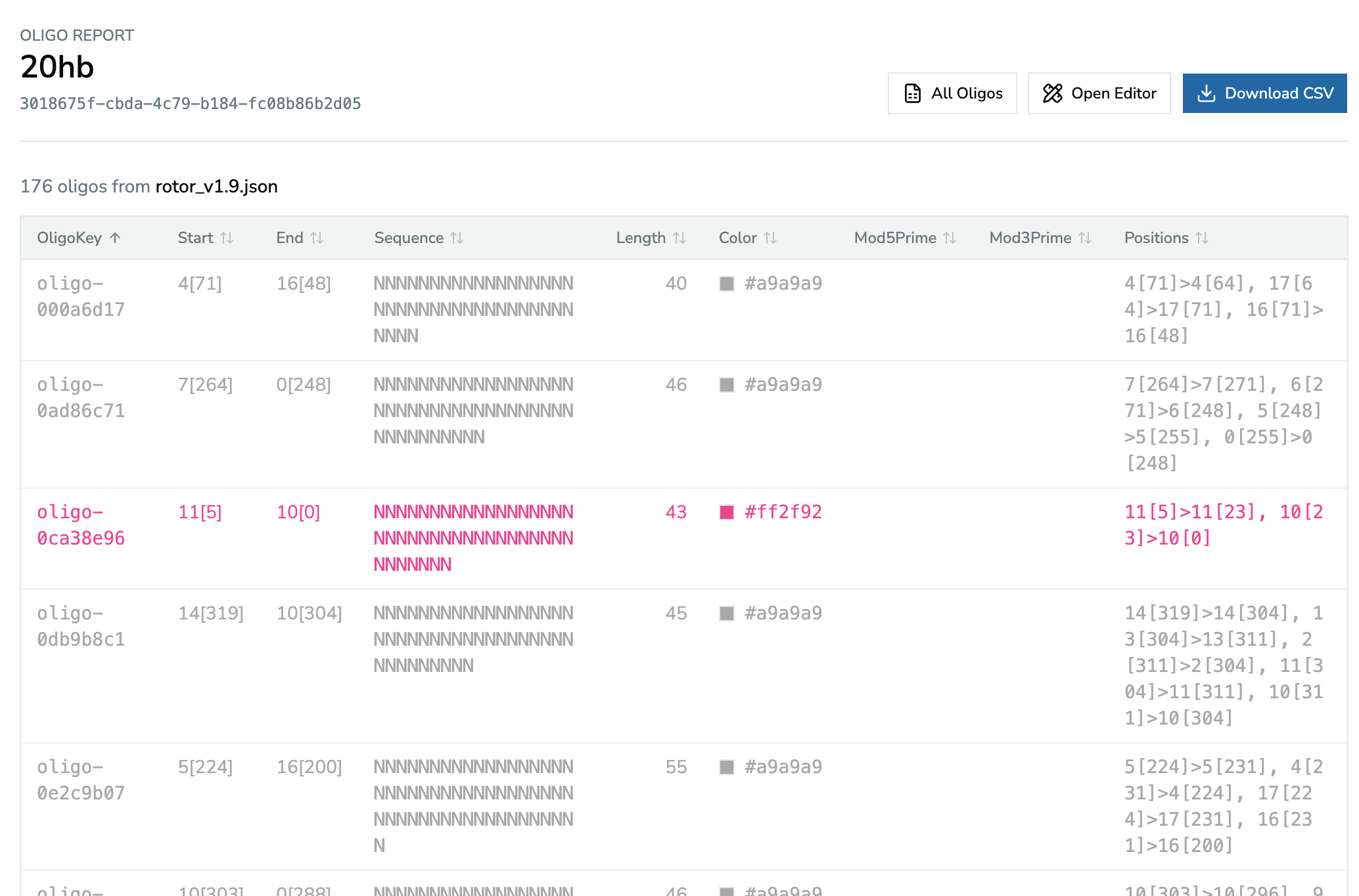
*The oligo report, sorted by OligoKey. Each row is tinted in its oligo's color.*
## Comparing Two Designs
The **Oligos** page has a **Compare saved documents** section:
1. Pick a **Left** and a **Right** document (they must differ).
2. Click **Compare**. The **Oligo Diff** page opens (`/oligos/diff`).
The diff matches oligos by their **positions** (the same segments on the same helices), then compares the remaining columns. The summary shows how many oligos are:
| Status | Meaning |
| --- | --- |
| **Unchanged** | Same positions and identical values |
| **Changed** | Same positions, but a different name, sequence, color, or modification |
| **Only in left** | Present only in the left design (for example removed or re-routed) |
| **Only in right** | Present only in the right design (for example added or re-routed) |
Below the summary, a table lists every oligo that isn't unchanged, with its **Status**, the **Changed fields**, and the **Left values** / **Right values** side by side. If everything matches it says *No oligo report differences*.
Each side also has a **Download CSV** button for that document's report, and you can change either document and click **Compare** again at the top of the page.
> **Tip**
>
> When you keep two versions of a design in this browser (for example before and after re-running Auto Staple or a plugin), compare them to see exactly which staples changed before you re-order anything.
>
────────────────────────────────────────────────────────────
# Saving And GitHub
Foldnano is **local-first**. Every edit lands in the browser working copy first. Only *you*, explicitly, move a design to a file or to GitHub; nothing is published automatically. Understanding this flow is the difference between never losing work and being surprised by a cleared cache.
Export fallback: edit commands update the browser working copy; autosave writes IndexedDB; GitHub changes happen only after explicit stage and commit actions.
## The Three Durability Levels
| Level | Where it lives | Survives… | Created by |
| --- | --- | --- | --- |
| Working copy | Browser IndexedDB | Reloads, restarts | Autosave + manual Save |
| File backup | Your disk | Browser data being cleared | **Export as Foldnano JSON** (`.fn.json`) |
| GitHub commit | Remote repo | Anything local | Stage, Commit |
> **Warning**
>
> For anything you care about, keep it at **at least level 2** (a downloaded `.fn.json`), because level 1 alone can be wiped by clearing browser data.
>
## Browser Storage
Local documents are stored in **IndexedDB** (not `localStorage`). This is what makes the editor work with no backend server, but it also means **clearing browser data can delete your local documents.** See the [privacy page](https://fold.xinshilab.com/privacy) for everything Foldnano stores and which services your browser contacts.
Backups for important work:
- download a **`.fn.json`** (Save menu → *Export as Foldnano JSON*),
- connect GitHub and commit the file,
- keep a copy of any exported simulation files you'll need.
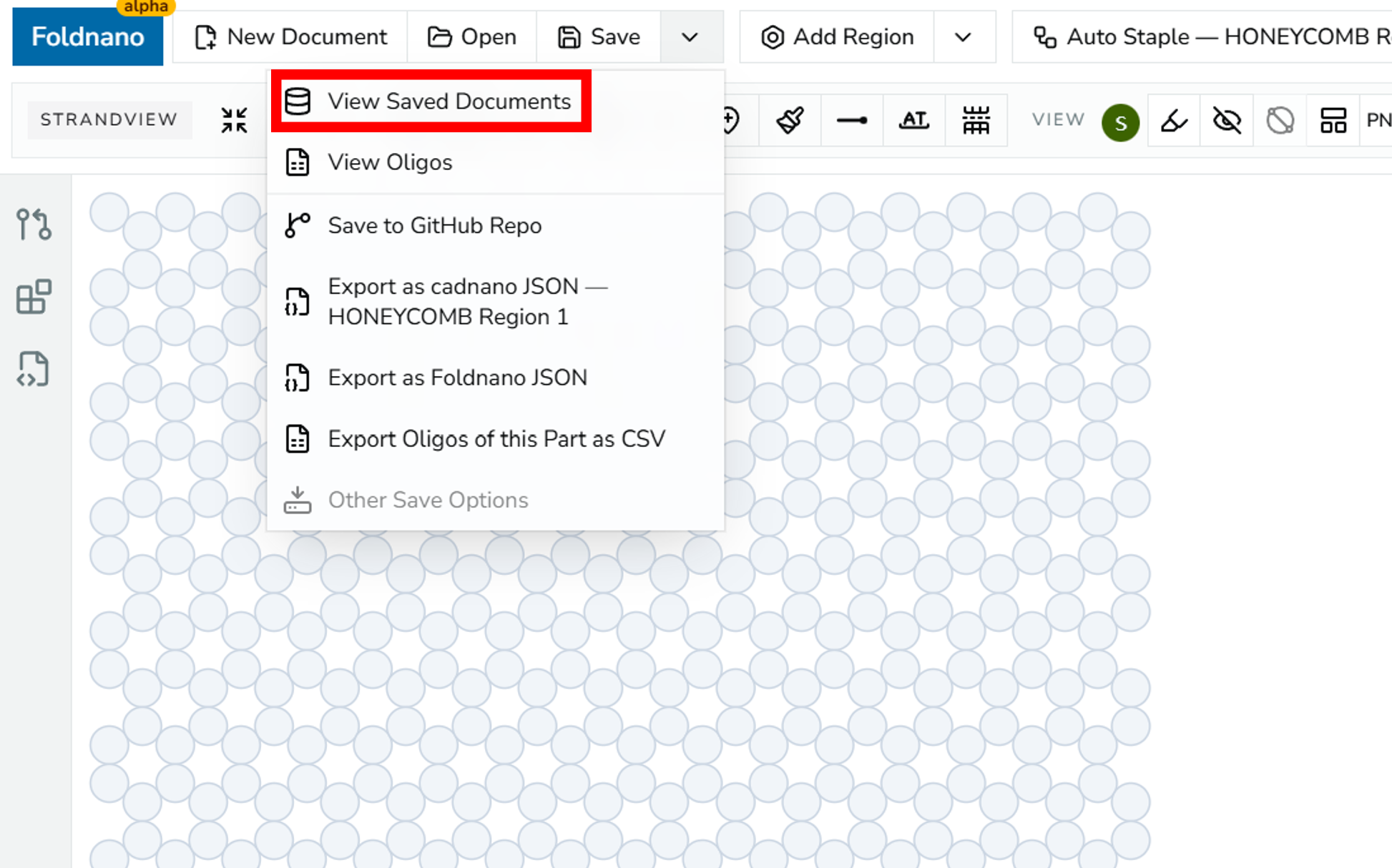
*Save menu with 'View Saved Documents' highlighted.*
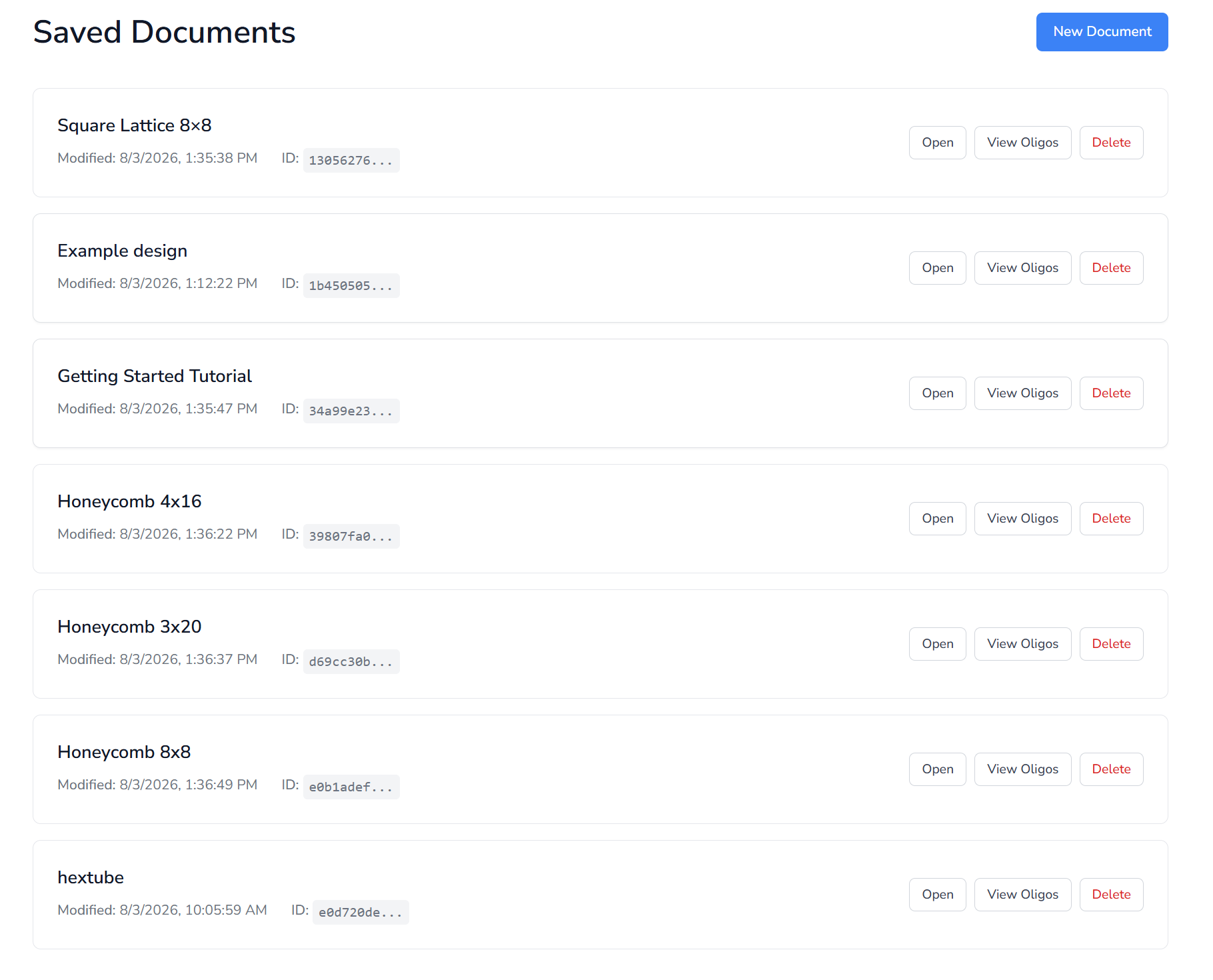
*Saved Documents panel listing local IndexedDB documents.*
A design has a single name: the document name in the toolbar. For a design saved as a file (on GitHub or as a local-only file in a repository), it is the file name without `.fn.json`, and renaming one renames the other. Every export is named after it too, for example `My design.cadnano.json`, `My design_route.svg`, or the oxDNA and CSV files.
The **Saved Documents** page (`/toc`) lists every document in this browser. Each card has **Open**, **View Oligos** (the [Oligo Report](https://fold.xinshilab.com/docs/guide/oligo-report)), and **Delete**; **New Document** starts a fresh one. Above the list you can sort by last modified or by name, show only **Local** or **GitHub** documents, and switch to a compact table view. Your choice is saved in the page address, so it survives a reload or a bookmark. The editor's save status next to the document name shows whether the latest edits are stored (see [Interface Reference](https://fold.xinshilab.com/docs/guide/interface-reference#save-status)).
## Autosave
Autosave writes the current working copy to IndexedDB **after committed edits or after some elapsed time** (default policy: roughly every 10 committed edits or every minute). It does **not** download a file, push to GitHub, or create a commit. It only refreshes the level-1 working copy.
Foldnano also saves when you switch to another tab or window. If you try to close the tab while edits are still unsaved, the browser asks you to confirm.
### When saving fails
If the browser refuses to store the design (for example because storage is full or blocked in a private window), the save status turns red and a banner appears at the top of the editor:
- **Retry** tries to save again.
- **Download .json** downloads the current design as a `.fn.json` file, so your work is safe even if browser storage keeps failing.
Foldnano retries once on its own after a few seconds and keeps retrying while you edit, but download a copy if the banner stays.
### Persistent storage
Browsers may clear a site's storage when disk space runs low. After your first save, Foldnano asks the browser to keep its storage persistent. Some browsers (Firefox) show a permission prompt for this; allowing it protects your local designs. The storage-info icon next to the save status tells you whether the browser has agreed.
## GitHub Connection
Use the GitHub panel to connect an account and choose a repository. **All GitHub API calls go through Foldnano's own server routes**, and the OAuth token stays in an httpOnly cookie, so browser/client code never reads it directly.
Common workflow:
1. **Connect** to GitHub (top toolbar **GitHub** button, or **Connect to GitHub** in the Source Control panel).
2. **Set up a repository**: choose the repository and branch.
3. **Create or open** a design file in the **Files** tab, or publish the open design with **Save to GitHub Repo**.
4. Edit. Changed files show up in the **Changes** tab.
5. **Stage** the files and **Commit** with a clear message. The commit is written straight to the branch on GitHub; there's no separate push step.
The Source Control panel opens from the icon rail on the left (pull-request icon), from your avatar in the top toolbar, or from the **Commit** button that appears in the top toolbar for GitHub files.
### When your GitHub session expires
GitHub sign-ins don't last forever. Foldnano renews yours in the background when it can. When it can't, a banner says *Your GitHub session has expired*; your design is still saved in this browser, and nothing is lost. Click **Sign in again**: after signing in you come back to the same design, and anything you hadn't committed yet is still marked as uncommitted, ready to commit.
> **Tip**
>
> New to Git? Read GitHub's [Git Handbook](https://guides.github.com/introduction/git-handbook/) before using branches and commits in shared repositories.
>
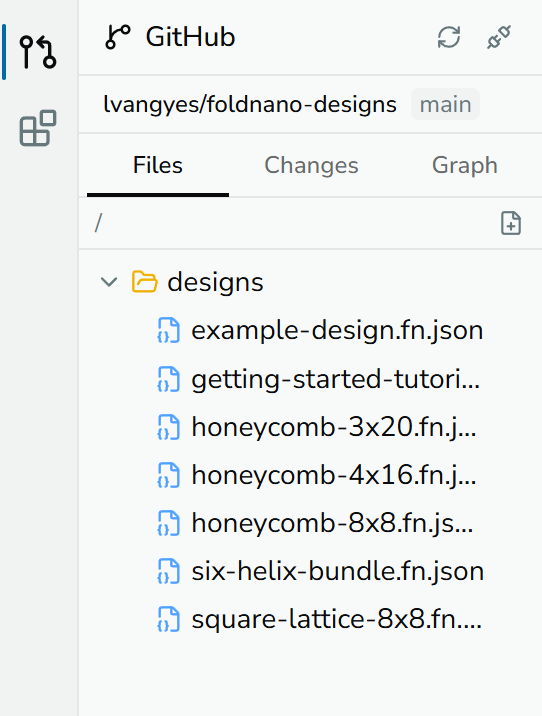
*GitHub panel, Files tab, showing the connected account and selected repo/folder.*
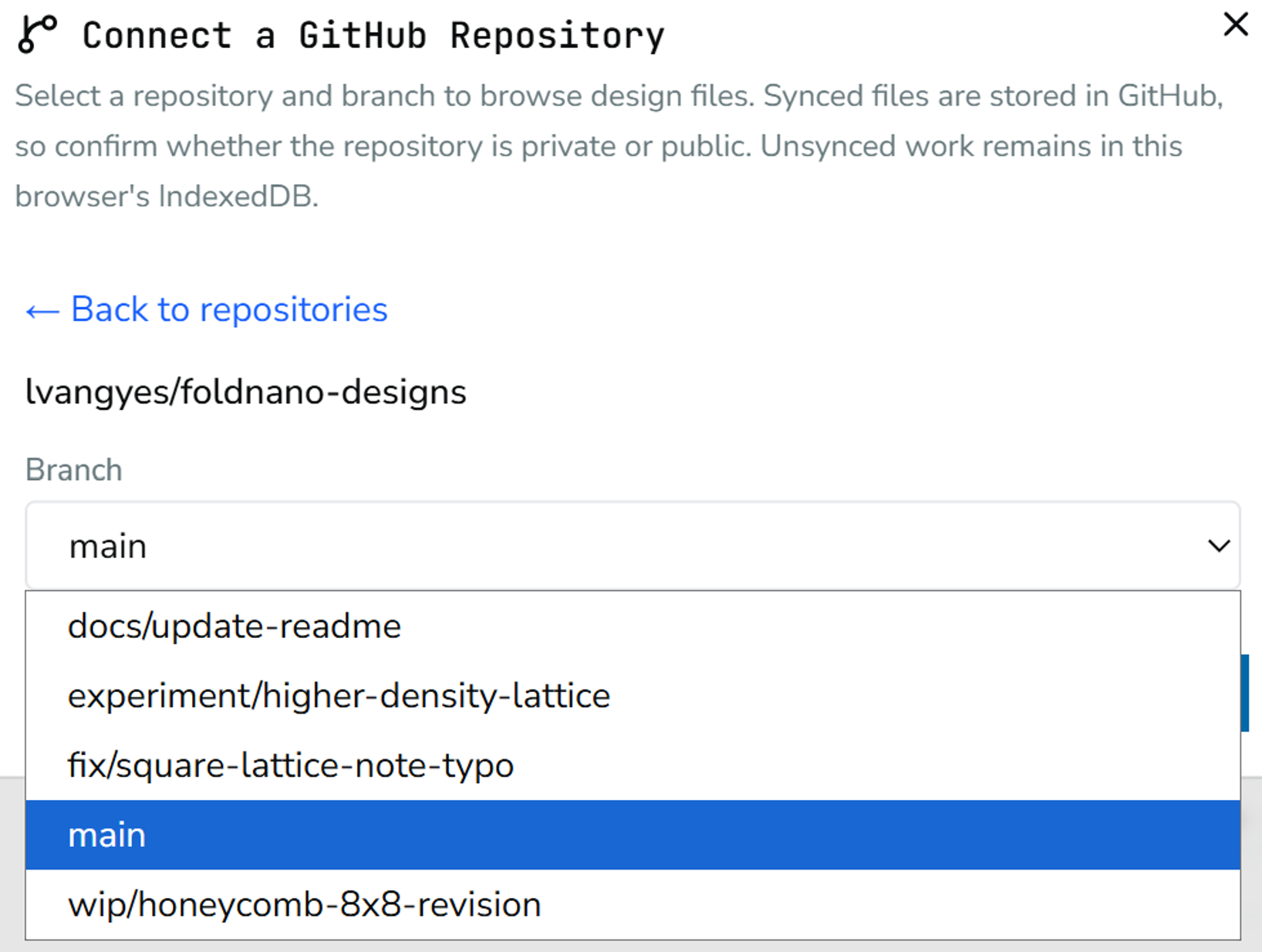
*GitHub panel with the repository connected and the branch selector open.*
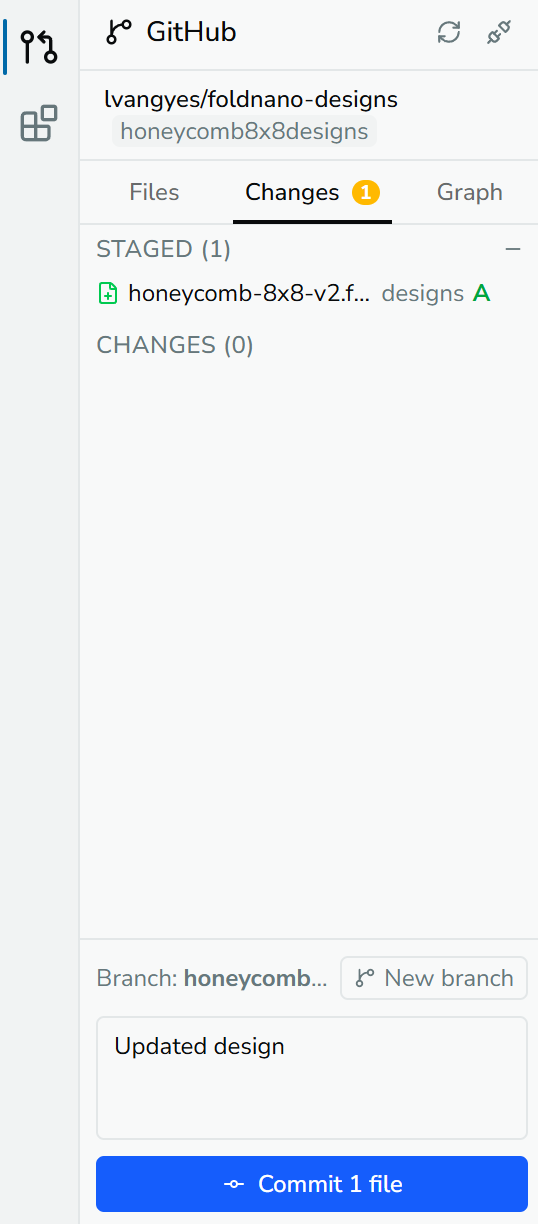
*GitHub panel, Changes tab, showing the stage/commit controls.*
### Setting up a repository
After connecting, **Setup Repository** opens **Connect a GitHub Repository**. Search your repositories, pick a **Branch**, and click **Connect**. If a private repository is missing from the list, use **Install or configure app access →** to grant Foldnano access to it.
The panel header then shows three buttons: **Pull latest from GitHub** (for the open file), **Refresh file tree**, and **Disconnect repository**.
### Files tab
The Files tab shows the repository's design files (`.json`). Click a file to open it. A file marked as cached locally has no unsaved changes.
- **New design file** (file-plus icon) opens **New Design File**: choose a **Folder**, enter a **File name** (`.fn.json` is added), and click **Create & Open**. The file exists only in this browser until you commit it.
- Opening a cadnano `.json` asks **Open as Foldnano document?**: a new `.fn.json` is created in the same folder for your edits, and the original stays unchanged.
- **Right-click** for more actions:
| On | Actions |
| --- | --- |
| A file | **Open**, **Rename**, **Copy path**, **Download**, **Delete** |
| A folder | **New design here**, **New folder**, **Delete folder** |
| Empty space | **New design**, **New folder** |
**Delete** doesn't remove the file from GitHub immediately. It is **staged for deletion** and removed when you commit. If the file has uncommitted local changes, you're first offered to commit them so they stay in the history.
A banner at the top of the tab warns when the open file is out of sync:
| Banner | Options |
| --- | --- |
| `GitHub has newer changes.` | **Pull** |
| `Diverged — local and remote have both changed.` | **Review changes** (open the diff), **Commit local**, or **Discard & pull** |
### Saving an existing design to GitHub
Save menu → **Save to GitHub Repo** opens **Save to GitHub** for a design that isn't on GitHub yet: choose a **Folder**, **File name**, and **Commit message**, then **Publish**. Check whether the repository is private or public before publishing sensitive designs. For a design that's already on GitHub, the same menu item opens the Changes tab instead.
### Creating a design outside the repository
With a repository connected, **New Document** in the top toolbar offers two choices. **New File in** *your repository* opens the **New Design File** dialog described above. **Local-Only Design** creates a design that stays out of the repository's Files and Changes tabs and is listed on the Saved Documents page. You can still publish it later with **Save to GitHub Repo**.
Renaming a GitHub file with the document name field asks you to confirm **Rename & Commit**, since the rename is committed together with any pending local changes.
### Changes tab
The Changes tab (with a count badge) lists modified, new, and deleted files in two groups:
- **Changes**: click **+** to stage a file, or **Stage all**.
- **Staged**: click **−** to unstage, or **Unstage all**.
Click a file to see its diff. Right-click a file for **Discard changes** (your local version becomes a [backup](#backups), but only the last 5 are kept, so download it if you may need it) or, for a staged deletion, **Undo staged deletion**. Discarding a new, never-committed file deletes it permanently.
Below the lists, enter a **Commit message** and click **Commit**. Each staged file becomes its own commit, so if some files can't be committed (for example because they changed on GitHub), the rest still go through; a message lists which files were left and why, and they stay in **Changes** with your message kept for another try. The current **Branch** is shown; when you're committing straight to `main` or `master` a warning appears, with **New branch** to create and switch to a branch first.
### Graph tab
The Graph tab shows the commit history as a graph, with uncommitted local changes at the top. Click a branch label to switch to that branch, **+** to create a new branch, **Load more** for older commits, and **Refresh** to update.
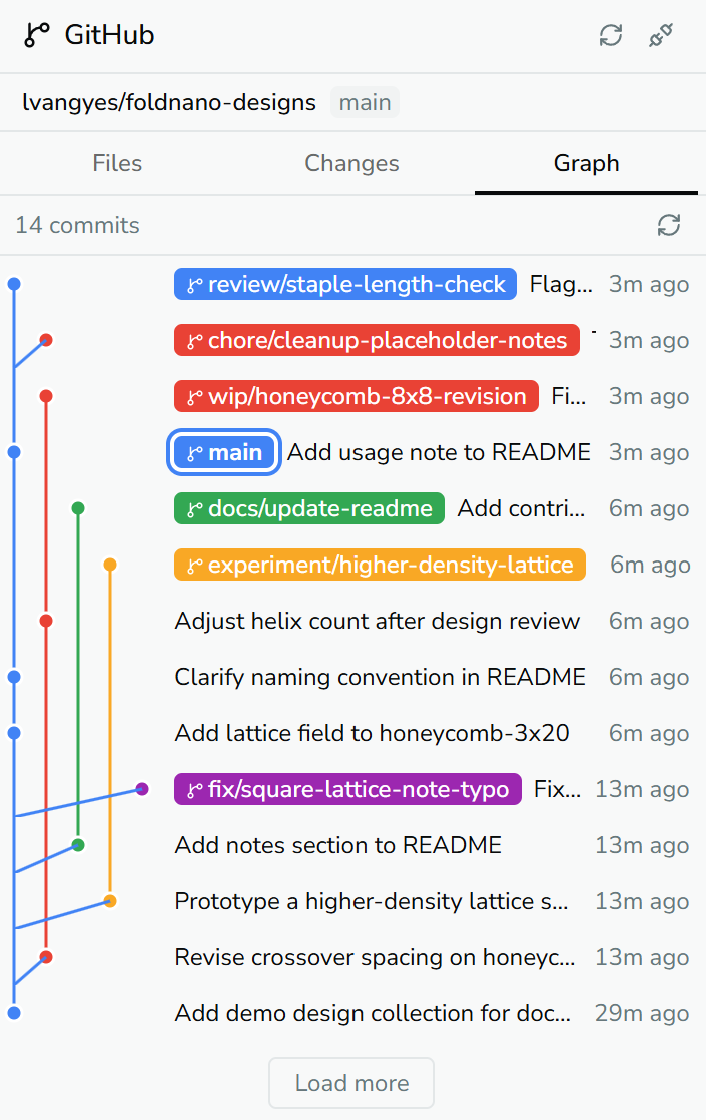
*The Graph tab: branch labels on the commit graph; click one to switch to that branch.*
## Branches, Stage, Commit
- A **branch** is a line of work.
- **Staging** prepares the current file content to be committed.
- A **commit** records an explicit, message-tagged snapshot.
> **Note**
>
> **Autosave never means auto-commit.** Foldnano will not silently publish local browser changes to GitHub; the stage and commit steps are always explicit.
>
## Pull, Overwrite, And Conflicts
When the file on GitHub changed since you last synced, committing stops with **Conflict detected** and offers:
| Option | Effect |
| --- | --- |
| **View diff** | Compare your local version with GitHub's |
| **Pull latest first** | Replace your local copy with GitHub's (asks first if you have local changes) |
| **Force overwrite** | Commit your version over GitHub's |
| **Create new branch** | Commit your changes to a new branch instead |
The **diff dialog** shows the two versions side by side (*Local (your changes)* and GitHub's). From there:
- **Keep local** writes your version to GitHub,
- **Accept remote** replaces your local copy with GitHub's,
- **Edit & resolve** opens the merged file with conflict markers so you can edit it by hand, then **Apply resolved JSON** (or **Back to diff**).
Actions that overwrite your local copy keep it as a [backup](#backups) first. Even with those safeguards, keep your own `.fn.json` backups for important designs before resolving a conflict.
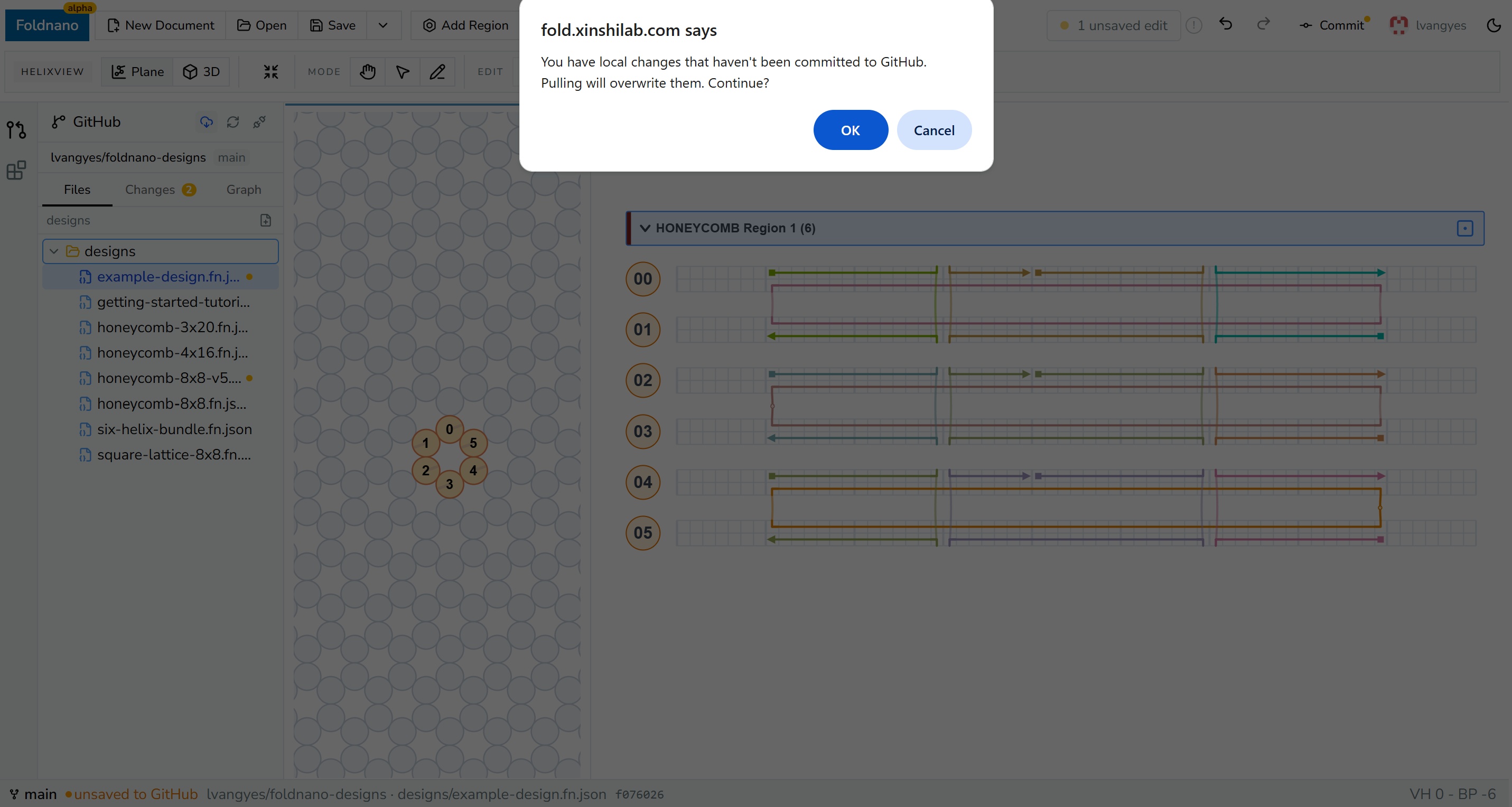
*Pull/overwrite conflict prompt, a native browser confirm dialog warning that pulling will overwrite uncommitted local changes.*
Pulling overwrites your local working copy with the GitHub version, so commit or discard local changes first if you want to keep them.
## Backups
Foldnano keeps the last 5 versions of each design in this browser. It saves one about every 10 minutes while you work, and one right before anything replaces your copy: pulling from GitHub, accepting the GitHub version, switching branch, resolving a conflict, discarding local changes, or restoring a backup. When a sixth is added, the oldest is removed.
Open **Backups** from the Save menu (or from the status bar for GitHub files). Each backup shows when it was kept and why, for example *Automatic backup* or *Before pulling from GitHub* with the branch and file. Select one to see how it differs from your current design, then:
- **Download .fn.json** saves that version as a file, without changing your design.
- **Restore this backup** replaces your design with it. Your current version, including edits that weren't saved yet, becomes a backup too.
Backups are a short-term safety net, not storage. Only the last 5 are kept and older ones are removed automatically, and they stay in this browser: they are not synced to GitHub or to other devices, and clearing browser data deletes them. If you want to keep a version, download it.
### When a design can't be opened
If a saved design is damaged, or was saved by a newer version of Foldnano, the editor shows a recovery page instead of the design:
- **Download saved data (.json)** downloads the stored data exactly as it is, so nothing is lost.
- **Backups** lists earlier versions, newest first. **Download .fn.json** saves one as a file. **Restore** replaces the unreadable copy with that version and opens it; the unreadable copy becomes a backup (only the last 5 are kept, so download the saved data first if you may need it). Backups that can't be opened either are marked and can't be restored, but can still be downloaded.
- **Reload page** appears when the design is from a newer Foldnano: reloading gets the latest version of the app.
- **Open another design** goes to your saved designs.
For GitHub files, the status bar at the bottom of the editor also shows the current **branch**, *unsaved to GitHub* or *↓ remote ahead*, the repository and file path, and the short commit ID.
## Multi-Tab Protection
Only the **owning tab** writes a document's working copy. If you open the same document in several tabs, Foldnano gates saves so two tabs can't race to persist incompatible states. A non-owner tab can still view the design but won't write over the owner's saves. When the owning tab closes, another tab with the same document takes over automatically and first reloads the latest saved version, so it never works from an outdated copy.
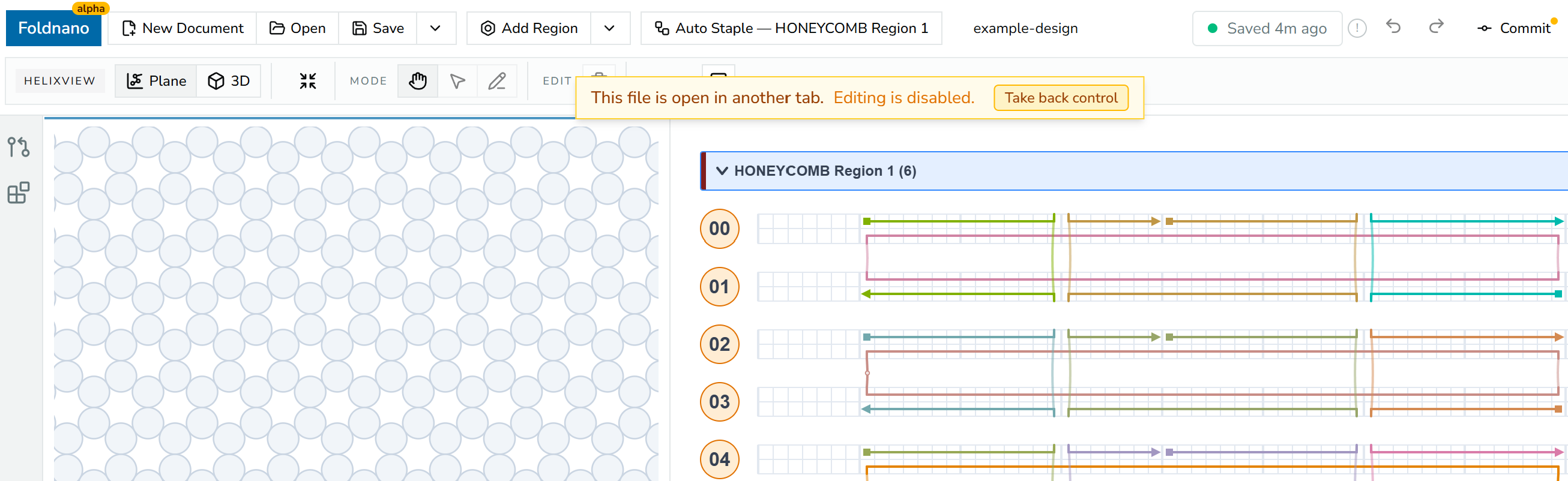
*Non-owner-tab notice: 'This file is open in another tab. Editing is disabled.' with a 'Take back control' button.*
────────────────────────────────────────────────────────────
# Plugins For Users
Plugins extend Foldnano with **Python tools** that can analyze a design, report on it, or modify it. They run in a sandboxed Python runtime (Pyodide) inside your browser; see [What a plugin can and can't do](#what-a-plugin-can-and-cant-do) below. This page is for *using* plugins; if you want to *write* one, see the [Plugin Development](https://fold.xinshilab.com/docs/plugin-development/plugin-quickstart) section.
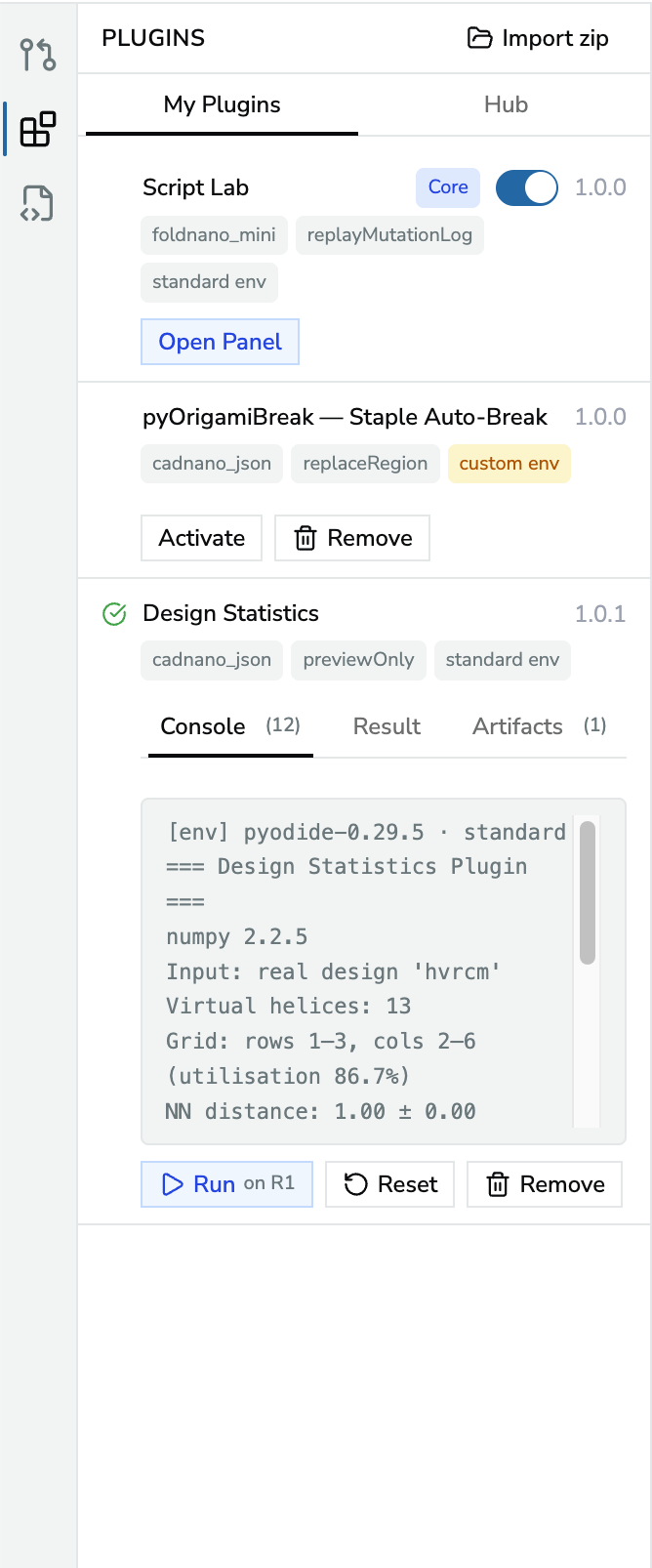
*Plugin panel's My Plugins tab, showing a few installed plugins with their run, activate, and console output controls.*
## Plugin Types
| Type | What it does |
| --- | --- |
| **Built-in plugin** | Ships inside Foldnano and is always listed in **My Plugins** with a **Core** badge; turn it on with its switch. Today this is [Script Lab](https://fold.xinshilab.com/docs/guide/script-lab). |
| **Plugin Hub entry** | A curated plugin you install from the **Hub** tab (listed there as *Core Plugins*). |
| **ZIP plugin** | A packaged Python plugin you install from a `.zip` file on your computer. |
## The Plugins Panel
Open it from the **Plugins** icon (blocks) in the icon rail on the left edge of the editor. It has two tabs.
### Hub
The **Hub** tab lists the curated **Core Plugins**, each with its description and badges for its format, apply strategy, and environment. Click **Install**, review the plugin's details, then **Confirm** (or **✕** to cancel). Installed plugins show **Installed**, and the panel switches to **My Plugins**. *Community plugins coming soon* marks where third-party listings will appear.
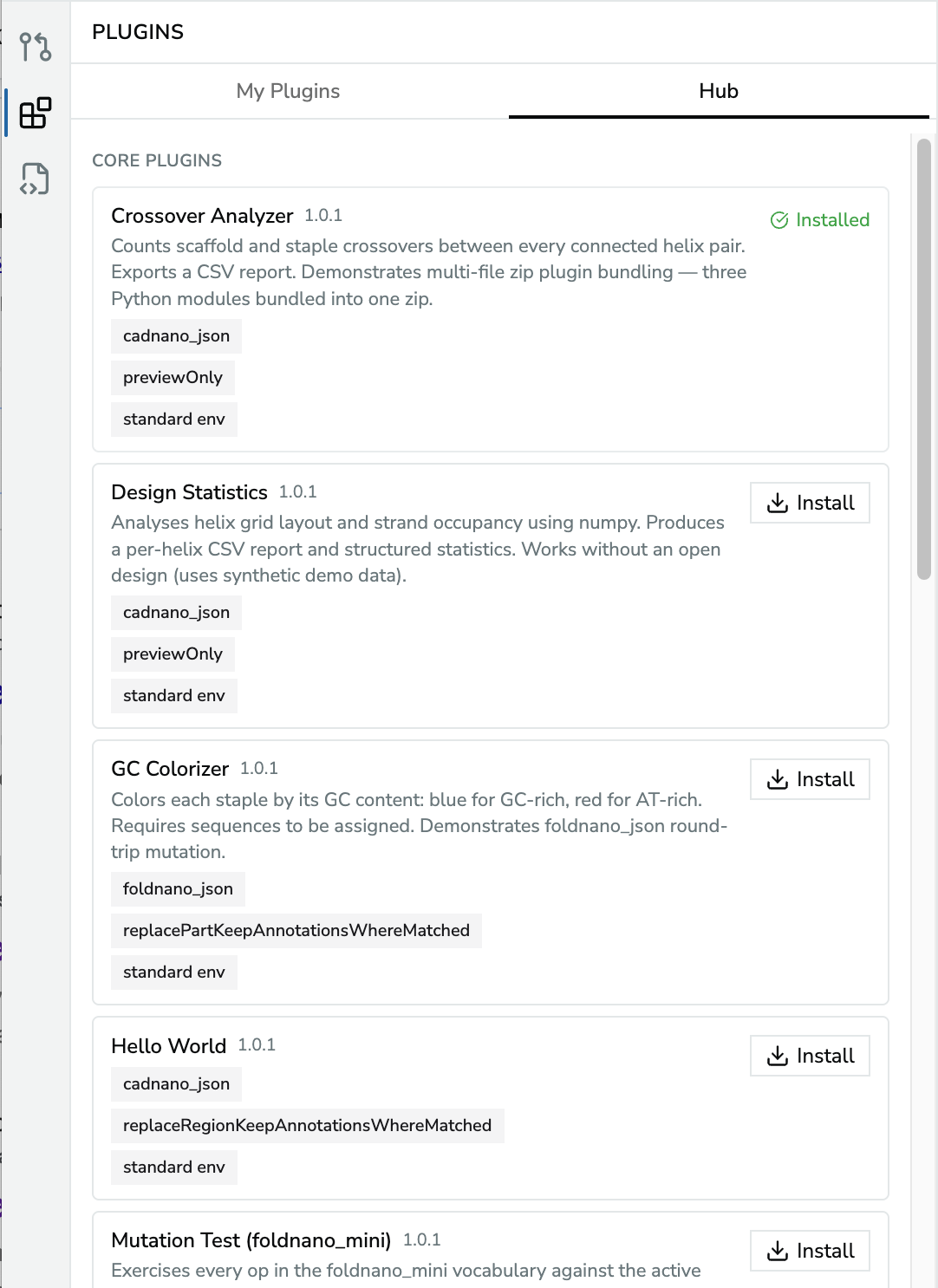
*The Hub tab: each core plugin with its description, badges, and an Install button.*
| Hub plugin | What it does | Changes the design? |
| --- | --- | --- |
| **Crossover Analyzer** | Counts scaffold and staple crossovers between every connected helix pair; CSV report | No |
| **Design Statistics** | Helix grid layout and strand occupancy per helix; CSV report | No |
| **Sequence Report** | GC content, homopolymer runs, and modifications of staple sequences | No |
| **GC Colorizer** | Colors each staple by GC content (blue GC-rich, red AT-rich); needs sequences | Yes |
| **Staple Colorizer** / **Staple Colorizer (mini)** | Recolors all staples with a configurable HSL palette | Yes |
| **Nick Remover** | Joins adjacent staple nicks (consecutive 3′/5′ ends on the same helix) | Yes |
| **pyOrigamiBreak: Staple Auto-Break** | Optimizes staple break positions with thermodynamic scoring (Aksel et al., PNAS 2024) | Yes |
| **Hello World**, **Mutation Test**, **Side Panel Code Demo**, **Side Panel Form Demo** | Examples for plugin authors | Some |
### My Plugins
Each installed plugin is a card showing its name, version, and badges:
- **format** (`cadnano_json`, `foldnano_json`, `foldnano_edit`) and **apply strategy**,
- **standard env** (shares the Python runtime with other plugins) or **custom env** (needs its own runtime; only one custom-environment plugin can be active at a time).
Click a plugin's name to show its description and any papers its author asks you to cite, with a link and a copy button. A small quote mark next to the name means the plugin has a citation. If you use the plugin in published work, please cite them. Citations also appear when you review a plugin before installing it.
| Button | What it does |
| --- | --- |
| **Activate** | Loads the plugin's code into the Python runtime. Nothing runs until you click Run. |
| **Run** | Runs the plugin. A `cadnano_json` plugin shows which region it runs on (for example **on R1**), or *no active region* when none is active. If the plugin has parameters, a dialog asks for them first. |
| **Stop** | Stops a running plugin |
| **Reset** | Clears the run output and returns the plugin to ready |
| **Remove** | Uninstalls the plugin (built-in plugins can't be removed) |
| **Open Panel** | For plugins with their own side panel, opens it |
| **Edit** | For plugins you made with [Script Lab](https://fold.xinshilab.com/docs/guide/script-lab#saving-a-script-as-a-plugin) (marked **Mine**), opens the plugin in its own editor |
| **Export** | For plugins you made, downloads the saved version as a `.zip` backup |
At the top, **Import zip** installs a `.zip` plugin from your computer. A card that says *Plugin format changed* needs to be re-imported as a zip or reinstalled from the Hub.
Activating a custom-environment plugin while another one is active asks for confirmation, because the other plugin is stopped and any result it hasn't applied yet is discarded.
### Run output
After a run, the card shows tabs for what the plugin produced: **Console** (log lines), **Result** (structured JSON), **Artifacts** (files to download, each with a download and a remove button), and **Apply** for mutating plugins. If you edit the design after the run, the result is marked **stale** and offers **Discard**; run the plugin again rather than applying an outdated change. If the design is open in another tab, plugins still run here, but **Apply** stays disabled until you click **Take back control**.
### Plugin side panels
Some plugins add their own icon to the icon rail. A **form** panel shows the plugin's description, **Activate**, an **Input** form, a run button, and the **Output**. A **code editor** panel works like [Script Lab](https://fold.xinshilab.com/docs/guide/script-lab).
## Preview Versus Apply
This is the most important distinction to internalize before running anything.
- **Preview-only plugins** *read* your design. They can log results, show JSON output, or produce downloadable artifacts (for example a CSV report), but they **never** mutate the design.
- **Mutating plugins** *return a design change*. Foldnano shows **apply controls** and records the accepted change as a single **undoable** edit, so a bad result is one `Ctrl/Cmd + Z` away.
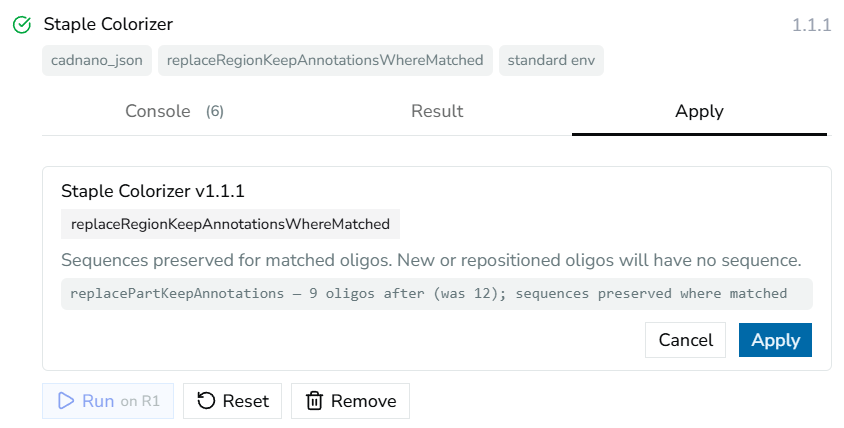
*Mutating plugin's Apply tab, showing the proposed change and the apply/cancel buttons.*
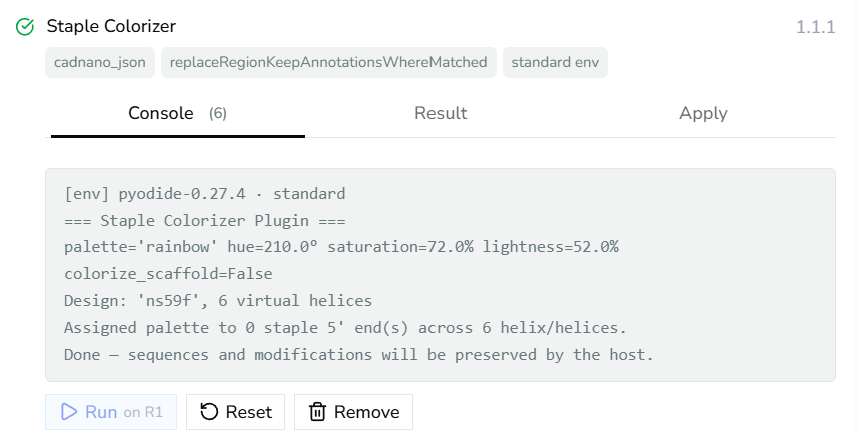
*Same plugin's Console tab, showing the log output.*
## Formats
Plugins declare which design format they operate on:
| Format | Use |
| --- | --- |
| `cadnano_json` | cadnano-compatible topology workflows (lossy for Foldnano metadata) |
| `foldnano_json` | full Foldnano snapshots |
| `foldnano_edit` | structured mutation logs replayed by the app |
If a plugin needs **sequences, modifications, explicit scaffold labels, or freeform regions**, prefer a Foldnano-native format (`foldnano_json` or `foldnano_edit`). A `cadnano_json` plugin can't see or preserve that metadata.
## Installing Plugins
> **Warning**
>
> **Only install plugins from people you trust.** Treat a plugin like any script you would run on your own computer. Foldnano does not review plugins from outside its Hub. The sandbox (below) protects your account and your other designs, but a plugin still sees the design you run it on, and one that declares network access can send it to the sites it lists.
>
During the beta, plugins come from two places: the **Hub**, and `.zip` files on your computer. Foldnano does not install plugins from links to other websites, or from a `.fplugin.json` manifest on its own; if someone shares a plugin with you, ask for the `.zip`.
To install a `.zip`, click **Import zip** in the Plugins panel, or drop the file on the editor's start screen or into the **Open** dialog and click **Install**. Before installing, Foldnano shows what the plugin declares: its type and apply strategy, its **network access**, its environment, and its **Python packages** grouped by where they come from. Packages marked *downloaded from PyPI* are third-party code fetched when you activate the plugin. Plugin code loads only when you click **Activate**, and only receives your design when you click **Run**.
Installing a plugin whose ID is already installed asks whether to **Replace** the installed version, and points out if the new version changes its network access.
## What a plugin can and can't do
Every plugin, and every [Script Lab](https://fold.xinshilab.com/docs/guide/script-lab) script, runs in a sandbox that is walled off from the rest of Foldnano.
| A plugin can | A plugin can't |
| --- | --- |
| Read the design you run it on | Use your GitHub account or reach Foldnano's server |
| Propose changes, which apply only when you click **Apply** (one undo step) | Read or change your other designs, backups, or settings |
| Produce reports and downloadable files | Contact any website it didn't declare under **Network** |
| Contact the websites it declares under **Network** | Keep running after you click **Stop**, or after 5 minutes |
| Install the Python packages it lists | Install from other websites during the beta (Hub and `.zip` only) |
If a plugin tries to reach a website it didn't declare, the request is blocked and its log says so, for example `[sandbox] Blocked a request to api.example.org`. That usually means the plugin needs an update from its author.
## Safe Use Checklist
> **Tip: Before applying a mutating plugin**
>
> 1. **Save or download the design** (a `.fn.json` backup, ideally).
> 2. **Check the active region**, confirm it's the intended target, since region-scoped plugins act on it.
> 3. **Run a preview first** if the plugin supports one, and **read the plugin logs**.
> 4. **Apply**, then inspect the result.
> 5. **Undo immediately** (`Ctrl/Cmd + Z`) if it isn't what you expected.
>
## Writing Plugins
Want to build your own? The [Plugin Development](https://fold.xinshilab.com/docs/plugin-development/plugin-quickstart) section covers authoring, the runtime model, manifest fields, the plugin API, testing, and packaging.
────────────────────────────────────────────────────────────
# Script Lab
**Script Lab** is a built-in Python code editor in a side panel. You write a short script, run it against the open design, and either read its output (analysis) or apply the changes it made (editing). It uses the same sandboxed in-browser Python runtime as [plugins](https://fold.xinshilab.com/docs/guide/plugins-for-users): a script can't reach the internet, your GitHub account, or your other designs, so nothing leaves your browser. It does see the open design, and its changes land only when you click **Apply**, as one undoable step. Only run code you understand, especially code copied from someone else.
Use it for one-off checks and quick batch edits that don't deserve a full plugin.
## Turning It On
Script Lab ships with Foldnano but is **off by default**.
1. Open the **Plugins** panel from the icon rail on the left edge of the editor.
2. On the **My Plugins** tab, find **Script Lab** (marked **Core**) and switch it on.
3. A new **Script Lab** icon appears in the icon rail. Click it (or **Open Panel** on the plugin card) to open the editor.
Core plugins can be switched off again but not removed.
## The Editor
| Control | What it does |
| --- | --- |
| **Run** | Runs the current editor contents (shortcut: `Cmd + Enter` on Mac, `Ctrl + Enter` elsewhere, while the editor has focus). Activates the Python runtime first if needed. |
| **Stop** | Stops a running script |
| **Clear** | Clears the editor down to a minimal `run(ctx)` skeleton that loads the design |
| **Reset** | Clears the output pane, discards an unapplied result, and returns an errored run to ready (same as **Reset** in the Plugins panel) |
| **Save as Plugin** | Packages the script as a plugin you can run from the Plugins panel and keep editing (see [Saving A Script As A Plugin](#saving-a-script-as-a-plugin)) |
| **Help** (book icon) | Loads a starter script and shows a quick API reference (below) |
| **More** (**⋯**) | Opens a menu with the editor font size (**A−** / **A+**), **Restore default script** (the Mutation Starter), and **Download**, which saves the script as a `.py` file |
| **Pop out** (arrow icon, next to **Python**) | Moves the editor and output into a separate browser window (see [Working In A Separate Window](#working-in-a-separate-window)) |
The editor and output pane are split; drag the divider to resize them. Your script is kept in browser storage, so it survives reloads and is the same whichever design is open.
The editor suggests API names as you type. After a `.` it lists what that object offers, so `part.` shows the part's collections and methods, and inside `for oligo in part.oligos:` the line `oligo.` shows oligo properties such as `color`. Each suggestion shows its type or signature; properties marked *settable* record a change when you assign to them. Press **Tab** or **Enter** to insert a suggestion, or **Ctrl+Space** to open the list anywhere.
### Working In A Separate Window
The side panel is narrow. To give a longer script more room, click the **Pop out** icon next to the **Python** badge. The toolbar, editor and output move into their own browser window, which you can resize or drag to a second screen while the design stays in view in the main window.
*The **Pop out** icon sits next to the **Python** badge.*
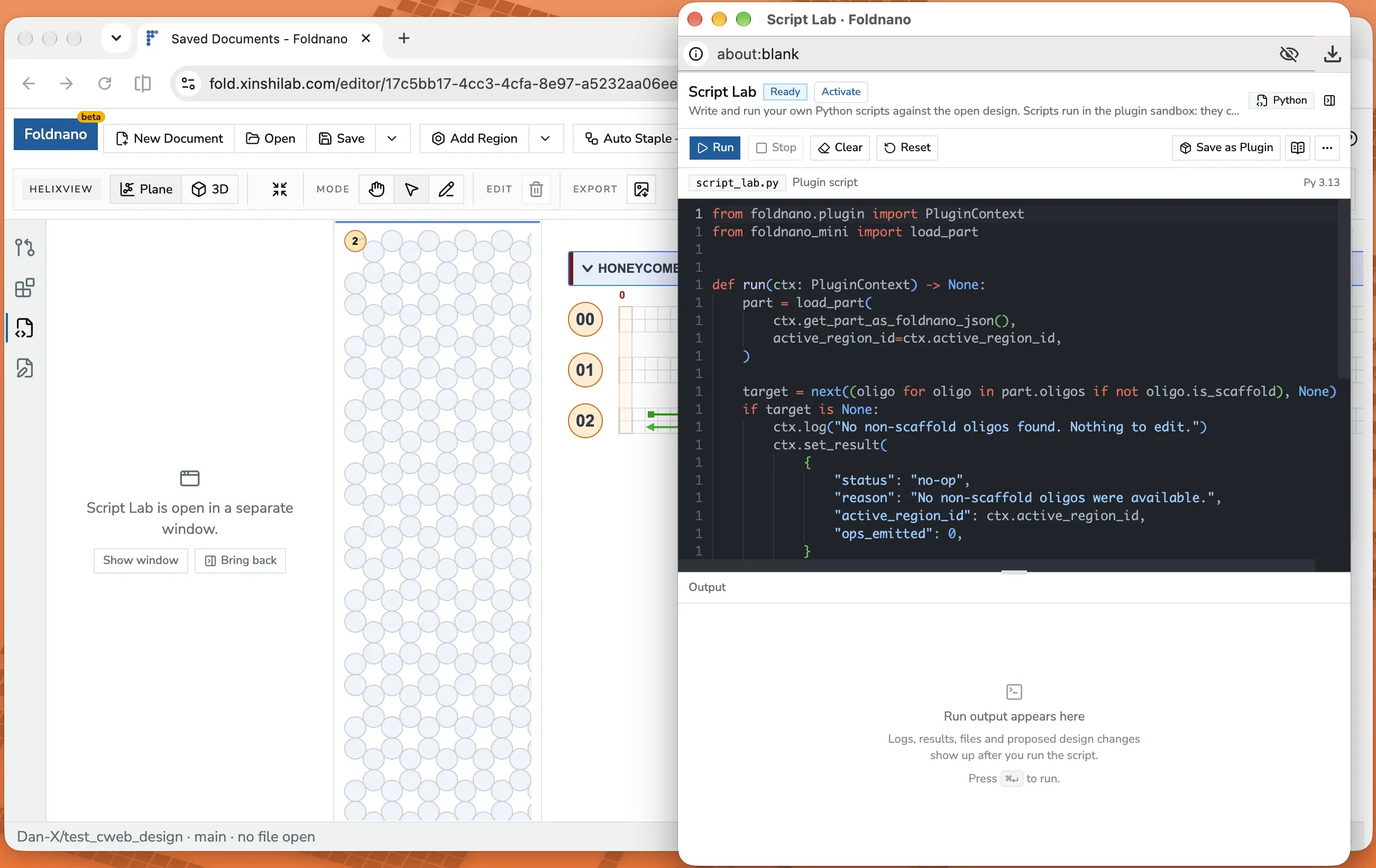
*The popped-out window has the same controls as the side panel, which now offers to bring the editor back.*
Everything works the same in the popped-out window: **Run**, the output tabs, and **Apply**, which changes the design in the main window as one undoable step. You can switch the side panel to another tab, such as **Source Control**, and the window stays open.
To return the editor to the side panel, click **Bring back** in the side panel, click the panel icon in the window's header, or close the window. **Show window** brings a window that's hidden behind others to the front.
Good to know:
- **Your script moves with it.** Only the editor's own undo history (`Ctrl/Cmd + Z` while typing) starts over each time it moves.
- **Design shortcuts stay in the main window.** Keys such as undo for the design, delete, or switching tools work when the main window has focus, not the popped-out one.
- **Notifications and confirmation dialogs open in the main window.** If a click in the popped-out window seems to do nothing, check the main window.
- **Closing or reloading the main tab closes the window too.**
- **If nothing opens,** your browser blocked the pop-up. Allow pop-ups for this site, then click **Pop out** again.
## Starter Scripts
The **Help** menu offers three starters. Loading one replaces the editor contents.
| Starter | Shows how to |
| --- | --- |
| **Load Mutation Starter** | Load the part, recolor one staple, and return the change so it can be applied |
| **Load Analysis Starter** | Inspect the part and report counts without changing anything |
| **Load Full API Demo** | Exercise every kind of `foldnano.edit` edit on the active design (it makes many changes, so try it on a scratch design) |
The same menu lists the essentials:
- `ctx.get_part_as_foldnano_json()`: the current part
- `ctx.active_region_id`: the region active in the strand viewer, if any
- `ctx.log("...")`: print to the console
- `ctx.set_result({...})`: show structured JSON output
- `ctx.set_result_mutation_log(part.mutation_log)`: make the run's edits applicable
- `load_part(...)` from `foldnano.edit`, then `part.oligos`, `part.virtual_helices`, `part.regions`, and `part.get_region(...)`
For the full API, see [Plugin API](https://fold.xinshilab.com/docs/plugin-development/plugin-api).
## Output And Apply
Before the first run, the output pane shows a short note saying where results will appear. After a run, it shows tabs for whatever the script produced:
| Tab | Contents |
| --- | --- |
| **Console** | Everything printed with `ctx.log` |
| **Result** | The JSON passed to `ctx.set_result` |
| **Artifacts** | Downloadable files the script wrote |
| **Apply** | The proposed design change, with **Apply** / **Cancel** |
The **Apply** tab appears only when the script returned a non-empty mutation log with `ctx.set_result_mutation_log(...)`, and it opens automatically. Applying records the whole change as **one undoable step** (`Ctrl/Cmd + Z`). A run that returns no mutation log says so and offers nothing to apply, which is normal for analysis scripts.
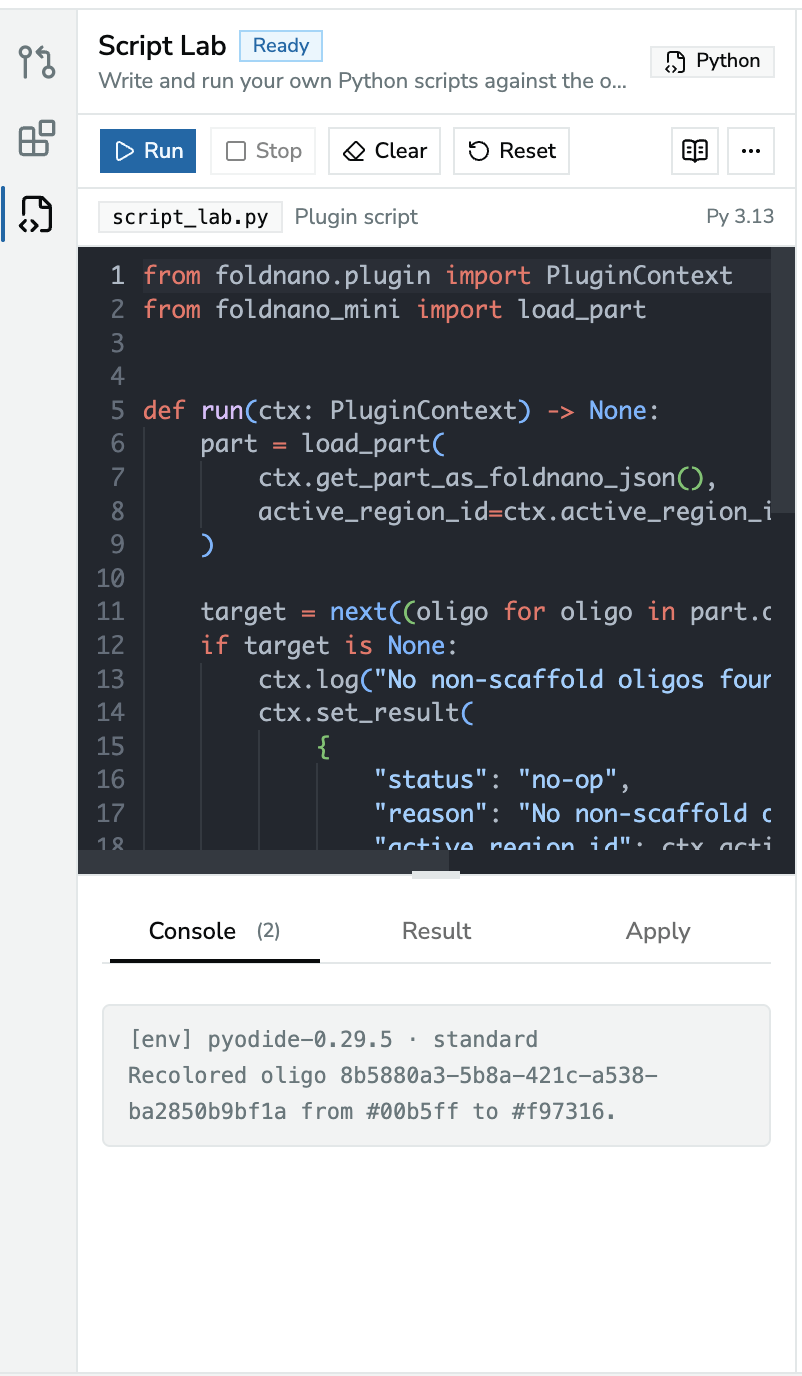
*After a run, the Console tab shows what the script logged.*
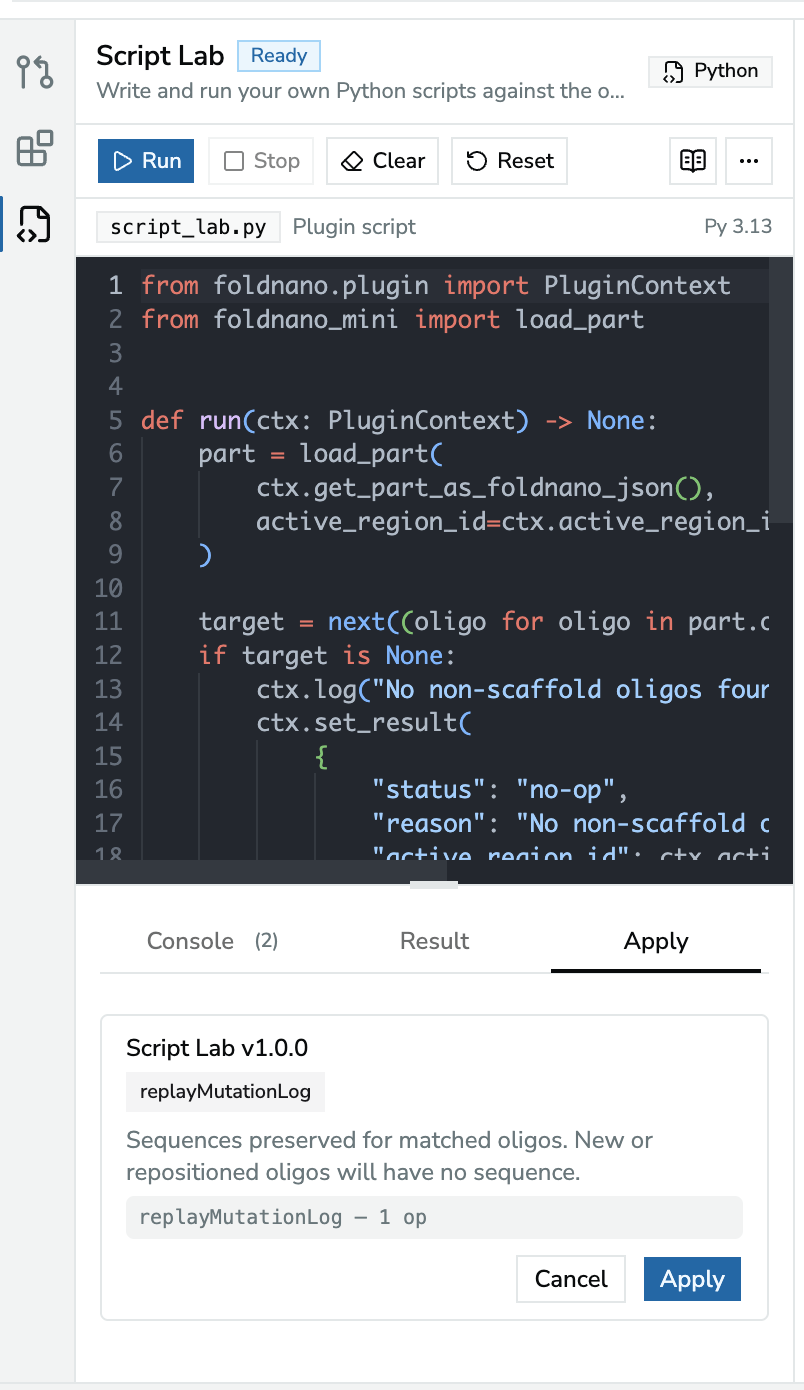
*The Apply tab shows the proposed change; Apply records it as one undoable step.*
> **Warning**
>
> If you edit the design after a run, the pending result is marked **stale** because the design changed since the script ran. **Discard** it and run the script again rather than applying an outdated change.
>
## Saving A Script As A Plugin
When a script does what you want, click **Save as Plugin** to keep it as a plugin of its own:
1. Give it a **Name** and, if you like, a **Description** and an **Icon**. Pick one of the built-in icons or click the upload button to use your own SVG file (up to 32 KB). The icon shows in the icon rail and the Plugins list, drawn in the theme's colour. The **ID** is generated for you; it identifies the plugin, so backups and restores stay matched to it.
2. Leave **Download a backup (.zip)** on. The plugin lives in this browser's storage, so clearing browser data deletes it; importing the zip brings it back.
3. Click **Save plugin**. The packages your script imports (such as `numpy`) are recorded with it.
4. Click **Open in editor** to keep working on it, or **Done**. Opening the editor resets Script Lab to its starter script, ready for the next idea.
The plugin appears under **My Plugins** with a **Mine** badge. **Run** there always uses the last saved version, like any other plugin. It has no input form: to change a value, edit the script.
### Editing Your Plugin
**Edit** on the plugin's card opens it in its own editor, with its own icon in the icon rail. It works like Script Lab, plus:
| Control | What it does |
| --- | --- |
| **Run** | Runs your edits as the plugin. The version badge says *unsaved changes* while you have edits. |
| **Save version** | Saves your edits as the next version (1.0.0, then 1.0.1, …). Packages you added or removed imports for are updated. |
| **Discard** | Drops your edits and goes back to the saved version |
| **Export** | Downloads the saved version as a `.zip`. It turns amber when the saved version isn't backed up yet. |
| **Icon** | Picks a different icon, or removes it. This saves the next version right away; your unsaved edits stay as they are. |
| **×** | Closes the editor. Your edits are kept; open it again with **Edit**. |
Edits are stored as you type, so a reload doesn't lose them; after a reload, the editor of every plugin with unsaved edits is back in the icon rail. You can have several plugin editors open at once, each with its own icon in the icon rail and its own pop-out window; switching between them keeps each editor's undo history and cursor. While **Save version** runs, the editor is locked for a moment so what you saved is exactly what you see.
If the same plugin is open in two tabs and you save it in one, saving in the other is refused; reload that tab first. Its unsaved edits are kept.
To move a plugin to another browser or computer, **Export** it and use **Import zip** in the Plugins panel there. Leave **Restore as editable** on in the install dialog to keep editing it. Replacing a plugin you made with a zip that has extra files, a side panel, or packages that don't ship with the runtime makes it a regular plugin you can no longer edit here; the install dialog warns you first.
> **Warning**
>
> **Remove** deletes the only copy of a plugin you made. Export it first if you might want it back. **Export** saves the last saved version, not unsaved edits: use **Save version** first to keep them.
>
## Every Run Starts Fresh
Each run executes the editor contents in a fresh Python namespace against a fresh snapshot of the design. Variables from a previous run are **not** kept, so a script's result depends only on its own code and the current design. The Python runtime itself stays loaded between runs, so later runs start faster.
## Using Packages
Scripts can import the scientific packages that ship with the Python runtime, such as `numpy`, `scipy` and `networkx`. Script Lab loads them on the first run that imports them, and the Console shows a line such as `[env] loaded numpy` followed by its version. That first run takes a few seconds longer.
Packages that don't ship with the runtime can't be imported from Script Lab, because scripts have no internet access. The Console says so when an import fails. **Save as Plugin** only records packages that ship with the runtime, so to use another package, write a plugin zip by hand and list the package under `requirements` (see the [plugin quickstart](https://fold.xinshilab.com/docs/plugin-development/plugin-quickstart)).
────────────────────────────────────────────────────────────
# Interface Reference
This page lists every control in the editor, area by area. Use it to look up a button you don't recognize. The task-oriented pages explain the workflows; they're linked from each section.
Hover over any icon button in the app to see its name in a tooltip, and press `?` to show the keyboard shortcut for each control (see [Keyboard Shortcuts](https://fold.xinshilab.com/docs/guide/keyboard-shortcuts)).
## Start Screen
A new, empty document shows **Start a new design** with **Honeycomb**, **Square** and **Freeform** buttons. Each opens the **New Region** panel for that type, where you choose its base plane (see [Adding a region](#adding-a-region)). A greyed **Wireframe** card, marked **API preview**, is for plugin developers: it creates a wireframe region, and hovering it links to the [current status](https://fold.xinshilab.com/docs/guide/wireframe) of wireframe support.
Below it, **or load an existing design** is a drop zone (click to browse). It accepts:
- designs: `.fn.json`, cadnano `.json` / `.cadnano.json`
- plugins: local plugin `.zip` files
## Top Toolbar
On narrower screens (such as an iPad), the toolbar buttons show only their icons. Hover over one, or press `?`, to see its name.
| Control | What it does |
| --- | --- |
| **Foldnano** (with *beta* badge) | Opens the **About** dialog: the version and build, **What's New** (the last 3 months of changes, some with a **Learn more** link to the guide, and **Show earlier updates** for older ones), the author, the MIT license, and third-party licenses. A small blue dot before the name means What's New has entries you haven't opened yet, and inside What's New those entries carry the same dot and darker text until you next reload; some major changes are also announced once in a card at the bottom right |
| **New Document** | Creates a new, empty document. With a GitHub repository connected, it asks whether to create a **New File** in that repository or a **Local-Only Design** kept in this browser |
| **Open** | Opens the **Load design files here** dialog (see [Open dialog](#open-dialog)) |
| **Save** | Saves the working copy to browser storage now |
| **⌄** next to Save | Save menu (see below) |
| **Add Region** | Starts adding a **honeycomb** region (see [Adding a region](#adding-a-region)) |
| **⌄** next to Add Region | **Add Honeycomb Region**, **Add Square Region**, **Add Freeform Region**, **Load Cadnano Design as a Region** |
| `Auto Staple — [region]` | Generates staples for the active lattice region. Shown only when the active region is a lattice region. See [Creating A Design](https://fold.xinshilab.com/docs/guide/creating-a-design#auto-staple). |
| Document name | Click to rename; `Enter` confirms, `Escape` cancels. For a file already committed to GitHub, a **Rename and Commit** dialog asks for confirmation and also commits any uncommitted local changes. |
| Save status | See [Save status](#save-status) |
| Agent runs badge | Shown while a coding agent may run Python from a linked plugin folder: which folder is connected to which design, the running script, or why runs are paused. **×** stops agent runs. See [Agent Runs](https://fold.xinshilab.com/docs/plugin-development/agent-runs). |
| **Undo** / **Redo** arrows | Same as `Ctrl/Cmd + Z` / `Ctrl/Cmd + Shift + Z` |
| **Commit** | Shown for GitHub files. Opens the Source Control **Changes** tab; an amber dot means uncommitted changes. |
| **GitHub** / your avatar | Not connected: **Connect to GitHub**. Connected: toggles the Source Control panel. See [Saving And GitHub](https://fold.xinshilab.com/docs/guide/saving-github). |
| Sun / moon | Toggle dark mode |
| Bug icon | Opens the **Error Log** (see [Error log](#error-log)) |
| **?** (circle) | Help menu: **Workspace help** (the `?` overlay), plus the **User guide**, **Keyboard shortcuts** and **Plugin development** docs, each opening in a new tab |
### Save menu
| Item | What it does |
| --- | --- |
| **View Saved Documents** | Saves, then opens the Saved Documents page (`/toc`) |
| **View Oligos** | Saves, then opens this design's [Oligo Report](https://fold.xinshilab.com/docs/guide/oligo-report) |
| **Backups…** | Lists this design's last 5 backups; compare one with your design, download it as `.fn.json`, or restore it (see [Backups](https://fold.xinshilab.com/docs/guide/saving-github#backups)) |
| **Save to GitHub Repo** | Publishes this design to your connected repository (see [Saving And GitHub](https://fold.xinshilab.com/docs/guide/saving-github)) |
| `Export as cadnano JSON — [region]` | Downloads the active lattice region as cadnano JSON (shown only for lattice regions), after listing anything cadnano can't hold. See [Exporting cadnano JSON](https://fold.xinshilab.com/docs/guide/simulation-export#exporting-cadnano-json) |
| **Export as Foldnano JSON** | Downloads the full design as `.fn.json` |
| **Export Oligos of this Part as CSV** | Downloads the oligo/sequence CSV |
| **Other Save Options** | Placeholder, currently disabled |
### Save status
Next to the document name, a colored dot and label show the state of the browser working copy:
| Indicator | Meaning |
| --- | --- |
| Green dot, time (for example *2 min ago*) | All changes saved locally |
| Pulsing amber dot, *N unsaved edits* | Autosave pending; click to save now |
| Red dot, *Save failed* | The last save failed; click to retry |
| Pulsing blue dot, *Click to Save Locally* | The design was loaded from a URL and isn't stored yet (see [Loading from a URL](#loading-from-a-url)) |
The **ⓘ** next to it (*Storage info*) explains that designs are saved in this browser, not on a server, and whether the browser has granted persistent storage (see [Persistent storage](https://fold.xinshilab.com/docs/guide/saving-github#persistent-storage)). When a save fails, a banner with **Retry** and **Download .json** also appears (see [When saving fails](https://fold.xinshilab.com/docs/guide/saving-github#when-saving-fails)).
### Adding a region
**Add Region** (or one of its menu items) opens the **New Region** tool panel:
1. The panel shows the region type.
2. Choose its **Base Plane**: **Top (XY)** (normal points up, Z), **Front (XZ)** (normal points forward, Y), or **Side (YZ)** (normal points right, X).
3. Click **Create *type* Region Here**, or **Cancel**.
With [Plugin dev mode](https://fold.xinshilab.com/docs/plugin-development/plugin-dev-mode) on, **Add Region** offers wireframe regions too, for developers of routing plugins. See [Wireframe Plugin APIs](https://fold.xinshilab.com/docs/plugin-development/wireframe-plugins).
**Load Cadnano Design as a Region** opens a dialog where you drop a cadnano `.json` / `.cadnano.json`, choose the same **Base Plane** options, and click **Load**. The file becomes a new region in the current part.
### Open dialog
**Open** accepts the same files as the start screen. Each dropped file is listed with an action:
- **Foldnano `.fn.json`**: **Load** opens it.
- **cadnano `.json`**: **Open** creates a **new `.fn.json` document** from it; the original `.json` isn't changed. When a GitHub repository is connected, **Add original to current repo folder** also stores the original file there. If the file could be either lattice, you're asked whether it is honeycomb or square.
- **Plugin manifest** or **local plugin `.zip`**: shows the plugin's details and an **Install** button (see [Plugins For Users](https://fold.xinshilab.com/docs/guide/plugins-for-users)).
### Loading from a URL
Opening the editor with `?url=` loads that design directly. A cadnano file doesn't record its lattice; when its helix length fits both honeycomb and square and its crossovers don't settle it, the editor asks. Add `&lattice=honeycomb` or `&lattice=square` to the link to answer in advance. It isn't stored in the browser until you click **Click to Save Locally** in the save status and confirm **Save to Browser** in *Save this design to your browser?*. To download a copy instead, use the Save menu exports.
## Icon Rail
The narrow column on the far left opens side panels:
| Icon | Panel |
| --- | --- |
| Pull-request arrow | **Source Control** (GitHub files, changes, and history; see [Saving And GitHub](https://fold.xinshilab.com/docs/guide/saving-github)) |
| Blocks | **Plugins** (see [Plugins For Users](https://fold.xinshilab.com/docs/guide/plugins-for-users)) |
| Plugin icons | Panels added by enabled plugins, such as [Script Lab](https://fold.xinshilab.com/docs/guide/script-lab) |
Click an active icon again to close its panel.
## Viewer Toolbar
The toolbar row below the top toolbar belongs to whichever viewer you last worked in. A badge on its left names that viewer. When the left pane is active, a **Plane / 3D** toggle switches it between the plane view and the 3D view.
### Strand view toolbar
**Reset view** (arrows pointing inward) fits the strand view back to its default zoom.
**Mode** holds the tools: **Pan**, **Select**, **Draw strands**, **Break strand**, **Skip bases**, **Insert bases**, **Paint oligo**, **Apply modification**, **Assign sequence**, and **Split region**. See [Editing Tools](https://fold.xinshilab.com/docs/guide/editing-tools).
**View:**
| Control | What it does |
| --- | --- |
| **S** badge | Scaffold sequence indicator: green when every scaffold's sequence is applied and current, red when it needs re-applying. Click it to toggle the **scaffold** highlight. See [Editing Tools](https://fold.xinshilab.com/docs/guide/editing-tools#scaffold-sequence-indicator). |
| **Highlight strands** (highlighter) | Highlight and Warnings menu (see [Selection](https://fold.xinshilab.com/docs/guide/selection#highlighting-and-hiding)) |
| **Hide strands** (crossed eye) | Hide all crossovers, only unconstrained crossovers, or sequence. Hidden crossovers leave [labeled marks](https://fold.xinshilab.com/docs/guide/selection#highlighting-and-hiding) |
| **Circular Scaffold Map** | Opens the [Circular Scaffold Map](#circular-scaffold-map) panel. Disabled until an oligo is marked as scaffold. |
| **Show / Hide RBS blocks** | Shades the rigid blocks that [rigid-body simulation](https://fold.xinshilab.com/docs/guide/simulation-export) treats as single bodies |
| **PNG** | Downloads the strand view as a PNG image |
| **SVG** | Downloads the strand view as an SVG, including sequences |
**Edit** (all act on the current strand selection):
| Control | What it does |
| --- | --- |
| **Align free ends left** | Moves the selected free ends to the leftmost selected position |
| **Justify selected segment ends** | Aligns the left ends of two or more selected segments to the leftmost one and their right ends to the rightmost one |
| **Align free ends right** | Moves the selected free ends to the rightmost selected position |
| **Delete selection** (trash) | Same as `Delete` / `Backspace` |
| **Duplicate selected oligos** | See [Duplicates And Repeat Groups](https://fold.xinshilab.com/docs/guide/duplicates-repeat-groups) |
| **Duplicate as linked mirror copies** | See [Duplicates And Repeat Groups](https://fold.xinshilab.com/docs/guide/duplicates-repeat-groups#mirror-copies) |
The align buttons work in the **Select** tool and move **free ends only** (never ends joined to a crossover). They're enabled only when the move is possible for every selected end at once, and the whole alignment is one undo step. See [Aligning ends](https://fold.xinshilab.com/docs/guide/selection#aligning-ends) for which ends move and a worked example.
**Length** (labeled with the active region's name):
| Control | What it does |
| --- | --- |
| **Trim unused length** | Shortens the active region to the smallest length that still fits its strands, rounded up to the lattice step (21 bp honeycomb, 32 bp square), and never below two steps |
| **# bps** field | Number of base pairs to add (steps by the lattice step) |
| **Extend region length** | Adds that many base pairs to every helix in the active region |
On the right, *press ? for help* is a reminder of the workspace help (shortcuts plus an explanation of each control).
### Plane view toolbar
| Control | What it does |
| --- | --- |
| **Reset view** | Fits the plane view back to its default zoom |
| **Mode** | **Pan**, **Select**, **Draw** (see [Views And Regions](https://fold.xinshilab.com/docs/guide/views)) |
| **Delete selected helices** | Deletes the selected helices; in lattice regions only empty ones are removed |
| **Distribute in a circle** | Freeform only: spaces three or more selected perpendicular helices evenly on a circle around their centre, keeping their order and roll |
| **Distribute in a circle, facing the centre** | Same, and rolls each helix so roll 0 points at the centre |
| **Export as image** | Downloads the plane view as a PNG image |
### 3D view toolbar
| Control | What it does |
| --- | --- |
| **Reset camera to default 3D view** | Resets the 3D camera |
| **3D Overlay** | Switches the tool panel between **3D View Inspector** and **3D Overlays** (see [3D Overlays](https://fold.xinshilab.com/docs/guide/3d-overlays)) |
| **Mesh** | Wireframe regions only: switches the tool panel to **Reference Mesh** (see [Wireframe Plugin APIs](https://fold.xinshilab.com/docs/plugin-development/wireframe-plugins#manage-the-mesh)) |
| **Mode** | **Pan**, **Select**, **Draw** |
| **View** toggles | **Helix grid** (`g`), **NT model** (`e`), **Cross-section cursor** (`c`, unavailable while the NT model is shown), **Coordinate axis**, **Base planes** (`f`) |
| **Selection: show only selected strands** | Limits the 3D view to the strands selected in the strand viewer |
| **Lock current selection** | Freezes that filter on the current selection, so you can keep selecting in the strand viewer without changing the 3D view |
| **Relax** / **Re-relax** / **Stop** | Runs, re-runs (after topology changes), or stops the rigid-body simulation (RBS) that relaxes the design |
| **Relaxed layout** toggle | Switches between the lattice layout and the relaxed (simulated) layout |
| **Crossover stress** toggle | Colors crossovers by strain |
| **Clear relaxed layout** | Discards the simulation result |
| **Params** | Simulation settings: **Spring k**, **Repulsion C**, **Friction**, **Steps**, **Collisions** |
| **Export** | **Image**, **GLB**, **oxDNA**, **mrDNA**, plus **Include mirror copies** for oxDNA / mrDNA |
| **Performance stats** (bar chart) | Shows rendering statistics |
Status chips at the right edge show *Simulation running*, *Relaxed layout stale*, *Plane selected*, and, after a run, the block count and RMS error.
When a design has **no assigned sequence**, oxDNA export first opens **No Sequence Data**: unassigned double-stranded positions are filled with random complementary bases, and you choose the base for single-stranded positions (**T** by default, or **A**, **C**, **G**, **Random**), then click **Export**.
See [Simulation And Export](https://fold.xinshilab.com/docs/guide/simulation-export) for the workflows.
## Tool Panel
A floating panel on the right shows the options of the current tool or view. Its heading names it: **Selection Tool**, **Paint Tool**, **Modification Tool**, **Sequence Tool**, **Skip Tool**, **Insert Tool**, **New Region**, **Circular Scaffold Map**, **3D View Inspector**, **3D Overlays**, or **Reference Mesh**.
- **Drag** the heading to move the panel between the top and bottom of the window, or **double-click** it to flip position.
- The **›** button collapses it to a small tab; **‹** expands it again.
The per-tool panels are described on [Editing Tools](https://fold.xinshilab.com/docs/guide/editing-tools) and [Selection](https://fold.xinshilab.com/docs/guide/selection). The view panels are below.
### Circular Scaffold Map
A QC view of how staples bind the scaffold (explained in [Selection And Highlighting](https://fold.xinshilab.com/docs/guide/selection#circular-scaffold-map)). Draws each scaffold as a circle, with every staple as an arc or chord between the scaffold positions it binds, a radial bar per double-stranded segment (height = segment length), and histograms of **segment length** and **crossover span**.
| Control | What it does |
| --- | --- |
| **Zoom out** / **Zoom in** / **Reset zoom** | Zoom the map (or `Ctrl/Cmd` + scroll wheel) |
| Click a staple | Selects that oligo in the strand viewer; hovering emphasizes it on the map |
| **Render as a full circle** | For a linear or broken scaffold, draws it as a closed circle (click again to revert) |
| Histogram **bin size (nt)** | Groups lengths into bins |
| Histogram **max count shown** | Caps the y-axis so small bars stay visible; reset returns to auto-scale |
| **Download SVG** | Downloads the map |
| **Copy histogram data** | Copies the histogram values as tab-separated text, ready to paste into a spreadsheet |
### 3D View Inspector
| Section | Controls |
| --- | --- |
| **Regions** | Each region's plane color, name, and helix count; the eye button [hides or shows it in 3D](https://fold.xinshilab.com/docs/guide/views#hiding-regions-in-3d) |
| **Planes** | **Show / Hide** the design planes in 3D. While shown: name and ID of the plane you clicked; **Rotate** / **Move** gizmo mode; origin and normal; **Add Plane**; **Remove Plane** (only for a plane no region uses, and never the last plane) |
| **Simulation Diagnostics** | After a run: blocks, constraints, RMS error, and max overlap |
See [Views And Regions](https://fold.xinshilab.com/docs/guide/views#plane-gizmo) for plane editing.
## Strand View: Rows And Context Menu
- **Region header**: click to make the region active; double-click to collapse or expand it. The **plane icon** on the header switches the left pane to 3D, shows the planes, and frames that region's plane.
- **VH tag** (left edge of each row): drag to reorder helices within the region.
- **Cross-region arrows** mark connections that continue in another region.
- The **status bar** at the bottom right shows details of whatever is under the pointer.
**Right-click** in the strand view opens a context menu:
| On | Items |
| --- | --- |
| An oligo or segment | **Set as Scaffold** / **Set as Staple**, **Delete Oligo** |
| A segment | also **Delete Segment**, **Copy Segment Sequence** |
| An oligo | also **Copy Oligo Sequence** |
The copy items are disabled when there's no sequence. **Set as Scaffold** is how you mark the scaffold explicitly (see [Mental Model](https://fold.xinshilab.com/docs/guide/mental-model#explicit-scaffold)).
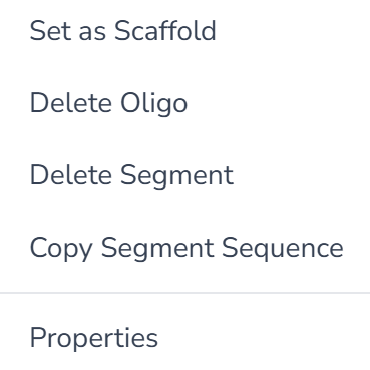
*The context menu on a segment.*
> **Current limitation**
>
> The **Properties** item, and the **Paste** and **Export as SVG** items on empty space, are placeholders and don't do anything yet. Use the toolbar **SVG** button to export.
>
## Status Bar
The strip along the bottom of the editor shows, for a GitHub file:
- the **branch** name,
- *unsaved to GitHub* (amber dot) when there are uncommitted changes, or *↓ remote ahead* when GitHub has newer commits,
- *? GitHub not checked* when Foldnano couldn't check GitHub for newer changes (for example while offline); it checks again by itself when you're back online or return to the tab, or click it to try now. Committing still checks, and shows the conflict options if the file changed,
- the **repository and file path**, and the short **commit SHA**,
- **Backups**; click it to open the design's backups (see [Saving And GitHub](https://fold.xinshilab.com/docs/guide/saving-github#backups)).
With a repository connected but no file open it shows *owner/repo · branch · no file open*.
## Read-Only Tabs
If the same document is open in another tab, this tab shows *This file is open in another tab. Editing is disabled.* with a **Take back control** button. Only **Pan** stays available until you take control; plugins can still run, but their results can't be applied (see [Saving And GitHub](https://fold.xinshilab.com/docs/guide/saving-github#multi-tab-protection)).
## Error Log
The bug icon in the top toolbar opens **Error Log**, recent errors from this browser, kept locally for troubleshooting. Each entry can be copied as JSON, or use **Copy all as JSON** to include them in a bug report. Error notifications also offer a **View Details** link that jumps to the entry.
────────────────────────────────────────────────────────────
# Keyboard Shortcuts
Foldnano is much faster from the keyboard. The single-key tool switches let you keep one hand on the mouse while changing modes. Press `?` at any time to toggle the in-app workspace help, which shows every shortcut and explains each control.
## Tools
Single keys switch the **active strand-view tool** (no modifier). See [Editing Tools](https://fold.xinshilab.com/docs/guide/editing-tools) for what each one does.
| Key | Tool |
| --- | --- |
| `v` | Select |
| `n` | Draw |
| `b` | Break |
| `s` | Skip |
| `i` | Insert |
| `p` | Paint |
| `m` | Modification |
| `a` | Sequence |
| `r` | Split region |
## Selection Filters
These toggle which strand elements selection and the sequence tool act on
(scaffold, staple, ends, crossovers, segments, oligos). Only active while the
strand viewer is the active viewer.
| Key | Filter |
| --- | --- |
| `c` | Scaffold |
| `t` | Staple |
| `e` | Ends |
| `x` | Crossovers |
| `d` | Segments |
| `o` | Oligos |
## Editing & Navigation
| Key | Action |
| --- | --- |
| `Delete` / `Backspace` | delete current selection |
| `Escape` | clear selection / cancel current action |
| `Ctrl/Cmd + Z` | undo |
| `Ctrl/Cmd + Shift + Z` or `Ctrl/Cmd + Y` | redo |
| `Ctrl/Cmd + D` | duplicate the selected oligos (see [Duplicates And Repeat Groups](https://fold.xinshilab.com/docs/guide/duplicates-repeat-groups)) |
| `Ctrl/Cmd + Shift + D` | place linked mirror copies of the selected oligos |
| hold `Option` / `Alt` | temporary **pan** modifier for the active canvas |
| arrow keys | pan the strand view (hold `Shift` for bigger steps; not while placing a duplicate) |
| mouse wheel | zoom the active canvas |
| `?` | toggle the workspace help |
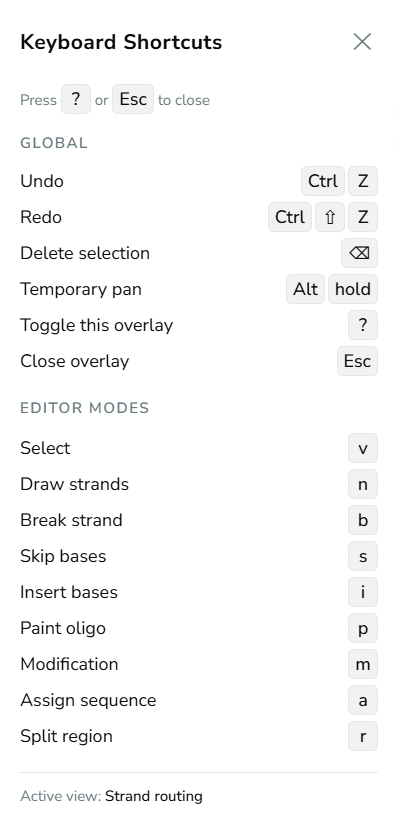
*In-app shortcut overlay, opened with the ? key, listing Global and Editor Modes shortcuts.*
The overlay is also the workspace help. Each visible pane and panel gets a short caption, and hovering over any control explains what it does, with a link to the matching guide page where there is one. In the strand view and the plane view it also lists the mouse gestures for the current tool, and in Select mode it points at the first region header, its plane icon and a helix tag to explain what clicking or dragging them does. You can keep working while it is open; press `?` or `Esc`, or click **Close** in the pill at the bottom of the screen, to close it. It opens by itself once, on your first visit, and you can also open it from **Workspace help** in the toolbar's Help menu (the **?** icon at the top right).
The overlay also shows shortcuts for the currently open side panel, here the Selection Tool's `c`/`t`/`e`/`x`/`d`/`o` filter and action keys:
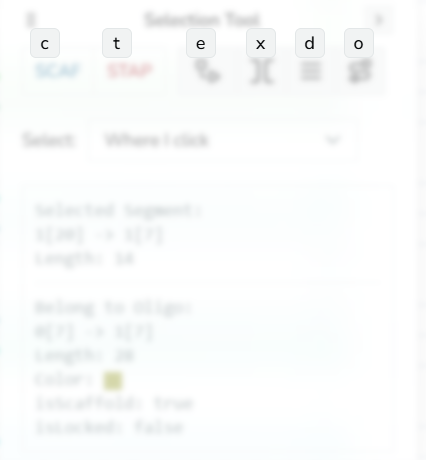
*Shortcut overlay with the Selection Tool panel's shortcuts.*
Shortcuts are ignored while you type in a text field, and every editing shortcut is disabled in a tab that doesn't own the document (see [Saving And GitHub](https://fold.xinshilab.com/docs/guide/saving-github#multi-tab-protection)).
## Placing Duplicates
While a duplicate or mirror copy is following the pointer:
| Key | Action |
| --- | --- |
| hold `Shift` | move in free 1 bp steps instead of helical-repeat steps |
| `←` / `→` | jump to the previous / next valid position |
| `Enter` (or click) | place the copy |
| `Escape` | cancel |
In the **Split region** tool, `Escape` cancels and returns to Select.
## Script Editor
Only active while you type in the [Script Lab](https://fold.xinshilab.com/docs/guide/script-lab) editor (or another plugin's code editor). Because these keys go to the editor, press `?` outside it to open the workspace help.
| Key | Action |
| --- | --- |
| `Ctrl/Cmd + Enter` | run the script |
| `Ctrl + Space` | show completions |
| `Ctrl/Cmd + /` | toggle comment |
| `Option/Alt + ↑` / `↓` | move the line up / down |
| `Ctrl/Cmd + Shift + K` | delete the line |
## 3D View
Only active while the 3D view is the active viewer.
| Key | Toggle |
| --- | --- |
| `g` | helix grid |
| `e` | NT model |
| `c` | cross-section cursor |
| `f` | base planes |
────────────────────────────────────────────────────────────
# Design Checks Reference
Foldnano checks designs at a few points: when it opens a file, while you edit (the **Design checks** button in the strand view, see [Creating A Design](https://fold.xinshilab.com/docs/guide/creating-a-design#design-checks-while-you-edit)), and before a simulation or cadnano export. This page lists every check in one place.
Each problem has a level:
| Level | Meaning |
| --- | --- |
| **Error** (red) | That export or that plugin can't work with the design until you fix it. When you open a design, errors are only reported; the design still opens. |
| **Warning** (amber) | Something will be lost or changed. You can go ahead anyway. |
| **Info** | Data the target format doesn't store. Listed, never blocking. |
## Opening A File
### cadnano files
| What Foldnano finds | What happens |
| --- | --- |
| A base claims a connection from a base that is empty | Repaired: the claim is removed and the base becomes a free end, as cadnano draws it. A warning names the helix and base. |
| A crossover end that points at its own base (some older files) | Repaired silently: rewritten to the neighbouring base, the form Foldnano writes. Nothing changes in the design. |
| A deletion (skip) on a crossover base | Moved to a neighbouring base. A warning names both positions. If no neighbour is free, it stays and simulation export may refuse it. |
| An insert on a crossover base | Kept, and reported by the **Editor rules** check below. |
| A helix length that fits both honeycomb (21) and square (32), such as 672 | Foldnano picks the lattice whose crossover positions match. If the file has no crossovers to go by, you choose. A link can answer in advance with `&lattice=honeycomb` or `&lattice=square`. |
| Two bases that disagree about how they connect | Not opened. |
| Two helices on one lattice position, a negative helix number or lattice position, helices of different lengths | Not opened. |
| Malformed data: missing arrays, connections to helices or bases that don't exist, a base marked as both skip and insert, invalid colors | Not opened. |
| A strand only one base long | Not opened. Extend or remove it in cadnano first. |
| A helix length that fits neither lattice | Not opened. |
### Foldnano files
| What Foldnano finds | What happens |
| --- | --- |
| Helices at negative lattice positions | Repaired: the region is moved onto the grid without changing where it sits in 3D. For a design saved in this browser, the unrepaired copy is kept in **Backups**. |
| A mirrored plane, from regions created on the **Side (YZ)** base plane before this was fixed (and never rotated since) | Repaired: the plane's V axis is flipped. The 2D view is unchanged; in 3D the regions on it flip along V, and their helices now twist the right way, so crossovers line up in the 3D view and in oxDNA/mrDNA export. For a design saved in this browser, the unrepaired copy is kept in **Backups**. |
| Inconsistencies from an earlier bug (strands listed on the wrong helix, one-way connections) | Repaired, with a message listing what was fixed (and a **Backups** copy for a design saved in this browser). |
| Anything in the **Editor rules** check | Reported, not changed. |
## Editor Rules
States the editor doesn't create itself. They come from imported files or plugin results. When you open a design, they are listed in one message. A plugin whose result has an error is refused before you can apply it.
| Check | Level | What to do |
| --- | --- | --- |
| A skip on one strand and an insert on the other (or different inserts) at the same base | Error | Make both strands match: remove the skip or insert and add it again with the skip or insert tool. |
| A skip or insert on a constrained crossover site | Error | Move the skip or insert to a neighbouring base. |
| Two helices on the same lattice position | Error | Move one of them. |
| A helix at a negative lattice position | Error | Foldnano moves a saved design onto the grid when it opens it, so this mostly shows up as a refused plugin result: fix the plugin. |
| A helix whose number is even on an odd lattice position (or the reverse) | Warning | cadnano export and crossover positions assume they match. Recreate the helix in place if you need either. |
| A freeform helix whose saved direction or roll is not a proper frame (not unit length, or roll not at a right angle to the helix) | Warning | The 3D view and exports would distort the helix. Select it and set its **Roll** in the Select panel, which rebuilds the frame. |
## Simulation Export
What oxDNA and mrDNA export (and the 3D view's NT mode) refuse. Turn on **Simulation export** in the Design checks button to see them while you edit. See [Simulation And Export](https://fold.xinshilab.com/docs/guide/simulation-export#nt-model).
| Check | Level | What to do |
| --- | --- | --- |
| Any **Editor rules** error about skips or inserts | Error | As above. |
| A skip or insert on a base where only one strand exists | Error | Single-stranded DNA simulates fine, but not as a one-sided skip or insert. Draw the bases as ordinary strand bases (or shorten the strand instead of skipping), or remove the skip or insert. |
## Cadnano Export
What cadnano JSON can't hold, for the **active region**. Shown before **Export as cadnano JSON** and before a plugin that works on cadnano JSON runs. Turn on **Cadnano export** in the Design checks button to see them while you edit. See [Exporting cadnano JSON](https://fold.xinshilab.com/docs/guide/simulation-export#exporting-cadnano-json).
| Check | Level | What to do |
| --- | --- | --- |
| A freeform region | Error | cadnano only has honeycomb and square lattices. Use Foldnano JSON instead. |
| A connection from a cadnano scaffold path to a staple path | Error | cadnano keeps those in separate arrays, decided by helix number and strand. Reroute the connection so it stays on one kind of path. |
| A helix length that isn't a multiple of 21 (honeycomb) or 32 (square) | Error | Change the region length. |
| A **Editor rules** issue about lattice positions or per-strand skips and inserts | Error or warning | As in Editor Rules. |
| A helix length that fits both lattices, such as 672 | Warning | cadnano asks whether the design is square when it opens the file; the message says what to answer. |
| Connections to other regions | Warning | They are cut in the exported file. |
| Repeat-group copies | Warning | Only the originals are exported. |
| Sequences, modifications, oligo names, the scaffold label | Info | Not stored in cadnano JSON. |
A plugin that only reads the design (no result to apply) is only stopped by errors. A plugin that replaces the region also shows the warnings, because applying its result makes those losses permanent.
────────────────────────────────────────────────────────────
# Wireframe Designs (Developer Preview)
> **Warning: Not ready for designing wireframe structures**
>
> Wireframe routing will be supported through plugins, rather than built into the main app. No routing plugin is available yet, so you can't design a wireframe structure in Foldnano today.
>
This page describes where wireframe support stands and our current plan, which may change.
## What Exists Today
- **Wireframe regions.** A design can hold a region built around a reference mesh. Foldnano shows it and lets you edit its helices and strands as in a freeform region, and it exports to oxDNA and mrDNA.
- **An early plugin API.** A plugin can read the mesh, place helices along its edges and build strands.
## Our Approach
Instead of building one router into the app, we plan to host routing methods as plugins, on top of shared tools for reading meshes and placing helices. **Established, tested methods could then run as plugins, and developers of new routing algorithms could build on the same API, so that a new method can be used in Foldnano as soon as its authors release it as a plugin.** A routed structure would then be a normal Foldnano design: you can edit it at the nucleotide level in linked 2D and 3D views, assign sequences, check the design, and export it for simulation.
## What's Still Needed
- Routing plugins that you can install and use.
- Validation: simulating wireframe structures made this way, then testing them in the lab.
## Designing A Wireframe Today?
Please use an established wireframe design tool for now.
## For Plugin Developers
An early version of the plugin API is available for developers of routing methods. See [Wireframe Plugin APIs](https://fold.xinshilab.com/docs/plugin-development/wireframe-plugins).
## Work With Us
Our core team has limited wireframe experience. If you develop wireframe methods, we would especially like your view on what a routing plugin needs, and test designs to validate against. Please contact us.
────────────────────────────────────────────────────────────
# Plugin Quick Start
This guide is for developers and AI agents writing plugins for Foldnano. A plugin is Python code plus a manifest that tells Foldnano how to run it and whether it can modify the design.
## Minimal Plugin
Every file/URL-delivered plugin is a single zip bundle with `fplugin.json` and `plugin.py` at its root. Start with a plugin folder:
**`my_plugin/plugin.py`**
```python
from foldnano import PluginContext
def run(ctx: PluginContext) -> None:
ctx.log("Hello from my plugin")
ctx.set_result({"status": "ok"})
```
**`my_plugin/fplugin.json`**
```json
{
"schemaVersion": 2,
"id": "my-plugin",
"name": "My Plugin",
"version": "1.0.0",
"format": "cadnano_json",
"applyStrategy": "previewOnly",
"description": "One-line description shown in the plugin panel."
}
```
`foldnano` gives you `ctx` and read-only access to the design. To edit a design you also import from `foldnano.edit`; see [which package to import](https://fold.xinshilab.com/docs/plugin-development/runtime-model#which-package-to-import).
The manifest inside the zip doesn't need `entrypointUrl`. The installer already knows `plugin.py` is in the zip.
Zip the two files together **from inside the folder** (no directory prefix):
```bash
cd my_plugin
zip my_plugin.zip fplugin.json plugin.py
```
Install it with the **Import zip** button in the Plugin panel (or by opening the `.zip` file directly).
### Sharing your plugin
Share the `.zip` file itself, for example by email, a lab file share, or a release on GitHub. Your users install it with **Import zip**. During the beta, Foldnano installs plugins only from a local zip or from its own Hub, not from links to other websites; a manifest whose `entrypointUrl` points at another site is refused.
## What Happens When It Runs
1. Foldnano reads the manifest.
2. The plugin runtime loads the Python entrypoint in a [Pyodide](https://pyodide.org/en/314.0.7/index.html) worker (CPython in WebAssembly; see [Runtime Model](https://fold.xinshilab.com/docs/plugin-development/runtime-model) for what does and doesn't work there).
3. Foldnano passes the active design to Python in the format declared by the manifest.
4. The plugin logs messages, writes artifacts, returns structured results, or returns a design mutation.
5. If the plugin is mutating, the user chooses whether to apply the result.
Preview-only plugins are the safest starting point. They can inspect a design and produce reports without changing the model.
## Adding More Files
The zip isn't limited to one file: add helper modules, data tables, or a `.whl` wheel at the zip root (subfolders are fine too). Everything ships in the same bundle as `fplugin.json` and `plugin.py`. Keep the zip at **50 MB or less**, and under **200 MB** once unpacked.
Use the testing guide before distributing a mutating plugin.
────────────────────────────────────────────────────────────
# Runtime Model
Foldnano plugins run in a browser Python runtime ([Pyodide](https://pyodide.org/en/314.0.7/index.html), CPython compiled to WebAssembly) hosted by a Web Worker. The main editor remains the owner of the real model; Python receives a serialized input and returns either analysis output or an explicit result to apply.
## Runtime Pipeline
1. The user installs a plugin: either by importing a `.zip` locally, or from Foldnano's Hub, whose zips are served by Foldnano itself and fetched once at install time.
2. Foldnano validates the manifest inside the zip (format, apply strategy, entrypoint shape) and stores the whole zip in IndexedDB.
3. When the plugin is activated, the plugin coordinator loads the cached zip from IndexedDB. Activation never re-fetches the plugin's code. (Script-Lab-like `sidePanel.codeEditor` plugins are the one exception: their source is the live editor buffer, not a stored zip.)
4. Pyodide extracts the zip and loads `plugin.py`, plus any requirements: bundled wheels come from the zip; package names are installed from the Pyodide distribution or PyPI at this point.
5. Foldnano builds a `PluginContext` with the active part, active region, parameters, and side-panel state.
6. Python runs `run(ctx)`.
7. The host receives logs, artifacts, JSON results, or a mutation result.
8. Mutating results are applied only through the selected apply strategy.
If `run()` raises, the run ends with an error: the panel shows the traceback, and the log keeps every line written before the exception. Nothing is applied. To report a problem more readably, catch it and log a message instead, for example around `ctx.get_part_as_foldnano_json()`, which raises `RuntimeError` when the manifest declares another format. A result can also be refused after a clean run; see [When a Result Can't Be Applied](https://fold.xinshilab.com/docs/plugin-development/plugin-formats#when-a-result-cant-be-applied).
Plugins installed under the old, pre-unification shapes (inline `entrypoint` on a normal plugin, or a raw `.py` `entrypointUrl`) are flagged `needs-reinstall` and cannot be activated. Re-import the zip to fix.
## Environment Tiers
Your `requirements` and `network` decide which of two Python runtimes your plugin uses. Plugins whose requirements are all unversioned Pyodide-distribution names (e.g. `numpy`, `pandas`) or standard extras (first-party pinned wheels referenced by bare name, currently `cadnano2_5_mini`) run in the shared **standard environment**, a persistent runtime where standard plugins activate side by side with no reinstall on switch. Anything else (declared [network access](https://fold.xinshilab.com/docs/plugin-development/plugin-manifest#network-access), off-distribution package names, any version specifier, or any `.whl`) routes the plugin to a dedicated **custom environment**, of which only one can be active at a time: activating a custom plugin evicts the previous one (with confirmation if it is busy).
Within the standard environment, your plugin's own code runs in a fresh namespace each run, but installed libraries and their state are shared with other standard plugins. Do not mutate global library configuration (`np.seterr`, `pd.set_option`, monkey-patching shared modules): it leaks into every other standard plugin's runs; if unavoidable, save and restore the setting inside `run(ctx)`. Prefer staying standard-tier: avoid unnecessary version pins, and ship wheels only for libraries missing from the Pyodide distribution.
Foldnano currently pins **Pyodide 314.0.7** (Python 3.14); the About dialog shows the version your copy runs. The package names and exact versions available in the standard environment are listed in [Packages in Pyodide 314.0.7](https://pyodide.org/en/314.0.7/usage/packages-in-pyodide.html) (machine-readable: [`pyodide-lock.json`](https://cdn.jsdelivr.net/pyodide/v314.0.7/full/pyodide-lock.json)). Develop and test against these versions. Anything importable but not on that list is a pure-Python package micropip fetches from PyPI at its latest version, which classifies your plugin custom-tier.
Bundled wheels must match this runtime. Pure-Python wheels (`py3-none-any`) work across Pyodide versions; a wheel with compiled code must be built for Python 3.14 and Pyodide 314 (`cp314` with platform tag `pyemscripten_2026_0_wasm32`). Wheels built for Pyodide 0.29 (Python 3.13, `pyemscripten_2025_0` or `pyodide_2025_0`) or earlier no longer load.
Pyodide now numbers its releases after the Python version they ship (314 is Python 3.14) and plans one new major release a year. When Foldnano moves to a new one, the distribution packages move with it (Pyodide 314 brought pandas 3, for example), so test your plugin again after an upgrade.
## Writing Python That Runs In Pyodide
Pyodide is CPython in WebAssembly, and most pure-Python code just works, but the browser sandbox has real limits that surface as runtime errors in plugins. Before debugging in Foldnano, check the upstream Pyodide 0.29 documentation:
- [Pyodide documentation](https://pyodide.org/en/314.0.7/index.html): entry point for everything below.
- [Python compatibility and WASM constraints](https://pyodide.org/en/314.0.7/usage/wasm-constraints.html): what does not work in the browser, including no `threading`/`multiprocessing` (they import but can't spawn), no `subprocess`, no blocking `socket` networking (so `requests`-style HTTP calls fail), and other removed or stubbed stdlib modules.
- [Loading packages and micropip](https://pyodide.org/en/314.0.7/usage/loading-packages.html): how `requirements` entries are actually installed, and which wheels micropip accepts (pure-Python wheels from PyPI, or Pyodide/emscripten builds).
- [Pyodide FAQ](https://pyodide.org/en/314.0.7/usage/faq.html): common patterns and workarounds, including HTTP requests from Python.
Rule of thumb: keep plugins CPU-bound and self-contained, reading the design from `ctx`, computing, and returning results or a mutation log. If a library spawns threads or touches the network at import time, it will not survive the worker even if it installs cleanly.
## Model Ownership
Python never receives direct access to the live JavaScript `Part`. This keeps undo/redo, region scoping, and validation on the host side.
| Format | Python receives | Python returns |
| --- | --- | --- |
| `cadnano_json` | cadnano JSON string | cadnano JSON result or preview output |
| `foldnano_json` | Foldnano `Part.toJSON()` snapshot | Foldnano JSON result or preview output |
| `foldnano_edit` | Foldnano JSON loaded into a mutable Python mirror | structured mutation log |
`foldnano_edit` is the preferred model for direct edits because the host replays the mutation log into the real part inside one undoable command transaction.
## Which Package To Import
| You want to | Import from | Main names |
| --- | --- | --- |
| Type `ctx`, read inputs, log, return results | `foldnano` | `PluginContext` |
| Read a design without changing it | `foldnano` | `parse_foldnano_json`, `PartData` |
| Edit a design | `foldnano.edit` | `load_part`, `MutablePart` |
| Store a wireframe region's geometry | `foldnano` | `ReferenceGeometry`, `ReferenceMesh` |
| Convert nm to bp along a helix | `foldnano` | `BACKBONE_RISE_NM` |
`foldnano` reads a design. `foldnano.edit` edits one, recording each change so the host can replay it as one undo step. An editing plugin usually imports from both.
## Region Scope
Plugins launched from the editor receive `ctx.active_region_id` when a region is active. Use it to keep plugin behavior predictable in multi-region designs.
When using `replayMutationLogInRegion`, the host rejects mutation-log operations that target virtual helices outside the active region.
## Side Panels
Manifests can request host-rendered side panels. A form side panel shows parameter controls. A code-editor side panel can either pass editor text as input or execute the editor contents as the plugin entrypoint for that run.
## Security And Trust
Your plugin runs in a sandbox: a Web Worker inside a hidden iframe with no origin of its own, plus a Content Security Policy. From Python, that means:
- **No access to Foldnano itself.** Requests to Foldnano's server (including the user's GitHub connection) fail, and browser storage such as IndexedDB is unavailable. Everything your plugin needs arrives through `ctx`.
- **Network only as declared.** Requests go only to the Pyodide CDN, to PyPI when your `requirements` need it, and to the hosts in your manifest's [`network`](https://fold.xinshilab.com/docs/plugin-development/plugin-manifest#network-access). Anything else is blocked, and the run's log gets a line such as `[sandbox] Blocked a request to api.example.org`.
- **No `eval` of JavaScript strings** (`js.eval` fails), and no nested workers from Foldnano's site.
- **Runs are bounded.** A run that takes more than 5 minutes, or that the user stops, is ended by terminating the worker.
Users see your manifest's format, apply strategy, network access and packages (grouped by source, with PyPI packages flagged) before they install. Mutating plugins change the design only when the user clicks **Apply**, as one undoable step. Users install plugins from the Hub or from a local zip; Foldnano doesn't review third-party plugins, so users are told to install only from people they trust.
────────────────────────────────────────────────────────────
# Formats and Apply Strategies
## Choosing a Format
| Question | Use |
| --- | --- |
| I only need helix topology and colors | `cadnano_json` |
| I need sequences, oligo names, or modifications | `foldnano_json` |
| I need to mutate the model and preserve sequences | `foldnano_json` with `replacePartKeepAnnotationsWhereMatched` |
| I want to write code that mutates the part directly (one undo step) | `foldnano_edit` with `replayMutationLog` / `…InRegion` |
**`cadnano_json`** is a lossy format: it carries helix topology and staple colors but drops sequences, modifications, oligo names, and the explicit scaffold flag. cadnano's `scaf`/`stap` arrays are only a direction convention, so a `cadnano_json` result carries no scaffold flag; `replaceRegionKeepAnnotationsWhereMatched` puts it back on oligos whose segments still match, `replaceRegion` doesn't.
Before a `cadnano_json` plugin runs, Foldnano checks whether the active region fits in cadnano JSON. Problems that would corrupt the plugin's input, such as a connection between a cadnano scaffold path and a staple path, always ask the user first. For `replaceRegion` strategies the user is also told what applying the result would lose (connections to other regions, repeat-group copies, and so on), since the region is then replaced by what came back. The user can cancel; the plugin doesn't run.
**`foldnano_json`** is the lossless `Part.toJSON()` snapshot. It includes everything: per-slot sequences, skip/insert structure, modifications, oligo names, `isScaffold` flag, and UUIDs. It is the only format that exposes sequence data to plugins. Its shape is the same as one entry of `parts` in a `.fn.json` file; the [File Format](https://fold.xinshilab.com/docs/contributors/file-format#part) page documents every field.
**`foldnano_edit`** is the mutable API. The plugin operates on a `MutablePart` whose mutations are captured as a structured op log; the host replays the log against the real JS-side `Part` under one undo step. This is the only format that lets you express _direct_ edits (`oligo.color = '#f00'`, `part.create_segment(...)`, `part.make_crossover(...)`, `part.break_at(...)`) instead of producing a whole-part snapshot.
**`live`** is reserved for a future phase and is not currently installable. Manifests that declare `format: "live"` are rejected at install time.
---
## Choosing an Apply Strategy
| Strategy | When to use |
| --- | --- |
| `previewOnly` | Analysis-only plugins that produce logs, CSV reports, or other artifacts without mutating the design. The model is never touched. |
| `replacePartKeepAnnotationsWhereMatched` | Whole-part replacement for `foldnano_json` plugins when sequences, modifications, and names should be re-grafted onto matched segments after the replace. |
| `replacePart` | Whole-part replacement for `foldnano_json` plugins when annotation re-grafting would be incorrect. Shows a data-loss warning before apply. |
| `replaceRegion` / `replaceRegionKeepAnnotations…` | Region-scoped replacement for `cadnano_json` plugins. Cross-region links are re-grafted automatically. Region replacement must preserve the region's VH index set; creating new VHs is not supported. |
| `replayMutationLog` | Replay a `foldnano_edit` mutation log against the existing part. One undo step covers the whole run. |
| `replayMutationLogInRegion` | As above, but every op's target VH must belong to the active region; otherwise the replay aborts cleanly. |
For `foldnano_json` mutations, **always prefer `replacePartKeepAnnotationsWhereMatched`** unless you are intentionally changing the topology. It ensures sequences assigned before the run survive the apply.
For `foldnano_edit` mutations, choose `replayMutationLogInRegion` when your plugin only touches the active region (the host enforces the scope) and `replayMutationLog` when it touches the whole part.
For `cadnano_json` region replacement, treat the active region's VH numbering as fixed. A `replaceRegion*` plugin may rewrite topology within those helices, but it must not introduce brand-new VHs for that region.
Install-time validation enforces the supported combinations:
- `cadnano_json`: `previewOnly`, `replaceRegion`, `replaceRegionKeepAnnotationsWhereMatched`
- `foldnano_json`: `previewOnly`, `replacePart`, `replacePartKeepAnnotationsWhereMatched`
- `foldnano_edit`: `previewOnly`, `replayMutationLog`, `replayMutationLogInRegion`
## When a Result Can't Be Applied
For `replacePart*` and `replaceRegion*` strategies, a run that returns a result doesn't always offer **Apply**. Before it does, Foldnano checks the returned JSON twice:
- **Result validation** checks its shape against the declared `format`: well-formed `vstrands` or `Part.toJSON()` data, and references that point somewhere. Small inconsistencies are repaired (for example, a connection recorded on only one side is cleared when the other end is free); malformed data is rejected.
- **Design verification** rebuilds the result the way Apply would, on a throwaway copy, and looks for dangling references, segments outside their helix, connections that don't match up, and, for region strategies, a change to the active region's set of helices. It also rejects designs the editor itself never produces: a skip or insert that differs between the two strands of one base, a skip or insert on a constrained crossover site, two helices on one lattice position, or a negative lattice position. A helix whose number is odd on an even lattice position (or the reverse) is only logged to the console.
If either check fails, the plugin panel names the offending field or id instead of showing **Apply**, and your design is untouched. So a `replaceRegion*` plugin that adds or removes a helix in the active region runs without error but never offers Apply.
────────────────────────────────────────────────────────────
# Plugin Manifest
## Manifest Reference
```json
{
"schemaVersion": 2,
"id": "my-plugin",
"name": "My Plugin",
"version": "1.0.0",
"format": "cadnano_json",
"applyStrategy": "previewOnly",
"entrypointUrl": "/plugins/my_plugin/my_plugin.zip",
"requirements": ["numpy"],
"description": "Optional description shown in the plugin panel.",
"icon": "icon.svg",
"citations": [{ "text": "Author, A. and Author, B., Journal, 2026, 1(2), p.3.", "doi": "10.1234/example" }]
}
```
| Field | Required | Notes |
| --- | --- | --- |
| `schemaVersion` | Recommended | Manifest schema version, currently `2`. Read as `1` when missing, but include it; `icon` and `citations` need `2`. Not your plugin's version; see [Versioning](#versioning-and-unknown-fields). |
| `$schema` | No | Link to the [published JSON Schema](#machine-readable-schema) for editor support. Ignored by Foldnano. |
| `id` | Yes | Unique key used by the registry. Starts with a letter, then letters, digits, `.`, `_` or `-`, up to 64 characters; kebab-case such as `my-plugin` is recommended. Checked when the plugin is installed. |
| `name` | Yes | Display name in the panel. |
| `version` | Yes | A [semantic version](https://semver.org) such as `1.0.0` or `1.2.0-beta.1` (not `latest` or `v1`). Bump it whenever the plugin's files change. Checked when the plugin is installed. |
| `format` | Yes | `"cadnano_json"` \| `"foldnano_json"` \| `"foldnano_edit"`. (`"live"` is reserved and rejected at install time.) |
| `applyStrategy` | Yes | Must match the selected `format`. |
| `entrypoint` | Either/or | Inline Python source string. Only valid for `sidePanel.codeEditor` plugins with `execution: "entrypoint"`; see below. |
| `entrypointUrl` | Either/or | URL to a `.zip` plugin bundle. Required for every other plugin. |
| `requirements` | No | micropip package names, bare `.whl` filenames shipped in the zip, or wheel URLs fetched at activation. |
| `network` | No | Hosts your plugin may contact, or `["*"]` for any HTTPS host. Omit it for no network access; see [Network access](#network-access). |
| `description` | No | Human-readable description. |
| `icon` | No | Path of an SVG icon inside your zip, such as `"icon.svg"`. Needs `"schemaVersion": 2`; see [Plugin icon](#plugin-icon). |
| `citations` | No | Papers you ask users to cite. Needs `"schemaVersion": 2`; see [Citations](#citations). |
| `parameters` | No | Array of `PluginParamDef`: user-configurable inputs shown in a run dialog. |
| `sidePanel` | No | Optional host-rendered side panel request. Supports `form` and `codeEditor` UIs. |
| `x-…` | No | Your own metadata (for example `"x-homepage"`). Allowed at the top level only; ignored by Foldnano. |
`entrypoint` and `entrypointUrl` are **mutually exclusive**: a manifest that sets both fails validation.
For nearly every plugin, `entrypointUrl` is required and must point to a `.zip` bundle (checked by parsed URL pathname, so `plugin.zip?v=2` is still recognized). Raw `.py` URLs are no longer accepted. `entrypointUrl` can be:
- A relative path to a `.zip` bundle served by Foldnano (e.g. `/plugins/my_plugin/my_plugin.zip`)
- An absolute URL on Foldnano's own site (see below)
The manifest **inside** the zip (`fplugin.json`) may omit `entrypointUrl` entirely, since the installer already knows the code is in the zip it just unpacked. Only a pointer manifest (a Hub entry that ships with Foldnano) needs `entrypointUrl`, and its job is purely to locate the zip: the manifest fetched from inside that zip is what actually gets registered, and its `id` must match the pointer's `id`.
The only case where inline `entrypoint` is allowed is a `sidePanel.codeEditor` plugin with `execution: "entrypoint"`; see [Code-editor execution modes](#code-editor-execution-modes) below. Such a manifest must not also set `entrypointUrl`.
### Versioning and unknown fields
`schemaVersion` tells Foldnano which version of this manifest format you wrote against. It is separate from `version`, which is your plugin's own release number.
- A manifest without `schemaVersion` is read as version 1, so plugins written before the Foldnano beta keep working. Include `"schemaVersion"` anyway: fields added later (such as `icon` and `citations` in version 2) only work once you declare the version that introduced them.
- A manifest with a higher `schemaVersion` than the running app supports is refused with a request to update Foldnano, rather than having its newer fields silently ignored.
- Unknown fields are rejected, at every level, so a typo such as `"netwrok"` fails loudly instead of quietly doing nothing. Put your own metadata in top-level fields starting with `x-`.
When a field is added, `schemaVersion` normally goes up and the new schema is published next to the old one. During the beta, an optional field that only affects what is displayed can join the current version instead, as `citations` did. Existing fields never change meaning between versions, so a manifest that works today keeps meaning the same thing.
### Machine-readable schema
Each manifest schema version has a JSON Schema (draft 2020-12), published with the app:
| Schema version | Schema |
| --- | --- |
| 1 | [`/schemas/fplugin-v1.schema.json`](https://fold.xinshilab.com/schemas/fplugin-v1.schema.json) |
| 2 | [`/schemas/fplugin-v2.schema.json`](https://fold.xinshilab.com/schemas/fplugin-v2.schema.json) (adds `icon` and `citations`) |
Point `$schema` in your manifest at the one matching your `schemaVersion` (for example `"$schema": "https:///schemas/fplugin-v2.schema.json"`) and editors such as VS Code will autocomplete fields and flag mistakes as you type. The schema checks structure, types and the `format`/`applyStrategy` pairing. Foldnano checks a little more when installing (allowed URLs, field defaults and ranges, parameters versus side panel forms), so a manifest can pass the schema and still be refused; the install error says why.
### Network access
Plugins run in a sandbox with **no network access by default**. To call a web API, list its hosts in `network`:
```json
"network": ["api.example.org", "*.data.example.org"]
```
- Entries are lowercase host names, optionally with a `*.` prefix or a port (`"localhost:8000"`). Leave out `https://` and any path.
- `["*"]` on its own allows any HTTPS host. Prefer listing hosts: users see the list before they install your plugin.
- `localhost` and `127.0.0.1` are reached over `http://`, everything else over `https://`. The server has to allow cross-origin requests (CORS), because the sandbox has no origin of its own.
- PyPI access for your `requirements` is granted automatically.
- A plugin can never reach Foldnano's own server or the user's GitHub account, whatever it declares.
- Declaring network access puts your plugin in the custom environment; see [Runtime Model → Environment Tiers](https://fold.xinshilab.com/docs/plugin-development/runtime-model).
### Entrypoint URL restrictions
During the beta, `entrypointUrl` must point at Foldnano's own site: in practice, the zips bundled with its Hub. A manifest pointing at any other website is refused at install time, with a suggestion to download the zip and use **Import zip** instead. To share your plugin, share the zip.
### Wheel requirements
A `requirements` entry ending in `.whl` is handled one of two ways:
- **Bare filename** (e.g. `"pkg-1.0-py3-none-any.whl"`, no slash): the wheel must be present at the root of the plugin zip. It is stored in IndexedDB alongside the plugin at install time; activation never re-fetches it.
- **Path or URL on Foldnano's own site** (e.g. `"/plugins/cadnano_mini/v0.1.0/pkg.whl"`): fetched at activation time. Used by first-party plugins; a wheel on any other website is refused, so bundle yours in the zip.
Regular package names (e.g. `"numpy"`, `"humanize>=4"`) are installed from the Pyodide distribution or PyPI. A path, a URL, or a direct reference such as `"pkg @ https://..."` is refused for anything that isn't a `.whl`.
For bare package names, prefer packages from the pinned Pyodide distribution and develop against their exact versions; see [Packages in Pyodide 314.0.7](https://pyodide.org/en/314.0.7/usage/packages-in-pyodide.html). Staying within that list (unversioned) keeps your plugin in the shared standard environment; see [Runtime Model → Environment Tiers](https://fold.xinshilab.com/docs/plugin-development/runtime-model) for what that means.
### Host-rendered side panels
Plugins can request a dedicated sidebar tab by declaring `sidePanel` in the manifest. The plugin still ships only Python; the host chooses the UI:
- `type: "form"` renders manifest-declared fields in the upper section and runtime output below
- `type: "codeEditor"` renders a built-in Python editor in the upper section and runtime output below
For `type: "codeEditor"`, the optional `sidePanel.codeEditor.execution` field controls what the editor contents mean:
- `"input"` (default): the plugin's manifest entrypoint runs, and the editor contents are passed to Python via `ctx.get_side_panel_code()`
- `"entrypoint"`: the editor contents themselves are executed as the plugin source for that run
`sidePanel.icon` (`form`, `code` or `analysis`) is deprecated for packaged plugins: bundle an SVG with the top-level `icon` instead, which wins when both are set. Code-editor plugins with `execution: "entrypoint"` have no zip, so `sidePanel.icon` remains their only icon option.
### Plugin icon
Give your plugin its own icon by putting an SVG file in the zip and naming it in the manifest:
```json
"schemaVersion": 2,
"icon": "icon.svg"
```
The icon appears on your plugin's sidebar tab and on its row in the Plugins list. Foldnano checks it when the plugin is installed:
- At most 32 KB, with an `