
Getting Started
Foldnano is a browser-based DNA nanostructure editor for routing DNA designs across lattice and freeform regions. Everything runs in your browser, with no install and no server-side document store. Foldnano is local-first: your working copy lives in this browser (in IndexedDB) until you download a file or explicitly sync it to GitHub.
If you have used cadnano before, most concepts will feel familiar, but Foldnano is more flexible. Scaffold identity is explicit, lattice and freeform geometry can coexist in one design, and edits are fully undoable. The Mental Model page explains the differences in depth.
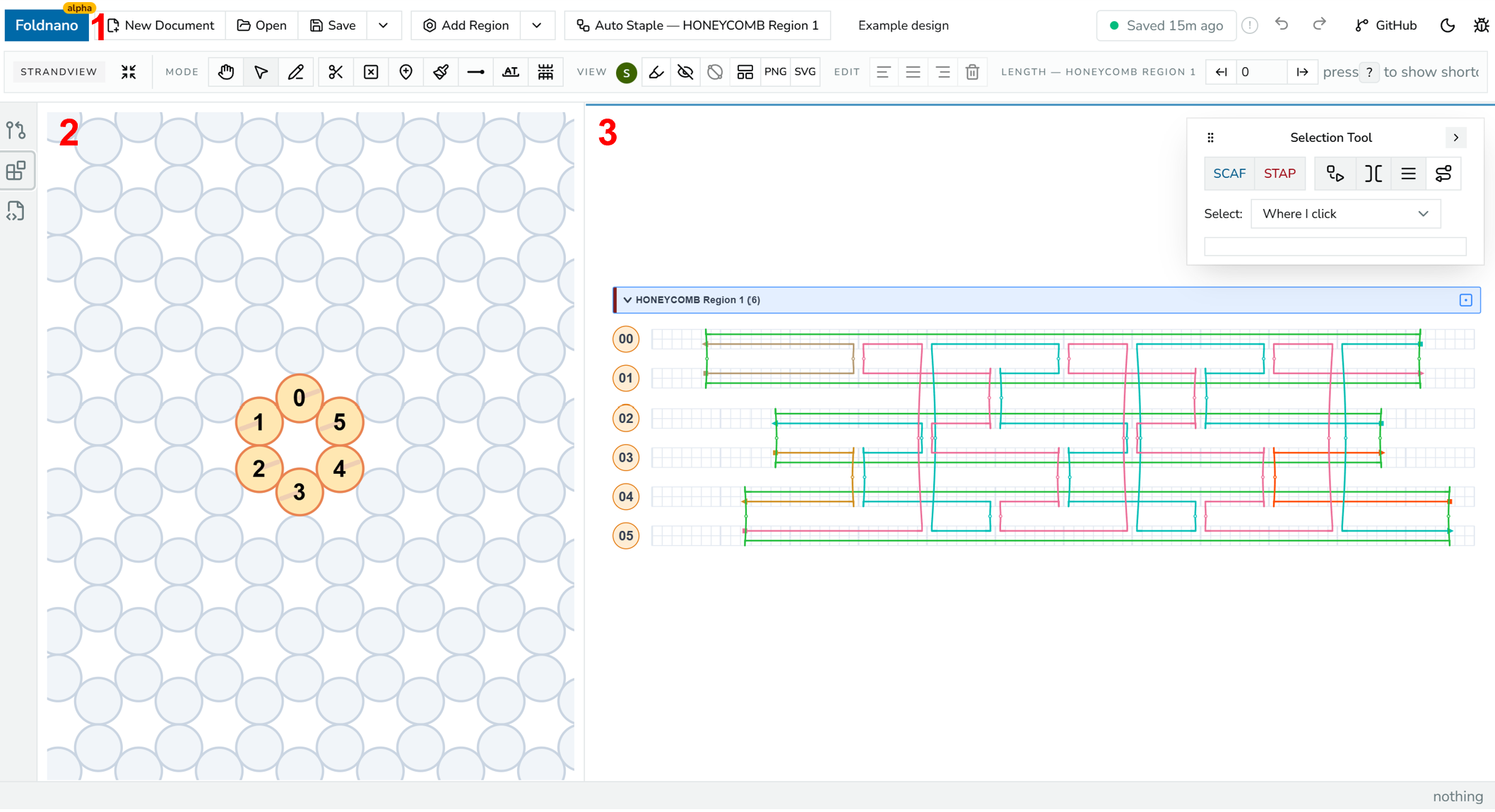
The editor's three areas: 1 top toolbar, 2 left pane, 3 right pane.
Supported Browsers
Use a Chromium-based browser such as Chrome, Edge, Brave, or Arc. Foldnano is developed and tested in these, and they run large designs and the 3D view fastest. Firefox and Safari work, but noticeably slower; the editor shows a notice in them that you can dismiss. Phones and tablets are not a target.
The Workspace At A Glance
The editor has three coordinated areas that stay in sync, so an edit in one is immediately reflected in the others.
| Area | What lives here |
|---|---|
| Top toolbar | New Document, Open, Save, the save/export menu, Add Region, Auto Staple, document name, Undo/Redo, and the GitHub controls |
| Left pane | The Plane view (lattice or freeform placement) or the 3D view, switched with the Plane / 3D toggle in the left-pane toolbar |
| Right pane | The strand viewer, the main routing canvas where you draw scaffold and staple paths |
| Icon rail (far left) | Opens the Source Control (GitHub) and Plugins side panels, plus panels added by plugins |
| Status bar (bottom) | GitHub branch and sync state for GitHub files, and details of whatever is under the pointer |
Every button in these areas is listed in the Interface Reference.
The left pane is for placing helices and inspecting the structure in 3D. The right pane is where you do the actual DNA routing. The tool row (Select, Draw, Break, and so on) belongs to the strand viewer.
Your First Design, Step By Step
The fastest way to learn Foldnano is to build a tiny design end to end. The whole loop takes a couple of minutes.
- Open the editor (the Open App link, or
/editor) and click New Document in the top toolbar. - On the start screen, pick Honeycomb, Square, or Freeform (or use the toolbar's Add Region menu), choose a base plane in the New Region panel, and click Create … Region Here. Start with honeycomb or square for a cadnano-style lattice; choose freeform when helices should not snap to honeycomb or square coordinates.
- With the left pane on Plane and the Draw tool (
n) active, click empty lattice cells to add virtual helices. - Move to the strand viewer to route DNA: pick Draw, drag across a helix row to lay down a strand, then drag between compatible ends to add crossovers.
- Mark the scaffold explicitly (see Mental Model) so the design tracks scaffold identity.
- Run Auto Staple if you want Foldnano to generate staple routing from the scaffold.
- Assign or refill the scaffold sequence once the topology is stable (Sequence tool,
a). - Save locally, export a
.fn.json, or sync to GitHub.
Each of these steps has its own guide page; this is just the shape of the loop.
To practice these steps without touching your own design, try the interactive walkthrough on Editing Tools.
File Formats
| Format | Use |
|---|---|
.fn.json | Native Foldnano design. Preserves regions, freeform geometry, explicit scaffold flags, sequences, colors, and modifications. Use this as your primary backup. |
.cadnano.json | Compatibility format for cadnano-style lattice designs. It is topological and does not preserve freeform geometry, explicit scaffold labels, or other Foldnano metadata. |
.csv | Oligo / sequence report for the part (Save menu → Export Oligos of this Part as CSV, or the Oligo Report page). |
| oxDNA / mrDNA exports | Simulation-ready exports generated from the current design state. |
Tip
Use .fn.json whenever the goal is to preserve the design. Use cadnano JSON only when you need to round-trip with cadnano-style tools, and expect metadata loss.
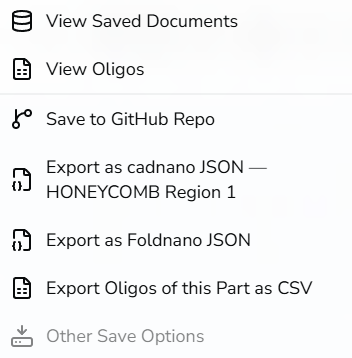
Save/export dropdown open, showing the full item list.
Local-First Saving, And Its One Caveat
Foldnano stores browser working copies in IndexedDB. Autosave writes to that browser storage after committed edits or after some elapsed time, but it does not download a file and it does not create a Git commit.
Warning
Because the working copy lives in the browser, clearing browser data can delete your local Foldnano documents. For anything important, download a .fn.json file and/or connect GitHub and commit the design.
See Saving And GitHub for the full persistence model.
A Note On Current Product Boundaries
Foldnano is under active development. A few things to keep in mind:
- A design always has a part at the top. The part owns planes and design regions, so creating a design always starts a part, and you then add regions into it. "Part" is a permanent layer of the model, not legacy wording.
- Freeform and lattice regions can coexist in one design, and DNA can cross between them when the ends are compatible.
- cadnano import/export is a compatibility path, not a full representation of the Foldnano model.
These are noted throughout the guide where they affect a workflow.