
3D Overlays
The 3D view can show external structures on top of your design as non-editable reference overlays. Use them to compare a design against a simulation result, or to check how a protein fits into or onto your structure.
| Format | Extension | Drawn as |
|---|---|---|
| mrDNA coordinate output | .txt | Nucleotide dots tinted by base, backbone and stacking lines, 3′-end cones |
| Protein Data Bank | .pdb | Cα trace, one color per chain |
Overlays are a visualization aid only. They never change your design, and they're not part of any export.
Opening The Overlays Panel
- Switch the left pane to 3D.
- Click 3D Overlay in the 3D toolbar. The floating tool panel switches from 3D View Inspector to 3D Overlays.
- Click 3D Overlay again to return to the inspector.
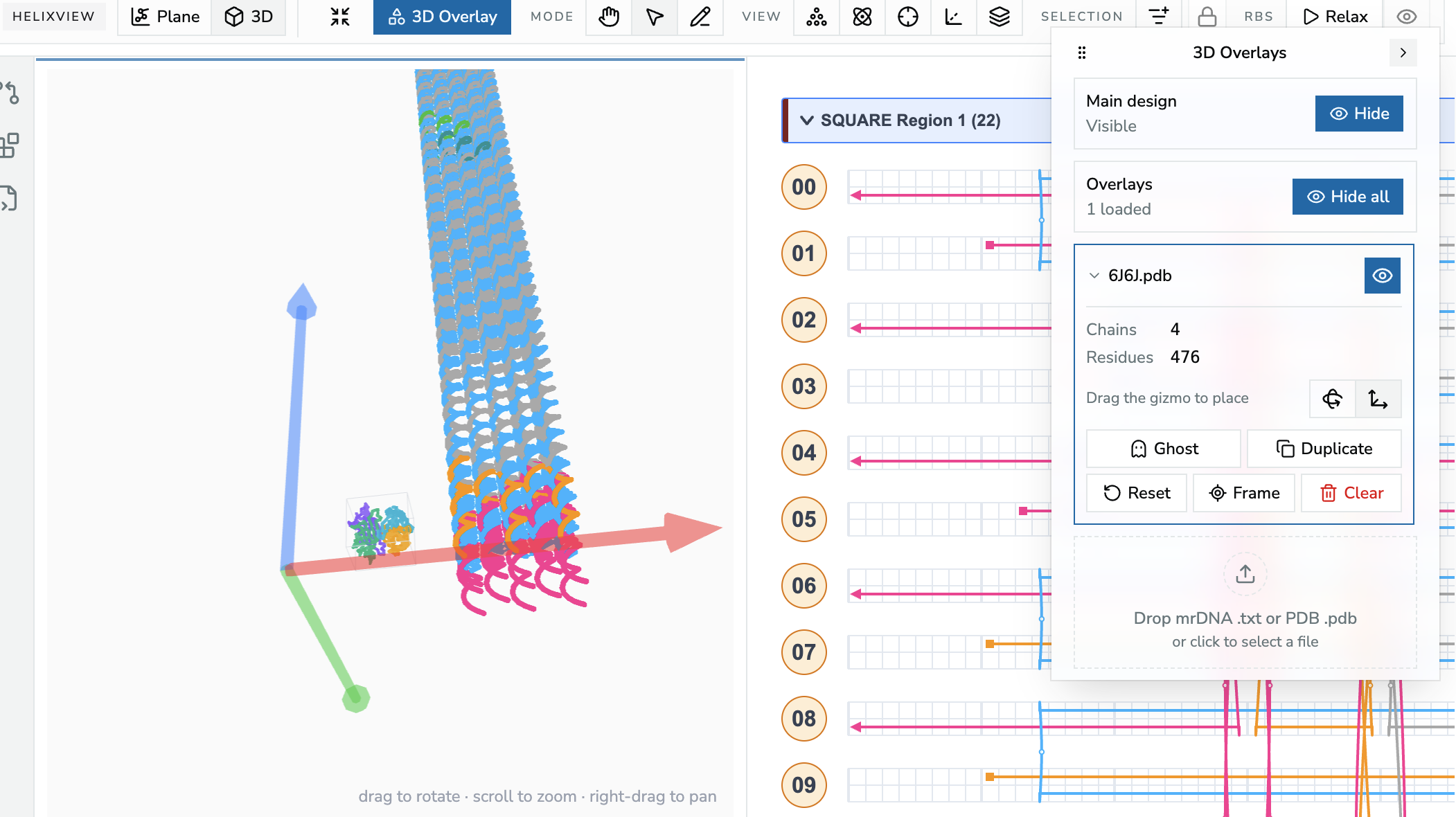
The 3D Overlays panel with a PDB structure loaded and selected; drag the gizmo in the 3D view to place it.
Loading A Structure
Drop an mrDNA .txt or a .pdb file on the drop zone at the bottom of the panel (Drop mrDNA .txt or PDB .pdb), or click it to pick a file. The structure appears in the 3D view in lab coordinates, in nanometers, matching the design.
For PDB files, Foldnano reads only the Cα atoms of the first model. Chain breaks and residue-number gaps start a new segment, so no false bonds are drawn across them. A file that can't be parsed shows an error message and nothing is loaded.
Panel Controls
Main design at the top shows or hides your own design, which is handy when you only want to look at the overlay.
Overlays shows how many overlays are loaded, with a Show all / Hide all switch for every overlay at once.
Below that is one card per placed copy. Each card is collapsed to one row:
- click the name to select that copy for editing (click again when done),
- click the eye icon to hide or show just that copy.
Selecting a copy expands its card and attaches the move/rotate gizmo to it:
| Control | What it does |
|---|---|
| Stats | PDB: chain and residue counts. mrDNA: nucleotide, strand, and stack counts. |
| Rotate / Move toggle | Chooses the gizmo mode. Then Drag the gizmo to place. |
| Ghost | Draws this copy grey and semi-transparent so the design stays readable |
| Duplicate | Places another copy of the same structure, slightly offset and already selected so you can move it |
| Reset | Returns this copy to its original position and orientation |
| Frame | Fits the camera to this copy |
| Clear | Removes this copy |
Selecting an overlay and selecting a design plane are exclusive: clicking a plane deselects the overlay, and the other way round.
What Is Saved
The file is never stored
Overlay geometry is not saved. After a reload you drop the file again.
- PDB placements are remembered in the design (
.fn.jsononly). Each copy's position and orientation is stored, keyed by the PDB accession from the file header, or by the file name when there is none. When you drop the same file again, every copy reappears where you left it. - If the design remembers placements for a structure you haven't loaded yet this session, the panel lists it under Saved overlay positions with its copy count, as a reminder to drop the matching file.
- Adding, duplicating, moving, resetting, and clearing PDB copies are all undoable.
- mrDNA overlays are session-only. Their placement isn't remembered.
Limits
- PDB overlays show a Cα trace only: no ball-and-stick or cartoon rendering, and no mmCIF files.
- Very large structures are parsed on the main thread and may briefly freeze the page while loading.