
Keyboard Shortcuts
Foldnano is much faster from the keyboard. The single-key tool switches let you keep one hand on the mouse while changing modes. Press ? at any time to toggle the in-app workspace help, which shows every shortcut and explains each control.
Tools
Single keys switch the active strand-view tool (no modifier). See Editing Tools for what each one does.
| Key | Tool |
|---|---|
v | Select |
n | Draw |
b | Break |
s | Skip |
i | Insert |
p | Paint |
m | Modification |
a | Sequence |
r | Split region |
Selection Filters
These toggle which strand elements selection and the sequence tool act on (scaffold, staple, ends, crossovers, segments, oligos). Only active while the strand viewer is the active viewer.
| Key | Filter |
|---|---|
c | Scaffold |
t | Staple |
e | Ends |
x | Crossovers |
d | Segments |
o | Oligos |
Editing & Navigation
| Key | Action |
|---|---|
Delete / Backspace | delete current selection |
Escape | clear selection / cancel current action |
Ctrl/Cmd + Z | undo |
Ctrl/Cmd + Shift + Z or Ctrl/Cmd + Y | redo |
Ctrl/Cmd + D | duplicate the selected oligos (see Duplicates And Repeat Groups) |
Ctrl/Cmd + Shift + D | place linked mirror copies of the selected oligos |
hold Option / Alt | temporary pan modifier for the active canvas |
| arrow keys | pan the strand view (hold Shift for bigger steps; not while placing a duplicate) |
| mouse wheel | zoom the active canvas |
? | toggle the workspace help |
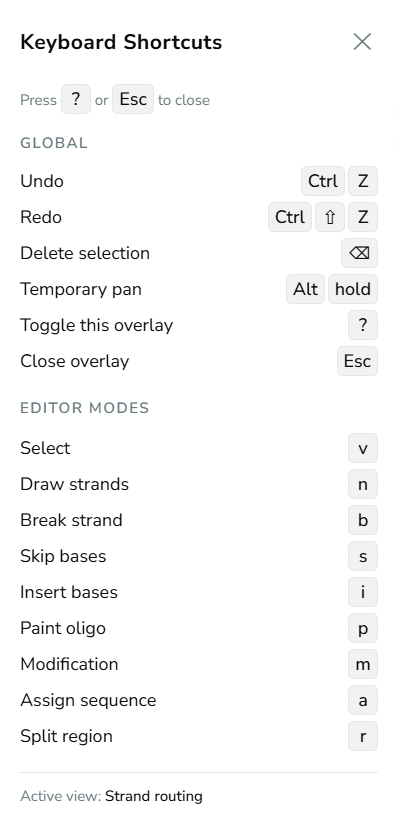
In-app shortcut overlay, opened with the ? key, listing Global and Editor Modes shortcuts.
The overlay is also the workspace help. Each visible pane and panel gets a short caption, and hovering over any control explains what it does, with a link to the matching guide page where there is one. In the strand view and the plane view it also lists the mouse gestures for the current tool, and in Select mode it points at the first region header, its plane icon and a helix tag to explain what clicking or dragging them does. You can keep working while it is open; press ? or Esc, or click Close in the pill at the bottom of the screen, to close it. It opens by itself once, on your first visit, and you can also open it from Workspace help in the toolbar's Help menu (the ? icon at the top right).
The overlay also shows shortcuts for the currently open side panel, here the Selection Tool's c/t/e/x/d/o filter and action keys:
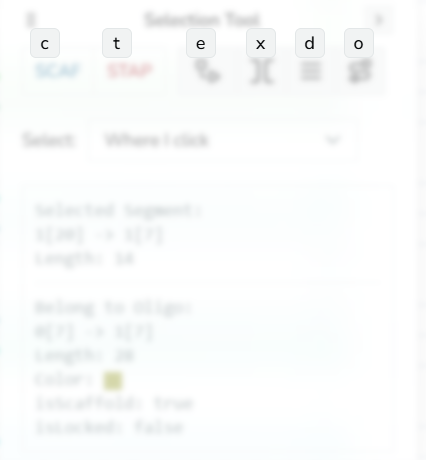
Shortcut overlay with the Selection Tool panel's shortcuts.
Shortcuts are ignored while you type in a text field, and every editing shortcut is disabled in a tab that doesn't own the document (see Saving And GitHub).
Placing Duplicates
While a duplicate or mirror copy is following the pointer:
| Key | Action |
|---|---|
hold Shift | move in free 1 bp steps instead of helical-repeat steps |
← / → | jump to the previous / next valid position |
Enter (or click) | place the copy |
Escape | cancel |
In the Split region tool, Escape cancels and returns to Select.
Script Editor
Only active while you type in the Script Lab editor (or another plugin's code editor). Because these keys go to the editor, press ? outside it to open the workspace help.
| Key | Action |
|---|---|
Ctrl/Cmd + Enter | run the script |
Ctrl + Space | show completions |
Ctrl/Cmd + / | toggle comment |
Option/Alt + ↑ / ↓ | move the line up / down |
Ctrl/Cmd + Shift + K | delete the line |
3D View
Only active while the 3D view is the active viewer.
| Key | Toggle |
|---|---|
g | helix grid |
e | NT model |
c | cross-section cursor |
f | base planes |