
Script Lab
Script Lab is a built-in Python code editor in a side panel. You write a short script, run it against the open design, and either read its output (analysis) or apply the changes it made (editing). It uses the same sandboxed in-browser Python runtime as plugins: a script can't reach the internet, your GitHub account, or your other designs, so nothing leaves your browser. It does see the open design, and its changes land only when you click Apply, as one undoable step. Only run code you understand, especially code copied from someone else.
Use it for one-off checks and quick batch edits that don't deserve a full plugin.
Turning It On
Script Lab ships with Foldnano but is off by default.
- Open the Plugins panel from the icon rail on the left edge of the editor.
- On the My Plugins tab, find Script Lab (marked Core) and switch it on.
- A new Script Lab icon appears in the icon rail. Click it (or Open Panel on the plugin card) to open the editor.
Core plugins can be switched off again but not removed.
The Editor
| Control | What it does |
|---|---|
| Run | Runs the current editor contents (shortcut: Cmd + Enter on Mac, Ctrl + Enter elsewhere, while the editor has focus). Activates the Python runtime first if needed. |
| Stop | Stops a running script |
| Clear | Clears the editor down to a minimal run(ctx) skeleton that loads the design |
| Reset | Clears the output pane, discards an unapplied result, and returns an errored run to ready (same as Reset in the Plugins panel) |
| Save as Plugin | Packages the script as a plugin you can run from the Plugins panel and keep editing (see Saving A Script As A Plugin) |
| Help (book icon) | Loads a starter script and shows a quick API reference (below) |
| More (⋯) | Opens a menu with the editor font size (A− / A+), Restore default script (the Mutation Starter), and Download, which saves the script as a .py file |
| Pop out (arrow icon, next to Python) | Moves the editor and output into a separate browser window (see Working In A Separate Window) |
The editor and output pane are split; drag the divider to resize them. Your script is kept in browser storage, so it survives reloads and is the same whichever design is open.
The editor suggests API names as you type. After a . it lists what that object offers, so part. shows the part's collections and methods, and inside for oligo in part.oligos: the line oligo. shows oligo properties such as color. Each suggestion shows its type or signature; properties marked settable record a change when you assign to them. Press Tab or Enter to insert a suggestion, or Ctrl+Space to open the list anywhere.
Working In A Separate Window
The side panel is narrow. To give a longer script more room, click the Pop out icon next to the Python badge. The toolbar, editor and output move into their own browser window, which you can resize or drag to a second screen while the design stays in view in the main window.
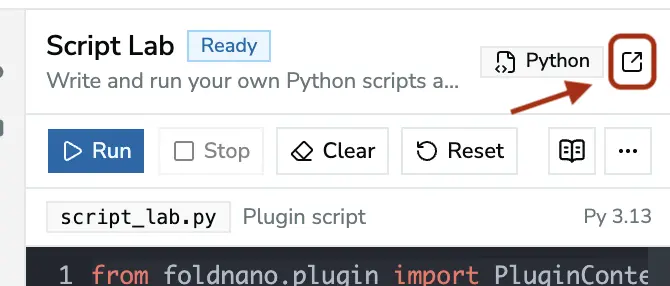
The Pop out icon sits next to the Python badge.
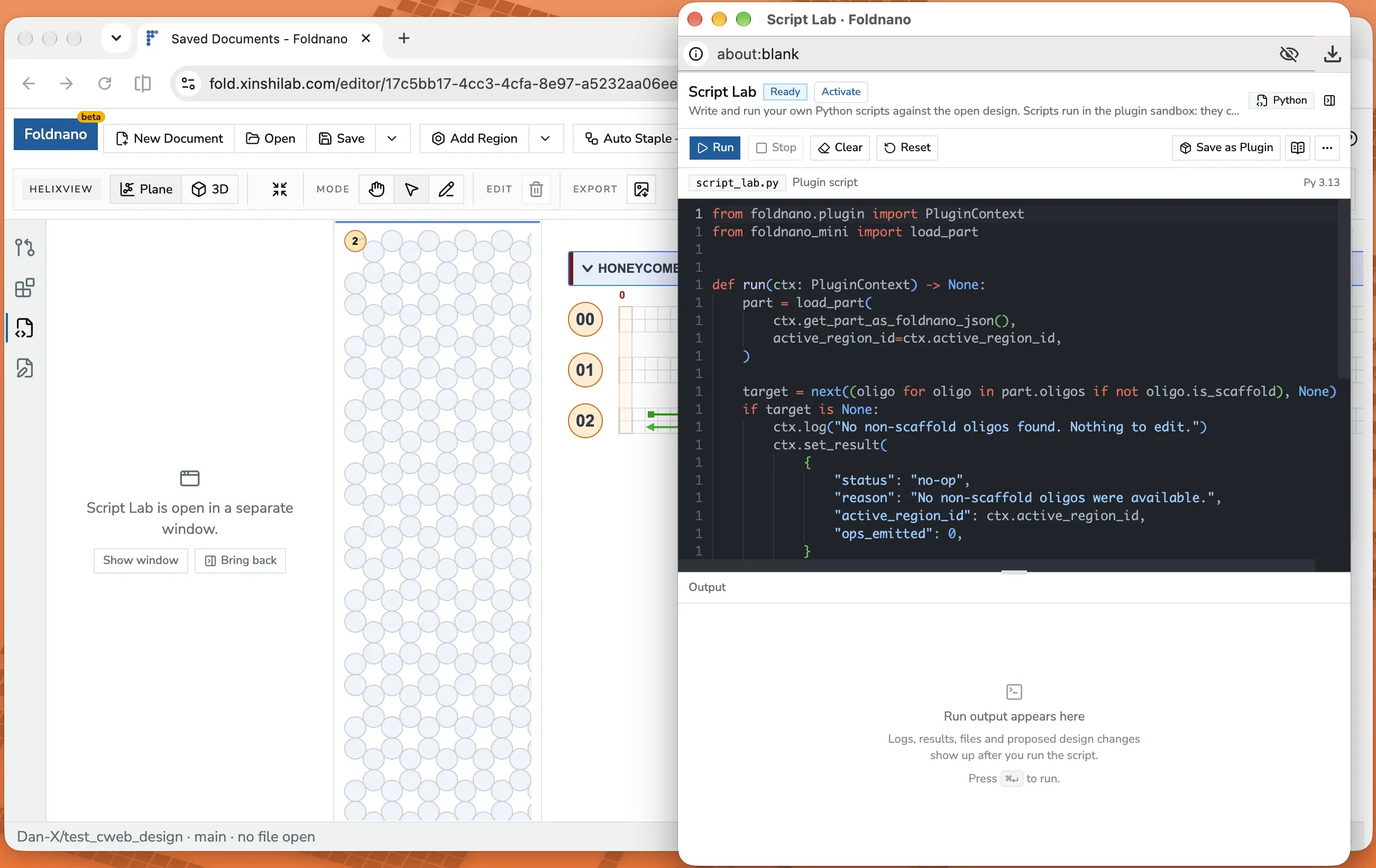
The popped-out window has the same controls as the side panel, which now offers to bring the editor back.
Everything works the same in the popped-out window: Run, the output tabs, and Apply, which changes the design in the main window as one undoable step. You can switch the side panel to another tab, such as Source Control, and the window stays open.
To return the editor to the side panel, click Bring back in the side panel, click the panel icon in the window's header, or close the window. Show window brings a window that's hidden behind others to the front.
Good to know:
- Your script moves with it. Only the editor's own undo history (
Ctrl/Cmd + Zwhile typing) starts over each time it moves. - Design shortcuts stay in the main window. Keys such as undo for the design, delete, or switching tools work when the main window has focus, not the popped-out one.
- Notifications and confirmation dialogs open in the main window. If a click in the popped-out window seems to do nothing, check the main window.
- Closing or reloading the main tab closes the window too.
- If nothing opens, your browser blocked the pop-up. Allow pop-ups for this site, then click Pop out again.
Starter Scripts
The Help menu offers three starters. Loading one replaces the editor contents.
| Starter | Shows how to |
|---|---|
| Load Mutation Starter | Load the part, recolor one staple, and return the change so it can be applied |
| Load Analysis Starter | Inspect the part and report counts without changing anything |
| Load Full API Demo | Exercise every kind of foldnano.edit edit on the active design (it makes many changes, so try it on a scratch design) |
The same menu lists the essentials:
ctx.get_part_as_foldnano_json(): the current partctx.active_region_id: the region active in the strand viewer, if anyctx.log("..."): print to the consolectx.set_result({...}): show structured JSON outputctx.set_result_mutation_log(part.mutation_log): make the run's edits applicableload_part(...)fromfoldnano.edit, thenpart.oligos,part.virtual_helices,part.regions, andpart.get_region(...)
For the full API, see Plugin API.
Output And Apply
Before the first run, the output pane shows a short note saying where results will appear. After a run, it shows tabs for whatever the script produced:
| Tab | Contents |
|---|---|
| Console | Everything printed with ctx.log |
| Result | The JSON passed to ctx.set_result |
| Artifacts | Downloadable files the script wrote |
| Apply | The proposed design change, with Apply / Cancel |
The Apply tab appears only when the script returned a non-empty mutation log with ctx.set_result_mutation_log(...), and it opens automatically. Applying records the whole change as one undoable step (Ctrl/Cmd + Z). A run that returns no mutation log says so and offers nothing to apply, which is normal for analysis scripts.
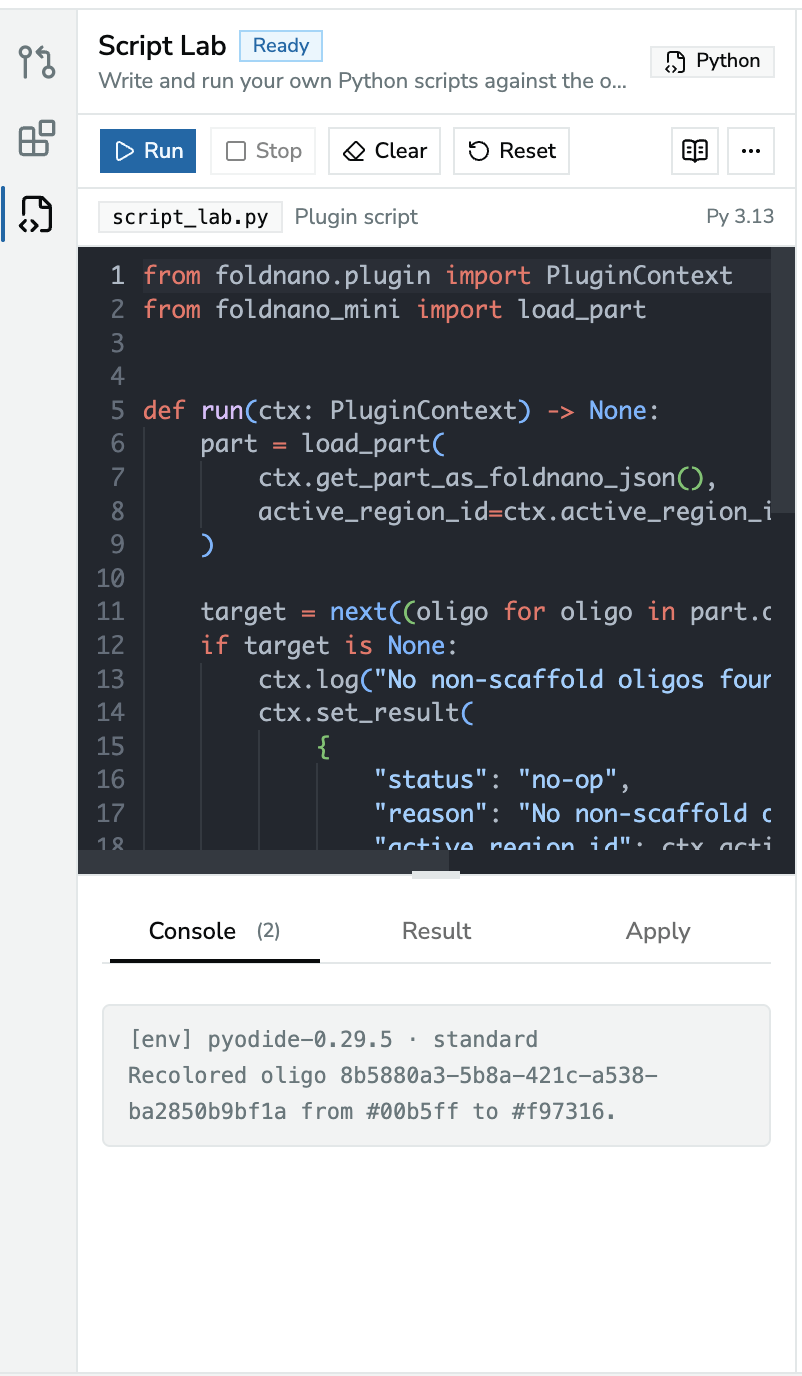
After a run, the Console tab shows what the script logged.
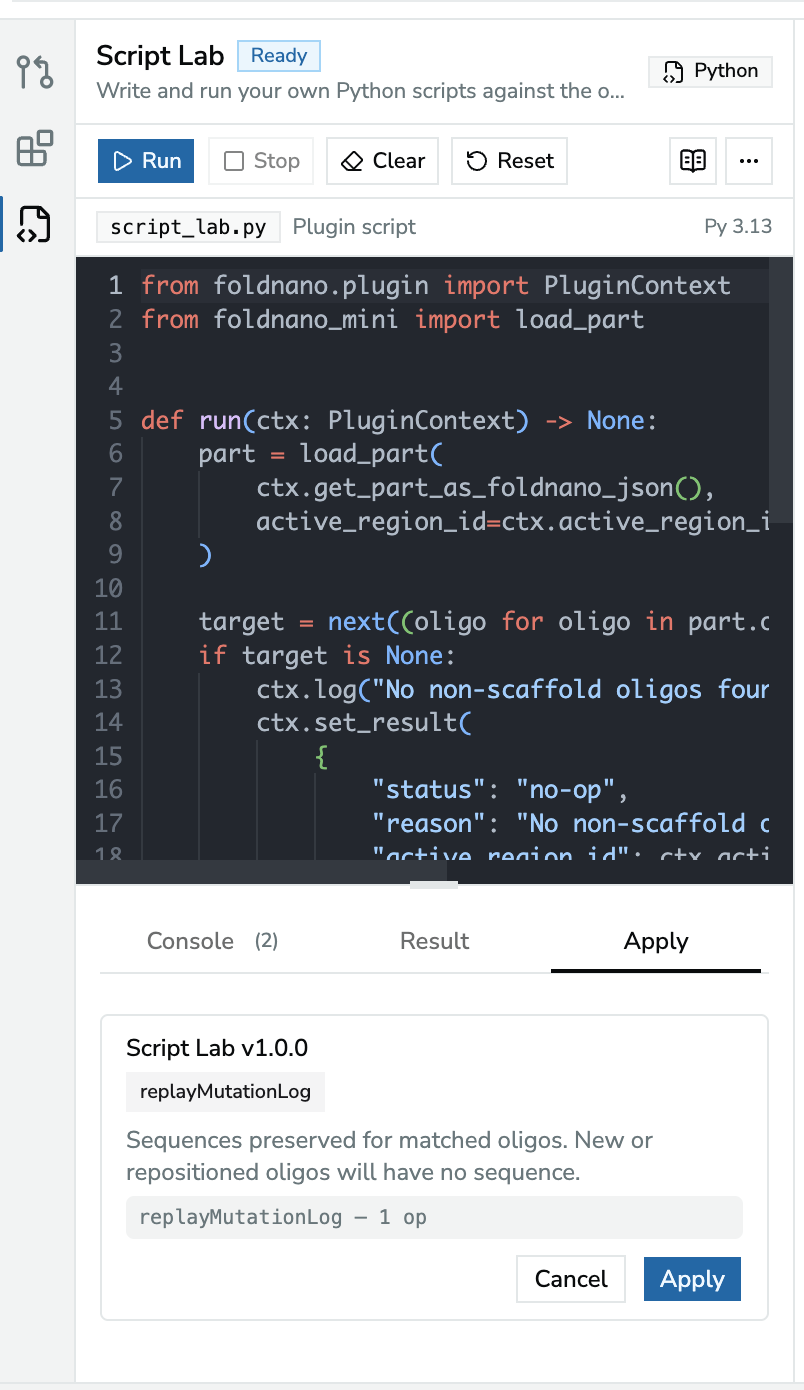
The Apply tab shows the proposed change; Apply records it as one undoable step.
Warning
If you edit the design after a run, the pending result is marked stale because the design changed since the script ran. Discard it and run the script again rather than applying an outdated change.
Saving A Script As A Plugin
When a script does what you want, click Save as Plugin to keep it as a plugin of its own:
- Give it a Name and, if you like, a Description and an Icon. Pick one of the built-in icons or click the upload button to use your own SVG file (up to 32 KB). The icon shows in the icon rail and the Plugins list, drawn in the theme's colour. The ID is generated for you; it identifies the plugin, so backups and restores stay matched to it.
- Leave Download a backup (.zip) on. The plugin lives in this browser's storage, so clearing browser data deletes it; importing the zip brings it back.
- Click Save plugin. The packages your script imports (such as
numpy) are recorded with it. - Click Open in editor to keep working on it, or Done. Opening the editor resets Script Lab to its starter script, ready for the next idea.
The plugin appears under My Plugins with a Mine badge. Run there always uses the last saved version, like any other plugin. It has no input form: to change a value, edit the script.
Editing Your Plugin
Edit on the plugin's card opens it in its own editor, with its own icon in the icon rail. It works like Script Lab, plus:
| Control | What it does |
|---|---|
| Run | Runs your edits as the plugin. The version badge says unsaved changes while you have edits. |
| Save version | Saves your edits as the next version (1.0.0, then 1.0.1, …). Packages you added or removed imports for are updated. |
| Discard | Drops your edits and goes back to the saved version |
| Export | Downloads the saved version as a .zip. It turns amber when the saved version isn't backed up yet. |
| Icon | Picks a different icon, or removes it. This saves the next version right away; your unsaved edits stay as they are. |
| × | Closes the editor. Your edits are kept; open it again with Edit. |
Edits are stored as you type, so a reload doesn't lose them; after a reload, the editor of every plugin with unsaved edits is back in the icon rail. You can have several plugin editors open at once, each with its own icon in the icon rail and its own pop-out window; switching between them keeps each editor's undo history and cursor. While Save version runs, the editor is locked for a moment so what you saved is exactly what you see.
If the same plugin is open in two tabs and you save it in one, saving in the other is refused; reload that tab first. Its unsaved edits are kept.
To move a plugin to another browser or computer, Export it and use Import zip in the Plugins panel there. Leave Restore as editable on in the install dialog to keep editing it. Replacing a plugin you made with a zip that has extra files, a side panel, or packages that don't ship with the runtime makes it a regular plugin you can no longer edit here; the install dialog warns you first.
Warning
Remove deletes the only copy of a plugin you made. Export it first if you might want it back. Export saves the last saved version, not unsaved edits: use Save version first to keep them.
Every Run Starts Fresh
Each run executes the editor contents in a fresh Python namespace against a fresh snapshot of the design. Variables from a previous run are not kept, so a script's result depends only on its own code and the current design. The Python runtime itself stays loaded between runs, so later runs start faster.
Using Packages
Scripts can import the scientific packages that ship with the Python runtime, such as numpy, scipy and networkx. Script Lab loads them on the first run that imports them, and the Console shows a line such as [env] loaded numpy followed by its version. That first run takes a few seconds longer.
Packages that don't ship with the runtime can't be imported from Script Lab, because scripts have no internet access. The Console says so when an import fails. Save as Plugin only records packages that ship with the runtime, so to use another package, write a plugin zip by hand and list the package under requirements (see the plugin quickstart).