
Interface Reference
This page lists every control in the editor, area by area. Use it to look up a button you don't recognize. The task-oriented pages explain the workflows; they're linked from each section.
Hover over any icon button in the app to see its name in a tooltip, and press ? to show the keyboard shortcut for each control (see Keyboard Shortcuts).
Start Screen
A new, empty document shows Start a new design with Honeycomb, Square and Freeform buttons. Each opens the New Region panel for that type, where you choose its base plane (see Adding a region). A greyed Wireframe card, marked API preview, is for plugin developers: it creates a wireframe region, and hovering it links to the current status of wireframe support.
Below it, or load an existing design is a drop zone (click to browse). It accepts:
- designs:
.fn.json, cadnano.json/.cadnano.json - plugins: local plugin
.zipfiles
Top Toolbar
On narrower screens (such as an iPad), the toolbar buttons show only their icons. Hover over one, or press ?, to see its name.
| Control | What it does |
|---|---|
| Foldnano (with beta badge) | Opens the About dialog: the version and build, What's New (the last 3 months of changes, some with a Learn more link to the guide, and Show earlier updates for older ones), the author, the MIT license, and third-party licenses. A small blue dot before the name means What's New has entries you haven't opened yet, and inside What's New those entries carry the same dot and darker text until you next reload; some major changes are also announced once in a card at the bottom right |
| New Document | Creates a new, empty document. With a GitHub repository connected, it asks whether to create a New File in that repository or a Local-Only Design kept in this browser |
| Open | Opens the Load design files here dialog (see Open dialog) |
| Save | Saves the working copy to browser storage now |
| ⌄ next to Save | Save menu (see below) |
| Add Region | Starts adding a honeycomb region (see Adding a region) |
| ⌄ next to Add Region | Add Honeycomb Region, Add Square Region, Add Freeform Region, Load Cadnano Design as a Region |
Auto Staple — [region] | Generates staples for the active lattice region. Shown only when the active region is a lattice region. See Creating A Design. |
| Document name | Click to rename; Enter confirms, Escape cancels. For a file already committed to GitHub, a Rename and Commit dialog asks for confirmation and also commits any uncommitted local changes. |
| Save status | See Save status |
| Agent runs badge | Shown while a coding agent may run Python from a linked plugin folder: which folder is connected to which design, the running script, or why runs are paused. × stops agent runs. See Agent Runs. |
| Undo / Redo arrows | Same as Ctrl/Cmd + Z / Ctrl/Cmd + Shift + Z |
| Commit | Shown for GitHub files. Opens the Source Control Changes tab; an amber dot means uncommitted changes. |
| GitHub / your avatar | Not connected: Connect to GitHub. Connected: toggles the Source Control panel. See Saving And GitHub. |
| Sun / moon | Toggle dark mode |
| Bug icon | Opens the Error Log (see Error log) |
| ? (circle) | Help menu: Workspace help (the ? overlay), plus the User guide, Keyboard shortcuts and Plugin development docs, each opening in a new tab |
Save menu
| Item | What it does |
|---|---|
| View Saved Documents | Saves, then opens the Saved Documents page (/toc) |
| View Oligos | Saves, then opens this design's Oligo Report |
| Backups… | Lists this design's last 5 backups; compare one with your design, download it as .fn.json, or restore it (see Backups) |
| Save to GitHub Repo | Publishes this design to your connected repository (see Saving And GitHub) |
Export as cadnano JSON — [region] | Downloads the active lattice region as cadnano JSON (shown only for lattice regions), after listing anything cadnano can't hold. See Exporting cadnano JSON |
| Export as Foldnano JSON | Downloads the full design as .fn.json |
| Export Oligos of this Part as CSV | Downloads the oligo/sequence CSV |
| Other Save Options | Placeholder, currently disabled |
Save status
Next to the document name, a colored dot and label show the state of the browser working copy:
| Indicator | Meaning |
|---|---|
| Green dot, time (for example 2 min ago) | All changes saved locally |
| Pulsing amber dot, N unsaved edits | Autosave pending; click to save now |
| Red dot, Save failed | The last save failed; click to retry |
| Pulsing blue dot, Click to Save Locally | The design was loaded from a URL and isn't stored yet (see Loading from a URL) |
The ⓘ next to it (Storage info) explains that designs are saved in this browser, not on a server, and whether the browser has granted persistent storage (see Persistent storage). When a save fails, a banner with Retry and Download .json also appears (see When saving fails).
Adding a region
Add Region (or one of its menu items) opens the New Region tool panel:
- The panel shows the region type.
- Choose its Base Plane: Top (XY) (normal points up, Z), Front (XZ) (normal points forward, Y), or Side (YZ) (normal points right, X).
- Click Create type Region Here, or Cancel.
With Plugin dev mode on, Add Region offers wireframe regions too, for developers of routing plugins. See Wireframe Plugin APIs.
Load Cadnano Design as a Region opens a dialog where you drop a cadnano .json / .cadnano.json, choose the same Base Plane options, and click Load. The file becomes a new region in the current part.
Open dialog
Open accepts the same files as the start screen. Each dropped file is listed with an action:
- Foldnano
.fn.json: Load opens it. - cadnano
.json: Open creates a new.fn.jsondocument from it; the original.jsonisn't changed. When a GitHub repository is connected, Add original to current repo folder also stores the original file there. If the file could be either lattice, you're asked whether it is honeycomb or square. - Plugin manifest or local plugin
.zip: shows the plugin's details and an Install button (see Plugins For Users).
Loading from a URL
Opening the editor with ?url=<link to a design file> loads that design directly. A cadnano file doesn't record its lattice; when its helix length fits both honeycomb and square and its crossovers don't settle it, the editor asks. Add &lattice=honeycomb or &lattice=square to the link to answer in advance. It isn't stored in the browser until you click Click to Save Locally in the save status and confirm Save to Browser in Save this design to your browser?. To download a copy instead, use the Save menu exports.
Icon Rail
The narrow column on the far left opens side panels:
| Icon | Panel |
|---|---|
| Pull-request arrow | Source Control (GitHub files, changes, and history; see Saving And GitHub) |
| Blocks | Plugins (see Plugins For Users) |
| Plugin icons | Panels added by enabled plugins, such as Script Lab |
Click an active icon again to close its panel.
Viewer Toolbar
The toolbar row below the top toolbar belongs to whichever viewer you last worked in. A badge on its left names that viewer. When the left pane is active, a Plane / 3D toggle switches it between the plane view and the 3D view.
Strand view toolbar
Reset view (arrows pointing inward) fits the strand view back to its default zoom.
Mode holds the tools: Pan, Select, Draw strands, Break strand, Skip bases, Insert bases, Paint oligo, Apply modification, Assign sequence, and Split region. See Editing Tools.
View:
| Control | What it does |
|---|---|
| S badge | Scaffold sequence indicator: green when every scaffold's sequence is applied and current, red when it needs re-applying. Click it to toggle the scaffold highlight. See Editing Tools. |
| Highlight strands (highlighter) | Highlight and Warnings menu (see Selection) |
| Hide strands (crossed eye) | Hide all crossovers, only unconstrained crossovers, or sequence. Hidden crossovers leave labeled marks |
| Circular Scaffold Map | Opens the Circular Scaffold Map panel. Disabled until an oligo is marked as scaffold. |
| Show / Hide RBS blocks | Shades the rigid blocks that rigid-body simulation treats as single bodies |
| PNG | Downloads the strand view as a PNG image |
| SVG | Downloads the strand view as an SVG, including sequences |
Edit (all act on the current strand selection):
| Control | What it does |
|---|---|
| Align free ends left | Moves the selected free ends to the leftmost selected position |
| Justify selected segment ends | Aligns the left ends of two or more selected segments to the leftmost one and their right ends to the rightmost one |
| Align free ends right | Moves the selected free ends to the rightmost selected position |
| Delete selection (trash) | Same as Delete / Backspace |
| Duplicate selected oligos | See Duplicates And Repeat Groups |
| Duplicate as linked mirror copies | See Duplicates And Repeat Groups |
The align buttons work in the Select tool and move free ends only (never ends joined to a crossover). They're enabled only when the move is possible for every selected end at once, and the whole alignment is one undo step. See Aligning ends for which ends move and a worked example.
Length (labeled with the active region's name):
| Control | What it does |
|---|---|
| Trim unused length | Shortens the active region to the smallest length that still fits its strands, rounded up to the lattice step (21 bp honeycomb, 32 bp square), and never below two steps |
| # bps field | Number of base pairs to add (steps by the lattice step) |
| Extend region length | Adds that many base pairs to every helix in the active region |
On the right, press ? for help is a reminder of the workspace help (shortcuts plus an explanation of each control).
Plane view toolbar
| Control | What it does |
|---|---|
| Reset view | Fits the plane view back to its default zoom |
| Mode | Pan, Select, Draw (see Views And Regions) |
| Delete selected helices | Deletes the selected helices; in lattice regions only empty ones are removed |
| Distribute in a circle | Freeform only: spaces three or more selected perpendicular helices evenly on a circle around their centre, keeping their order and roll |
| Distribute in a circle, facing the centre | Same, and rolls each helix so roll 0 points at the centre |
| Export as image | Downloads the plane view as a PNG image |
3D view toolbar
| Control | What it does |
|---|---|
| Reset camera to default 3D view | Resets the 3D camera |
| 3D Overlay | Switches the tool panel between 3D View Inspector and 3D Overlays (see 3D Overlays) |
| Mesh | Wireframe regions only: switches the tool panel to Reference Mesh (see Wireframe Plugin APIs) |
| Mode | Pan, Select, Draw |
| View toggles | Helix grid (g), NT model (e), Cross-section cursor (c, unavailable while the NT model is shown), Coordinate axis, Base planes (f) |
| Selection: show only selected strands | Limits the 3D view to the strands selected in the strand viewer |
| Lock current selection | Freezes that filter on the current selection, so you can keep selecting in the strand viewer without changing the 3D view |
| Relax / Re-relax / Stop | Runs, re-runs (after topology changes), or stops the rigid-body simulation (RBS) that relaxes the design |
| Relaxed layout toggle | Switches between the lattice layout and the relaxed (simulated) layout |
| Crossover stress toggle | Colors crossovers by strain |
| Clear relaxed layout | Discards the simulation result |
| Params | Simulation settings: Spring k, Repulsion C, Friction, Steps, Collisions |
| Export | Image, GLB, oxDNA, mrDNA, plus Include mirror copies for oxDNA / mrDNA |
| Performance stats (bar chart) | Shows rendering statistics |
Status chips at the right edge show Simulation running, Relaxed layout stale, Plane selected, and, after a run, the block count and RMS error.
When a design has no assigned sequence, oxDNA export first opens No Sequence Data: unassigned double-stranded positions are filled with random complementary bases, and you choose the base for single-stranded positions (T by default, or A, C, G, Random), then click Export.
See Simulation And Export for the workflows.
Tool Panel
A floating panel on the right shows the options of the current tool or view. Its heading names it: Selection Tool, Paint Tool, Modification Tool, Sequence Tool, Skip Tool, Insert Tool, New Region, Circular Scaffold Map, 3D View Inspector, 3D Overlays, or Reference Mesh.
- Drag the heading to move the panel between the top and bottom of the window, or double-click it to flip position.
- The › button collapses it to a small tab; ‹ expands it again.
The per-tool panels are described on Editing Tools and Selection. The view panels are below.
Circular Scaffold Map
A QC view of how staples bind the scaffold (explained in Selection And Highlighting). Draws each scaffold as a circle, with every staple as an arc or chord between the scaffold positions it binds, a radial bar per double-stranded segment (height = segment length), and histograms of segment length and crossover span.
| Control | What it does |
|---|---|
| Zoom out / Zoom in / Reset zoom | Zoom the map (or Ctrl/Cmd + scroll wheel) |
| Click a staple | Selects that oligo in the strand viewer; hovering emphasizes it on the map |
| Render as a full circle | For a linear or broken scaffold, draws it as a closed circle (click again to revert) |
| Histogram bin size (nt) | Groups lengths into bins |
| Histogram max count shown | Caps the y-axis so small bars stay visible; reset returns to auto-scale |
| Download SVG | Downloads the map |
| Copy histogram data | Copies the histogram values as tab-separated text, ready to paste into a spreadsheet |
3D View Inspector
| Section | Controls |
|---|---|
| Regions | Each region's plane color, name, and helix count; the eye button hides or shows it in 3D |
| Planes | Show / Hide the design planes in 3D. While shown: name and ID of the plane you clicked; Rotate / Move gizmo mode; origin and normal; Add Plane; Remove Plane (only for a plane no region uses, and never the last plane) |
| Simulation Diagnostics | After a run: blocks, constraints, RMS error, and max overlap |
See Views And Regions for plane editing.
Strand View: Rows And Context Menu
- Region header: click to make the region active; double-click to collapse or expand it. The plane icon on the header switches the left pane to 3D, shows the planes, and frames that region's plane.
- VH tag (left edge of each row): drag to reorder helices within the region.
- Cross-region arrows mark connections that continue in another region.
- The status bar at the bottom right shows details of whatever is under the pointer.
Right-click in the strand view opens a context menu:
| On | Items |
|---|---|
| An oligo or segment | Set as Scaffold / Set as Staple, Delete Oligo |
| A segment | also Delete Segment, Copy Segment Sequence |
| An oligo | also Copy Oligo Sequence |
The copy items are disabled when there's no sequence. Set as Scaffold is how you mark the scaffold explicitly (see Mental Model).
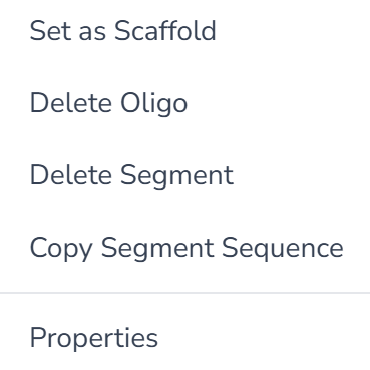
The context menu on a segment.
Current limitation
The Properties item, and the Paste and Export as SVG items on empty space, are placeholders and don't do anything yet. Use the toolbar SVG button to export.
Status Bar
The strip along the bottom of the editor shows, for a GitHub file:
- the branch name,
- unsaved to GitHub (amber dot) when there are uncommitted changes, or ↓ remote ahead when GitHub has newer commits,
- ? GitHub not checked when Foldnano couldn't check GitHub for newer changes (for example while offline); it checks again by itself when you're back online or return to the tab, or click it to try now. Committing still checks, and shows the conflict options if the file changed,
- the repository and file path, and the short commit SHA,
- Backups; click it to open the design's backups (see Saving And GitHub).
With a repository connected but no file open it shows owner/repo · branch · no file open.
Read-Only Tabs
If the same document is open in another tab, this tab shows This file is open in another tab. Editing is disabled. with a Take back control button. Only Pan stays available until you take control; plugins can still run, but their results can't be applied (see Saving And GitHub).
Error Log
The bug icon in the top toolbar opens Error Log, recent errors from this browser, kept locally for troubleshooting. Each entry can be copied as JSON, or use Copy all as JSON to include them in a bug report. Error notifications also offer a View Details link that jumps to the entry.