
Plugins For Users
Plugins extend Foldnano with Python tools that can analyze a design, report on it, or modify it. They run in a sandboxed Python runtime (Pyodide) inside your browser; see What a plugin can and can't do below. This page is for using plugins; if you want to write one, see the Plugin Development section.
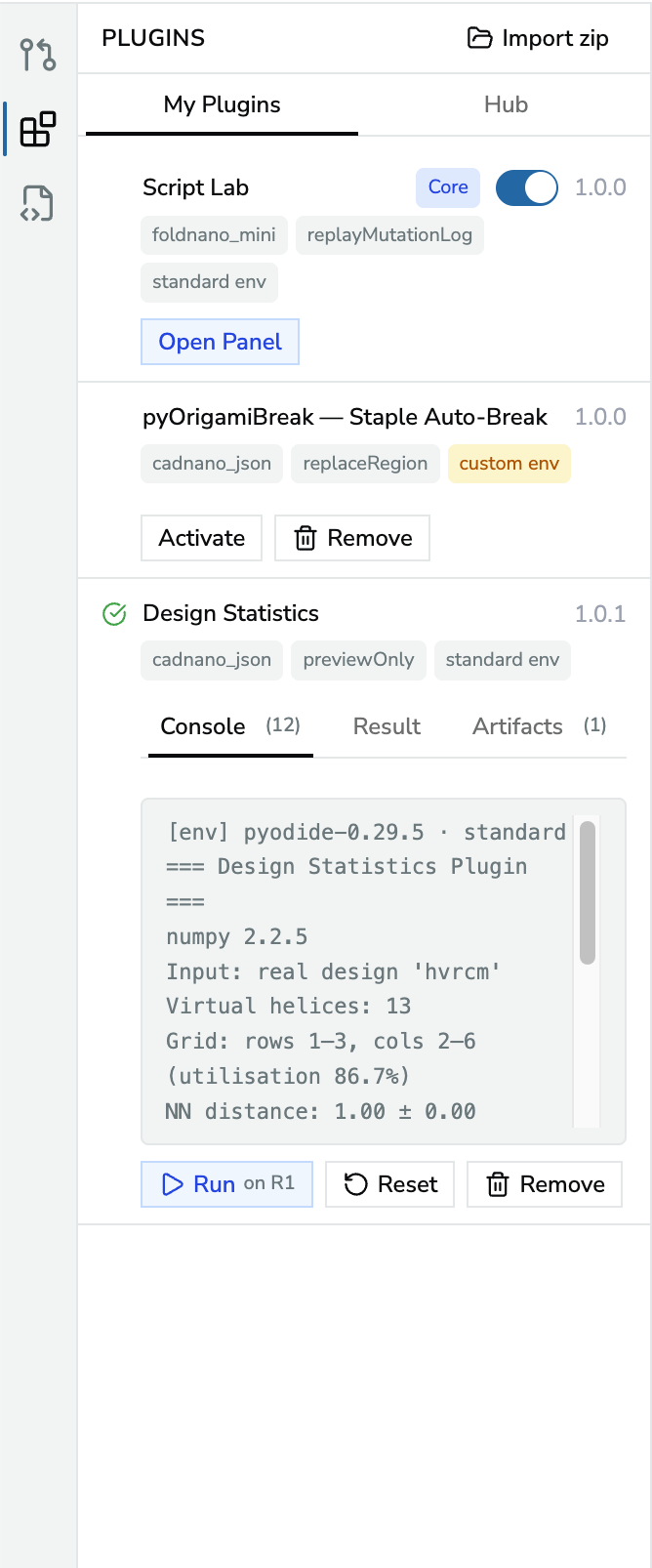
Plugin panel's My Plugins tab, showing a few installed plugins with their run, activate, and console output controls.
Plugin Types
| Type | What it does |
|---|---|
| Built-in plugin | Ships inside Foldnano and is always listed in My Plugins with a Core badge; turn it on with its switch. Today this is Script Lab. |
| Plugin Hub entry | A curated plugin you install from the Hub tab (listed there as Core Plugins). |
| ZIP plugin | A packaged Python plugin you install from a .zip file on your computer. |
The Plugins Panel
Open it from the Plugins icon (blocks) in the icon rail on the left edge of the editor. It has two tabs.
Hub
The Hub tab lists the curated Core Plugins, each with its description and badges for its format, apply strategy, and environment. Click Install, review the plugin's details, then Confirm (or ✕ to cancel). Installed plugins show Installed, and the panel switches to My Plugins. Community plugins coming soon marks where third-party listings will appear.
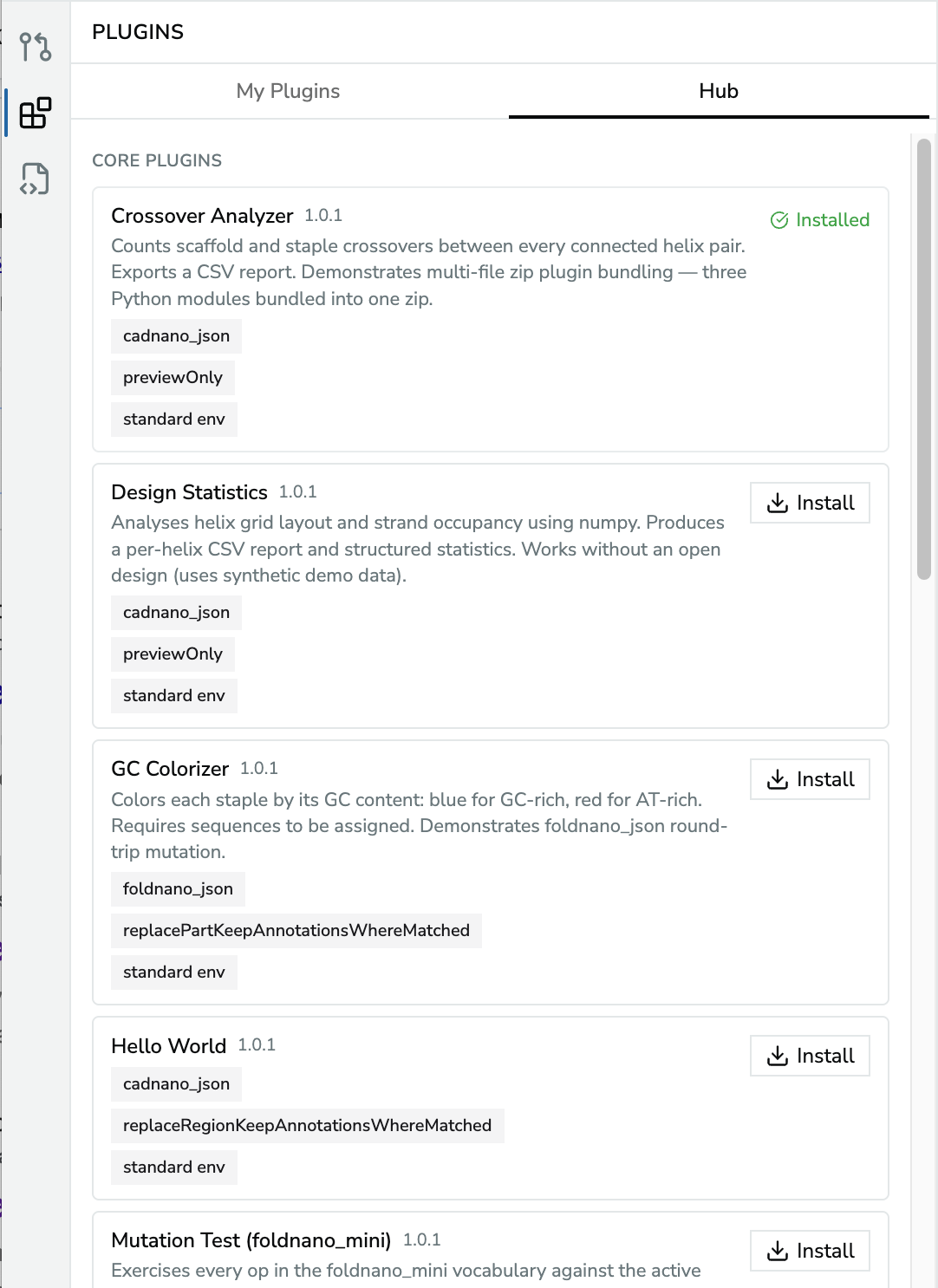
The Hub tab: each core plugin with its description, badges, and an Install button.
| Hub plugin | What it does | Changes the design? |
|---|---|---|
| Crossover Analyzer | Counts scaffold and staple crossovers between every connected helix pair; CSV report | No |
| Design Statistics | Helix grid layout and strand occupancy per helix; CSV report | No |
| Sequence Report | GC content, homopolymer runs, and modifications of staple sequences | No |
| GC Colorizer | Colors each staple by GC content (blue GC-rich, red AT-rich); needs sequences | Yes |
| Staple Colorizer / Staple Colorizer (mini) | Recolors all staples with a configurable HSL palette | Yes |
| Nick Remover | Joins adjacent staple nicks (consecutive 3′/5′ ends on the same helix) | Yes |
| pyOrigamiBreak: Staple Auto-Break | Optimizes staple break positions with thermodynamic scoring (Aksel et al., PNAS 2024) | Yes |
| Hello World, Mutation Test, Side Panel Code Demo, Side Panel Form Demo | Examples for plugin authors | Some |
My Plugins
Each installed plugin is a card showing its name, version, and badges:
- format (
cadnano_json,foldnano_json,foldnano_edit) and apply strategy, - standard env (shares the Python runtime with other plugins) or custom env (needs its own runtime; only one custom-environment plugin can be active at a time).
Click a plugin's name to show its description and any papers its author asks you to cite, with a link and a copy button. A small quote mark next to the name means the plugin has a citation. If you use the plugin in published work, please cite them. Citations also appear when you review a plugin before installing it.
| Button | What it does |
|---|---|
| Activate | Loads the plugin's code into the Python runtime. Nothing runs until you click Run. |
| Run | Runs the plugin. A cadnano_json plugin shows which region it runs on (for example on R1), or no active region when none is active. If the plugin has parameters, a dialog asks for them first. |
| Stop | Stops a running plugin |
| Reset | Clears the run output and returns the plugin to ready |
| Remove | Uninstalls the plugin (built-in plugins can't be removed) |
| Open Panel | For plugins with their own side panel, opens it |
| Edit | For plugins you made with Script Lab (marked Mine), opens the plugin in its own editor |
| Export | For plugins you made, downloads the saved version as a .zip backup |
At the top, Import zip installs a .zip plugin from your computer. A card that says Plugin format changed needs to be re-imported as a zip or reinstalled from the Hub.
Activating a custom-environment plugin while another one is active asks for confirmation, because the other plugin is stopped and any result it hasn't applied yet is discarded.
Run output
After a run, the card shows tabs for what the plugin produced: Console (log lines), Result (structured JSON), Artifacts (files to download, each with a download and a remove button), and Apply for mutating plugins. If you edit the design after the run, the result is marked stale and offers Discard; run the plugin again rather than applying an outdated change. If the design is open in another tab, plugins still run here, but Apply stays disabled until you click Take back control.
Plugin side panels
Some plugins add their own icon to the icon rail. A form panel shows the plugin's description, Activate, an Input form, a run button, and the Output. A code editor panel works like Script Lab.
Preview Versus Apply
This is the most important distinction to internalize before running anything.
- Preview-only plugins read your design. They can log results, show JSON output, or produce downloadable artifacts (for example a CSV report), but they never mutate the design.
- Mutating plugins return a design change. Foldnano shows apply controls and records the accepted change as a single undoable edit, so a bad result is one
Ctrl/Cmd + Zaway.
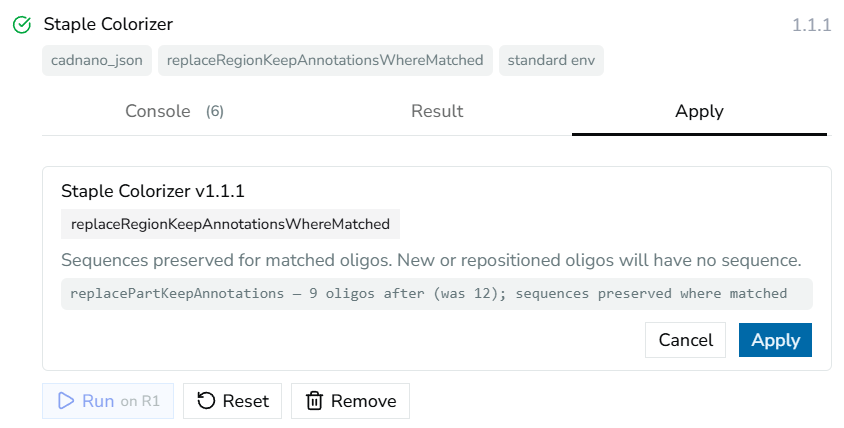
Mutating plugin's Apply tab, showing the proposed change and the apply/cancel buttons.
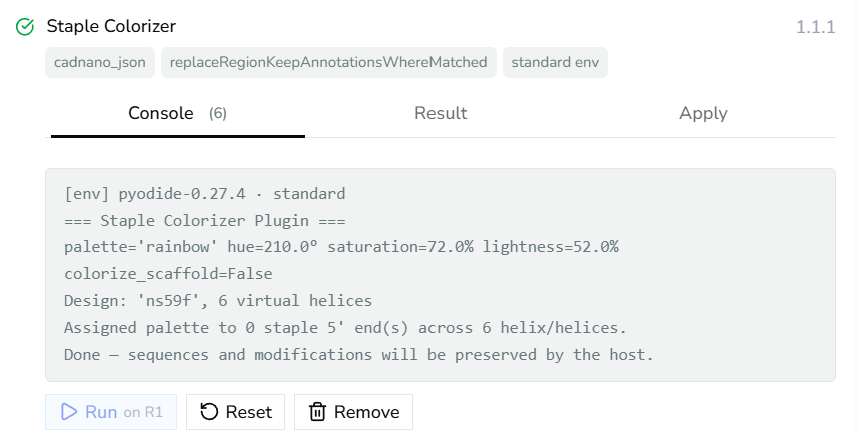
Same plugin's Console tab, showing the log output.
Formats
Plugins declare which design format they operate on:
| Format | Use |
|---|---|
cadnano_json | cadnano-compatible topology workflows (lossy for Foldnano metadata) |
foldnano_json | full Foldnano snapshots |
foldnano_edit | structured mutation logs replayed by the app |
If a plugin needs sequences, modifications, explicit scaffold labels, or freeform regions, prefer a Foldnano-native format (foldnano_json or foldnano_edit). A cadnano_json plugin can't see or preserve that metadata.
Installing Plugins
Warning
Only install plugins from people you trust. Treat a plugin like any script you would run on your own computer. Foldnano does not review plugins from outside its Hub. The sandbox (below) protects your account and your other designs, but a plugin still sees the design you run it on, and one that declares network access can send it to the sites it lists.
During the beta, plugins come from two places: the Hub, and .zip files on your computer. Foldnano does not install plugins from links to other websites, or from a .fplugin.json manifest on its own; if someone shares a plugin with you, ask for the .zip.
To install a .zip, click Import zip in the Plugins panel, or drop the file on the editor's start screen or into the Open dialog and click Install. Before installing, Foldnano shows what the plugin declares: its type and apply strategy, its network access, its environment, and its Python packages grouped by where they come from. Packages marked downloaded from PyPI are third-party code fetched when you activate the plugin. Plugin code loads only when you click Activate, and only receives your design when you click Run.
Installing a plugin whose ID is already installed asks whether to Replace the installed version, and points out if the new version changes its network access.
What a plugin can and can't do
Every plugin, and every Script Lab script, runs in a sandbox that is walled off from the rest of Foldnano.
| A plugin can | A plugin can't |
|---|---|
| Read the design you run it on | Use your GitHub account or reach Foldnano's server |
| Propose changes, which apply only when you click Apply (one undo step) | Read or change your other designs, backups, or settings |
| Produce reports and downloadable files | Contact any website it didn't declare under Network |
| Contact the websites it declares under Network | Keep running after you click Stop, or after 5 minutes |
| Install the Python packages it lists | Install from other websites during the beta (Hub and .zip only) |
If a plugin tries to reach a website it didn't declare, the request is blocked and its log says so, for example [sandbox] Blocked a request to api.example.org. That usually means the plugin needs an update from its author.
Safe Use Checklist
Before applying a mutating plugin
- Save or download the design (a
.fn.jsonbackup, ideally). - Check the active region, confirm it's the intended target, since region-scoped plugins act on it.
- Run a preview first if the plugin supports one, and read the plugin logs.
- Apply, then inspect the result.
- Undo immediately (
Ctrl/Cmd + Z) if it isn't what you expected.
Writing Plugins
Want to build your own? The Plugin Development section covers authoring, the runtime model, manifest fields, the plugin API, testing, and packaging.