
Saving And GitHub
Foldnano is local-first. Every edit lands in the browser working copy first. Only you, explicitly, move a design to a file or to GitHub; nothing is published automatically. Understanding this flow is the difference between never losing work and being surprised by a cleared cache.
Edit
Every command updates the in-browser working copy.
Autosave
Foldnano writes to IndexedDB after edits or elapsed time.
Stage
Choose which saved file content should be prepared for GitHub.
Commit
Write an explicit commit with a message straight to the branch on GitHub.
Autosave stops at the browser working copy. GitHub changes happen only when you stage and commit.
Export fallback: edit commands update the browser working copy; autosave writes IndexedDB; GitHub changes happen only after explicit stage and commit actions.
The Three Durability Levels
| Level | Where it lives | Survives… | Created by |
|---|---|---|---|
| Working copy | Browser IndexedDB | Reloads, restarts | Autosave + manual Save |
| File backup | Your disk | Browser data being cleared | Export as Foldnano JSON (.fn.json) |
| GitHub commit | Remote repo | Anything local | Stage, Commit |
Warning
For anything you care about, keep it at at least level 2 (a downloaded .fn.json), because level 1 alone can be wiped by clearing browser data.
Browser Storage
Local documents are stored in IndexedDB (not localStorage). This is what makes the editor work with no backend server, but it also means clearing browser data can delete your local documents. See the privacy page for everything Foldnano stores and which services your browser contacts.
Backups for important work:
- download a
.fn.json(Save menu → Export as Foldnano JSON), - connect GitHub and commit the file,
- keep a copy of any exported simulation files you'll need.
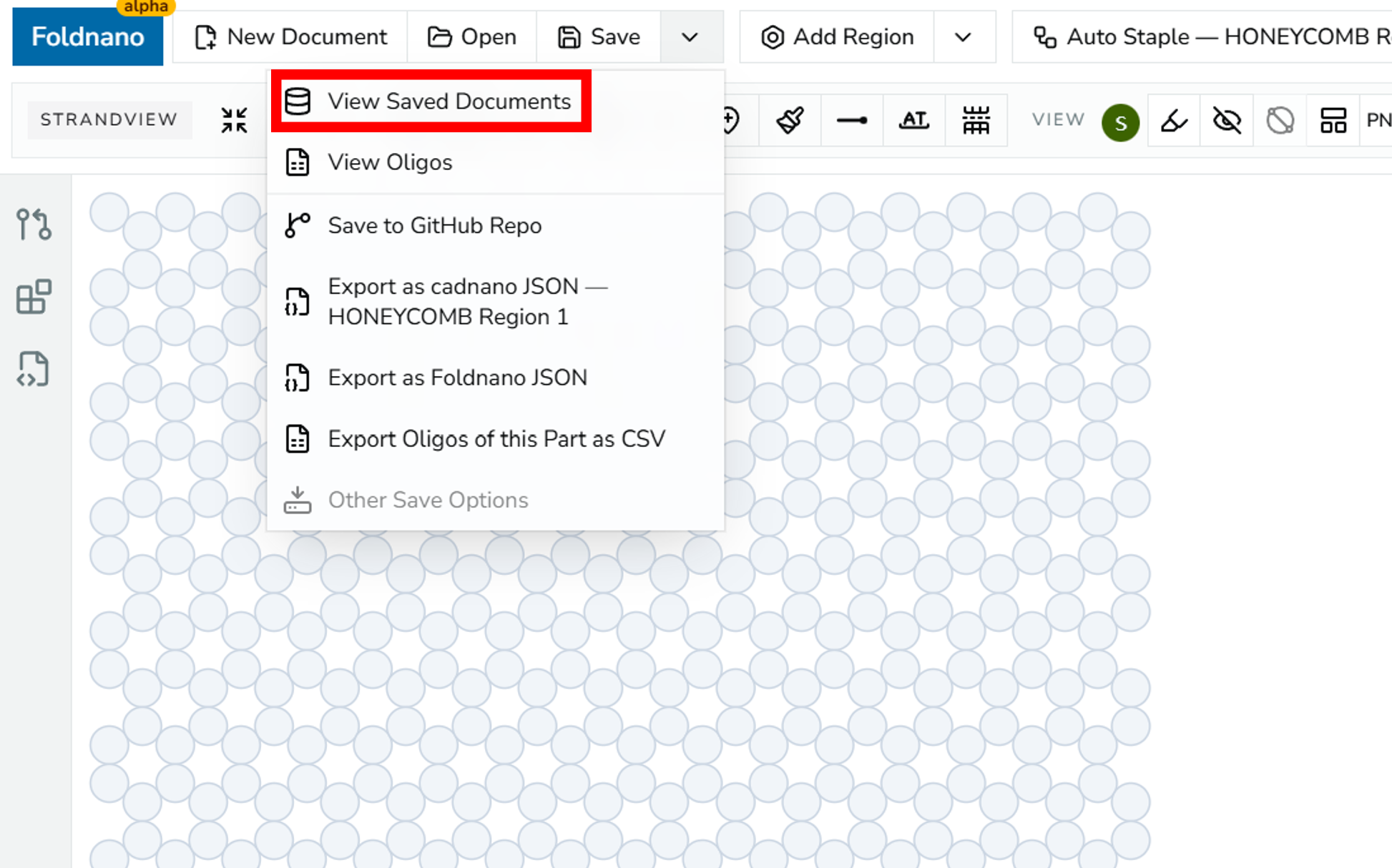
Save menu with 'View Saved Documents' highlighted.
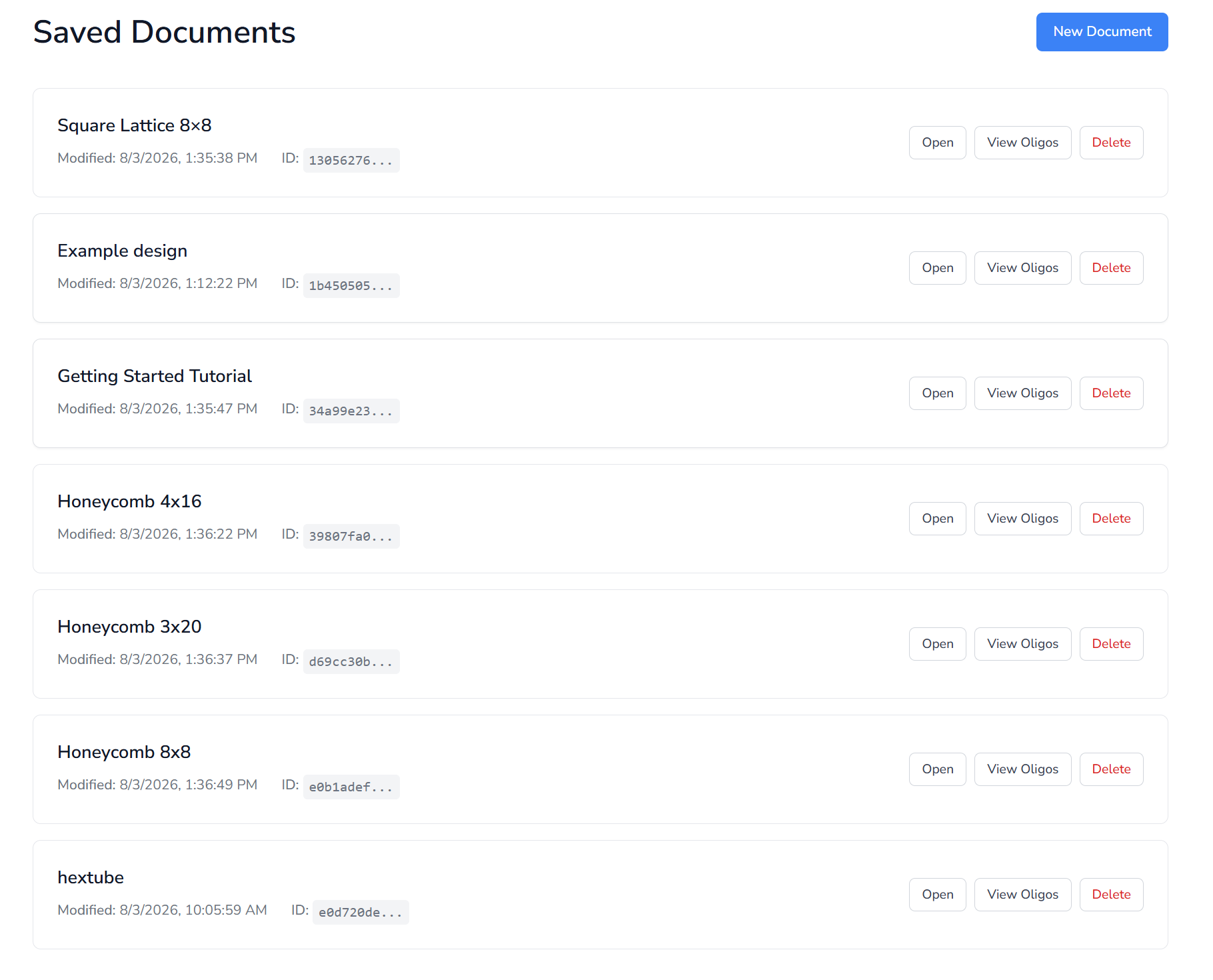
Saved Documents panel listing local IndexedDB documents.
A design has a single name: the document name in the toolbar. For a design saved as a file (on GitHub or as a local-only file in a repository), it is the file name without .fn.json, and renaming one renames the other. Every export is named after it too, for example My design.cadnano.json, My design_route.svg, or the oxDNA and CSV files.
The Saved Documents page (/toc) lists every document in this browser. Each card has Open, View Oligos (the Oligo Report), and Delete; New Document starts a fresh one. Above the list you can sort by last modified or by name, show only Local or GitHub documents, and switch to a compact table view. Your choice is saved in the page address, so it survives a reload or a bookmark. The editor's save status next to the document name shows whether the latest edits are stored (see Interface Reference).
Autosave
Autosave writes the current working copy to IndexedDB after committed edits or after some elapsed time (default policy: roughly every 10 committed edits or every minute). It does not download a file, push to GitHub, or create a commit. It only refreshes the level-1 working copy.
Foldnano also saves when you switch to another tab or window. If you try to close the tab while edits are still unsaved, the browser asks you to confirm.
When saving fails
If the browser refuses to store the design (for example because storage is full or blocked in a private window), the save status turns red and a banner appears at the top of the editor:
- Retry tries to save again.
- Download .json downloads the current design as a
.fn.jsonfile, so your work is safe even if browser storage keeps failing.
Foldnano retries once on its own after a few seconds and keeps retrying while you edit, but download a copy if the banner stays.
Persistent storage
Browsers may clear a site's storage when disk space runs low. After your first save, Foldnano asks the browser to keep its storage persistent. Some browsers (Firefox) show a permission prompt for this; allowing it protects your local designs. The storage-info icon next to the save status tells you whether the browser has agreed.
GitHub Connection
Use the GitHub panel to connect an account and choose a repository. All GitHub API calls go through Foldnano's own server routes, and the OAuth token stays in an httpOnly cookie, so browser/client code never reads it directly.
Common workflow:
- Connect to GitHub (top toolbar GitHub button, or Connect to GitHub in the Source Control panel).
- Set up a repository: choose the repository and branch.
- Create or open a design file in the Files tab, or publish the open design with Save to GitHub Repo.
- Edit. Changed files show up in the Changes tab.
- Stage the files and Commit with a clear message. The commit is written straight to the branch on GitHub; there's no separate push step.
The Source Control panel opens from the icon rail on the left (pull-request icon), from your avatar in the top toolbar, or from the Commit button that appears in the top toolbar for GitHub files.
When your GitHub session expires
GitHub sign-ins don't last forever. Foldnano renews yours in the background when it can. When it can't, a banner says Your GitHub session has expired; your design is still saved in this browser, and nothing is lost. Click Sign in again: after signing in you come back to the same design, and anything you hadn't committed yet is still marked as uncommitted, ready to commit.
Tip
New to Git? Read GitHub's Git Handbook before using branches and commits in shared repositories.
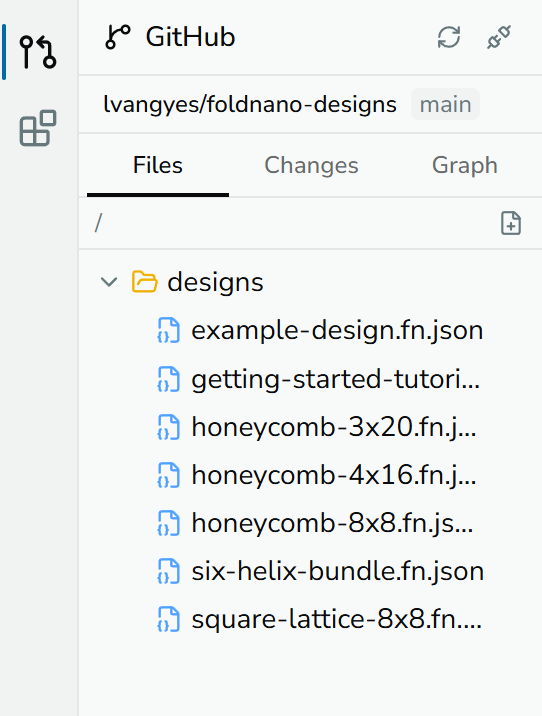
GitHub panel, Files tab, showing the connected account and selected repo/folder.
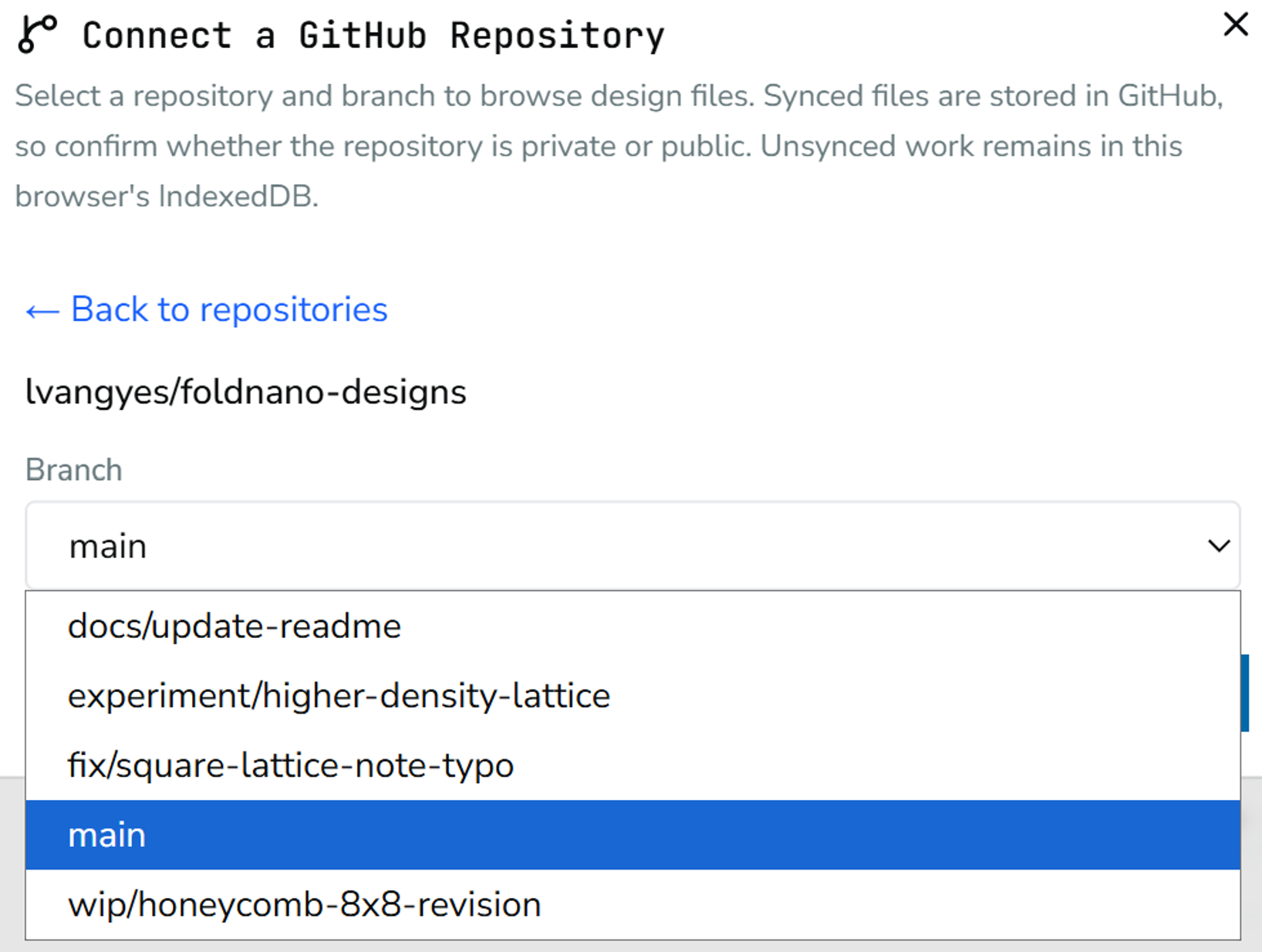
GitHub panel with the repository connected and the branch selector open.
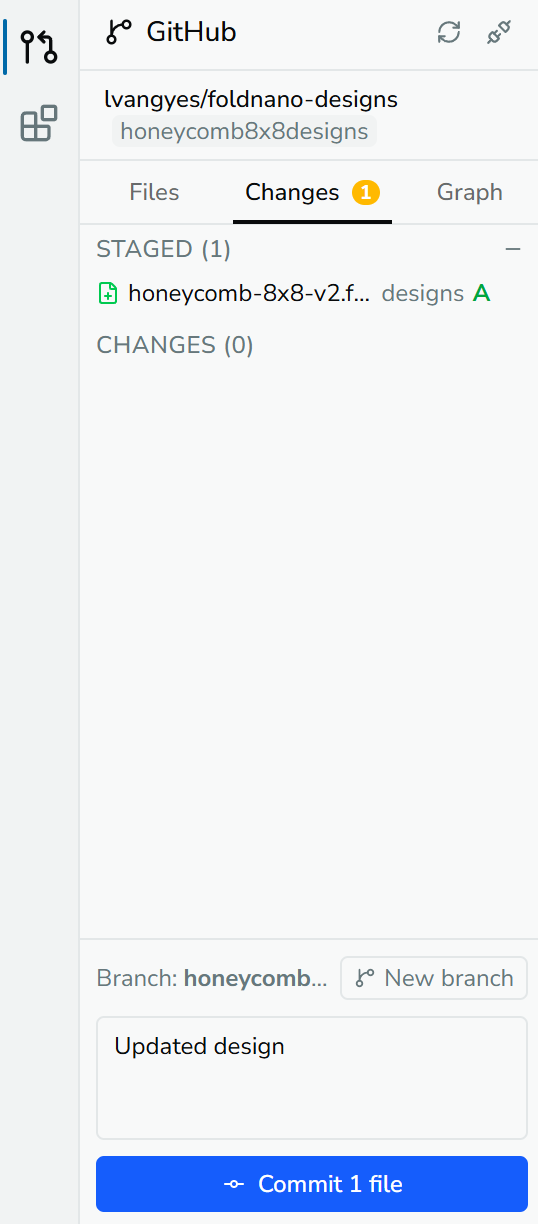
GitHub panel, Changes tab, showing the stage/commit controls.
Setting up a repository
After connecting, Setup Repository opens Connect a GitHub Repository. Search your repositories, pick a Branch, and click Connect. If a private repository is missing from the list, use Install or configure app access → to grant Foldnano access to it.
The panel header then shows three buttons: Pull latest from GitHub (for the open file), Refresh file tree, and Disconnect repository.
Files tab
The Files tab shows the repository's design files (.json). Click a file to open it. A file marked as cached locally has no unsaved changes.
- New design file (file-plus icon) opens New Design File: choose a Folder, enter a File name (
.fn.jsonis added), and click Create & Open. The file exists only in this browser until you commit it. - Opening a cadnano
.jsonasks Open as Foldnano document?: a new.fn.jsonis created in the same folder for your edits, and the original stays unchanged. - Right-click for more actions:
| On | Actions |
|---|---|
| A file | Open, Rename, Copy path, Download, Delete |
| A folder | New design here, New folder, Delete folder |
| Empty space | New design, New folder |
Delete doesn't remove the file from GitHub immediately. It is staged for deletion and removed when you commit. If the file has uncommitted local changes, you're first offered to commit them so they stay in the history.
A banner at the top of the tab warns when the open file is out of sync:
| Banner | Options |
|---|---|
GitHub has newer changes. | Pull |
Diverged — local and remote have both changed. | Review changes (open the diff), Commit local, or Discard & pull |
Saving an existing design to GitHub
Save menu → Save to GitHub Repo opens Save to GitHub for a design that isn't on GitHub yet: choose a Folder, File name, and Commit message, then Publish. Check whether the repository is private or public before publishing sensitive designs. For a design that's already on GitHub, the same menu item opens the Changes tab instead.
Creating a design outside the repository
With a repository connected, New Document in the top toolbar offers two choices. New File in your repository opens the New Design File dialog described above. Local-Only Design creates a design that stays out of the repository's Files and Changes tabs and is listed on the Saved Documents page. You can still publish it later with Save to GitHub Repo.
Renaming a GitHub file with the document name field asks you to confirm Rename & Commit, since the rename is committed together with any pending local changes.
Changes tab
The Changes tab (with a count badge) lists modified, new, and deleted files in two groups:
- Changes: click + to stage a file, or Stage all.
- Staged: click − to unstage, or Unstage all.
Click a file to see its diff. Right-click a file for Discard changes (your local version becomes a backup, but only the last 5 are kept, so download it if you may need it) or, for a staged deletion, Undo staged deletion. Discarding a new, never-committed file deletes it permanently.
Below the lists, enter a Commit message and click Commit. Each staged file becomes its own commit, so if some files can't be committed (for example because they changed on GitHub), the rest still go through; a message lists which files were left and why, and they stay in Changes with your message kept for another try. The current Branch is shown; when you're committing straight to main or master a warning appears, with New branch to create and switch to a branch first.
Graph tab
The Graph tab shows the commit history as a graph, with uncommitted local changes at the top. Click a branch label to switch to that branch, + to create a new branch, Load more for older commits, and Refresh to update.
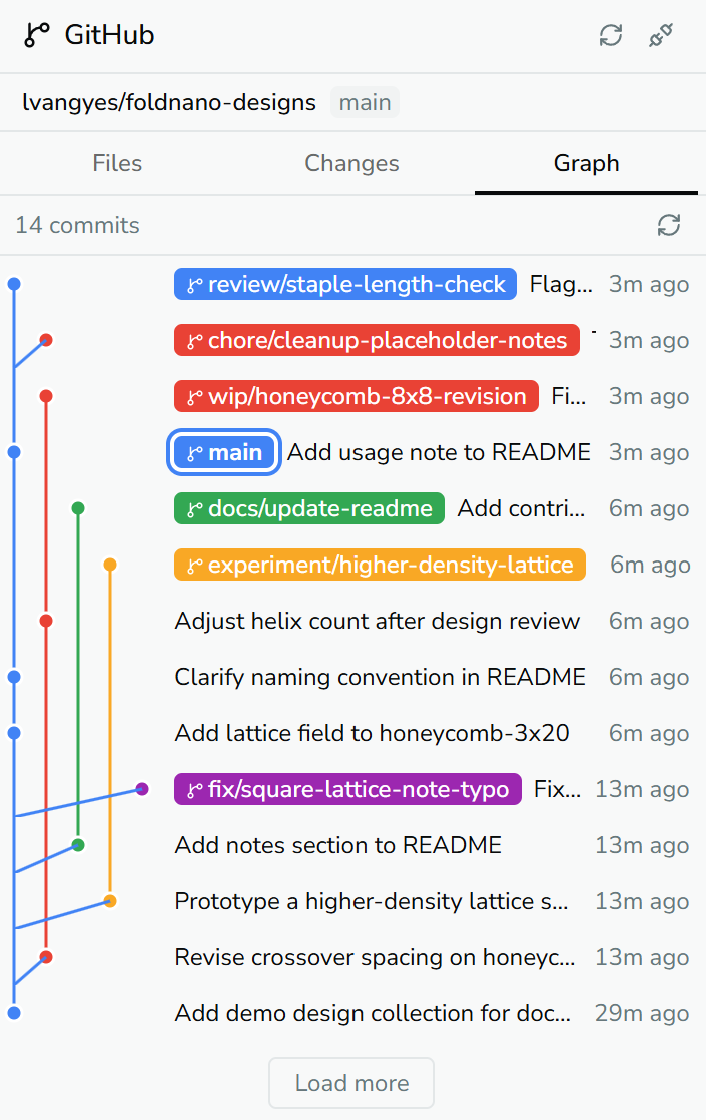
The Graph tab: branch labels on the commit graph; click one to switch to that branch.
Branches, Stage, Commit
- A branch is a line of work.
- Staging prepares the current file content to be committed.
- A commit records an explicit, message-tagged snapshot.
Note
Autosave never means auto-commit. Foldnano will not silently publish local browser changes to GitHub; the stage and commit steps are always explicit.
Pull, Overwrite, And Conflicts
When the file on GitHub changed since you last synced, committing stops with Conflict detected and offers:
| Option | Effect |
|---|---|
| View diff | Compare your local version with GitHub's |
| Pull latest first | Replace your local copy with GitHub's (asks first if you have local changes) |
| Force overwrite | Commit your version over GitHub's |
| Create new branch | Commit your changes to a new branch instead |
The diff dialog shows the two versions side by side (Local (your changes) and GitHub's). From there:
- Keep local writes your version to GitHub,
- Accept remote replaces your local copy with GitHub's,
- Edit & resolve opens the merged file with conflict markers so you can edit it by hand, then Apply resolved JSON (or Back to diff).
Actions that overwrite your local copy keep it as a backup first. Even with those safeguards, keep your own .fn.json backups for important designs before resolving a conflict.
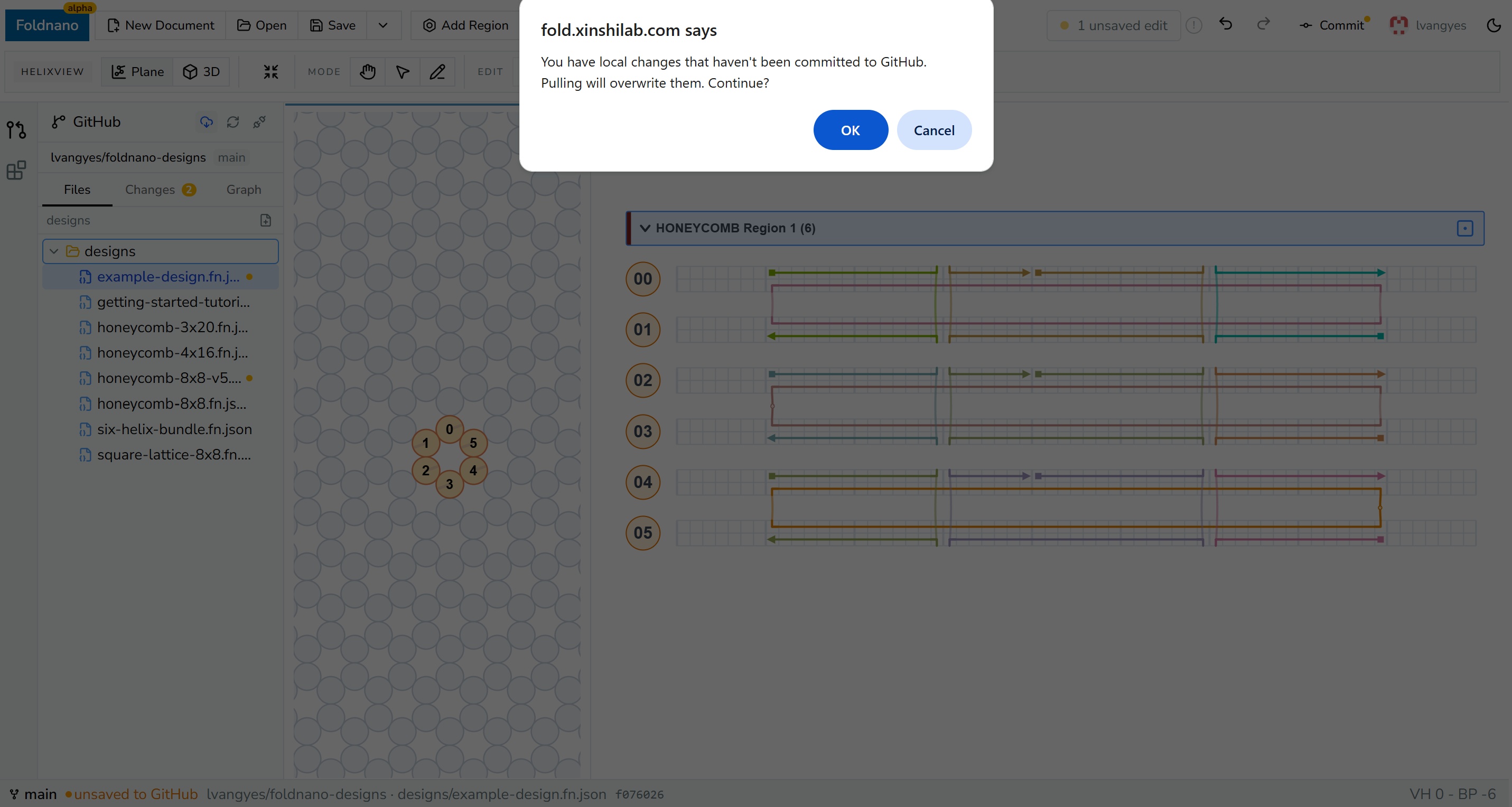
Pull/overwrite conflict prompt, a native browser confirm dialog warning that pulling will overwrite uncommitted local changes.
Pulling overwrites your local working copy with the GitHub version, so commit or discard local changes first if you want to keep them.
Backups
Foldnano keeps the last 5 versions of each design in this browser. It saves one about every 10 minutes while you work, and one right before anything replaces your copy: pulling from GitHub, accepting the GitHub version, switching branch, resolving a conflict, discarding local changes, or restoring a backup. When a sixth is added, the oldest is removed.
Open Backups from the Save menu (or from the status bar for GitHub files). Each backup shows when it was kept and why, for example Automatic backup or Before pulling from GitHub with the branch and file. Select one to see how it differs from your current design, then:
- Download .fn.json saves that version as a file, without changing your design.
- Restore this backup replaces your design with it. Your current version, including edits that weren't saved yet, becomes a backup too.
Backups are a short-term safety net, not storage. Only the last 5 are kept and older ones are removed automatically, and they stay in this browser: they are not synced to GitHub or to other devices, and clearing browser data deletes them. If you want to keep a version, download it.
When a design can't be opened
If a saved design is damaged, or was saved by a newer version of Foldnano, the editor shows a recovery page instead of the design:
- Download saved data (.json) downloads the stored data exactly as it is, so nothing is lost.
- Backups lists earlier versions, newest first. Download .fn.json saves one as a file. Restore replaces the unreadable copy with that version and opens it; the unreadable copy becomes a backup (only the last 5 are kept, so download the saved data first if you may need it). Backups that can't be opened either are marked and can't be restored, but can still be downloaded.
- Reload page appears when the design is from a newer Foldnano: reloading gets the latest version of the app.
- Open another design goes to your saved designs.
For GitHub files, the status bar at the bottom of the editor also shows the current branch, unsaved to GitHub or ↓ remote ahead, the repository and file path, and the short commit ID.
Multi-Tab Protection
Only the owning tab writes a document's working copy. If you open the same document in several tabs, Foldnano gates saves so two tabs can't race to persist incompatible states. A non-owner tab can still view the design but won't write over the owner's saves. When the owning tab closes, another tab with the same document takes over automatically and first reloads the latest saved version, so it never works from an outdated copy.
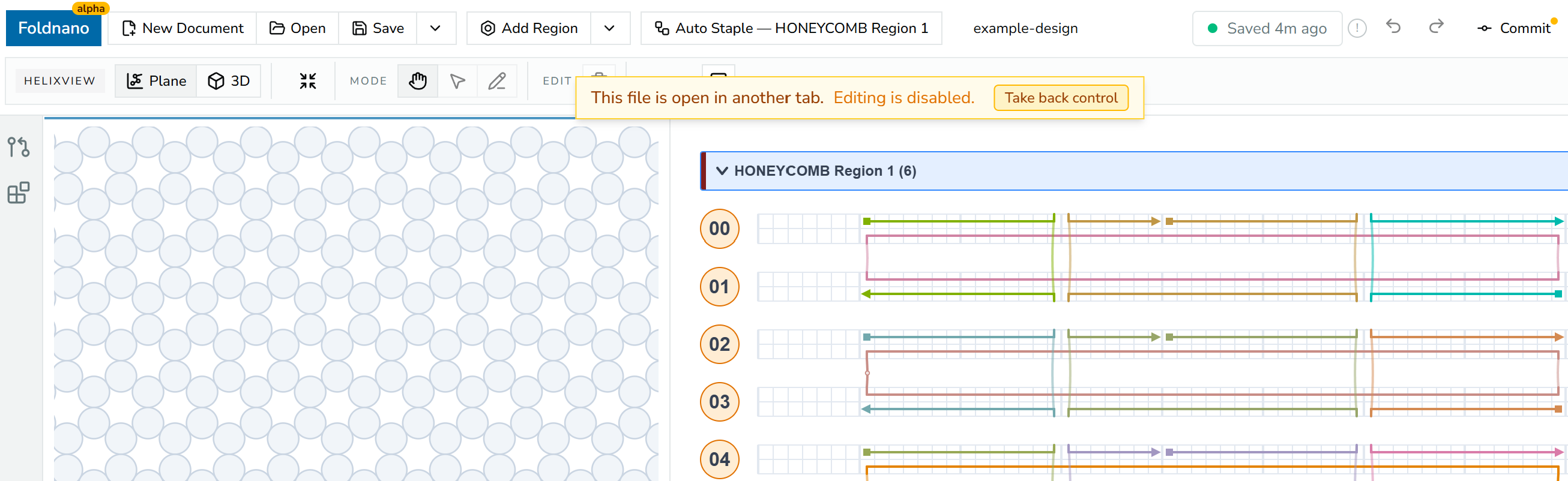
Non-owner-tab notice: 'This file is open in another tab. Editing is disabled.' with a 'Take back control' button.